Your first task with Bob
This walk-through needs nothing connected: no email, no calendar, no cloud account. You will write a short note in a Word document, ask Bob to turn it into a customer notice, read what he proposes, and then apply it, undo it and see the version history. You will need a model for Bob first. If you have not set one up, start with Install Blochworks.
1. Create a document
- In the sidebar, select the + beside Documents.
- A new Word document opens, using the built-in Bloch template. Select its name at the top and rename it, for example "Closure notice".
- Click into the page and type a rough note, such as: We are closed on Monday 3 November for stocktaking. Open as normal on Tuesday.
- Press Cmd+S to save. The status line says Version 2 saved.
2. Ask Bob
- Select the crab, labelled Open Bob. A panel opens headed Bob, with Working with and a file name.
- In the Ask Bob box, type: Rewrite this as a short, friendly notice for customers.
- Press Enter and wait for the proposal. If the rewrite does not match the tone you want, discard it and ask more precisely, for example for a greeting and a thank-you.
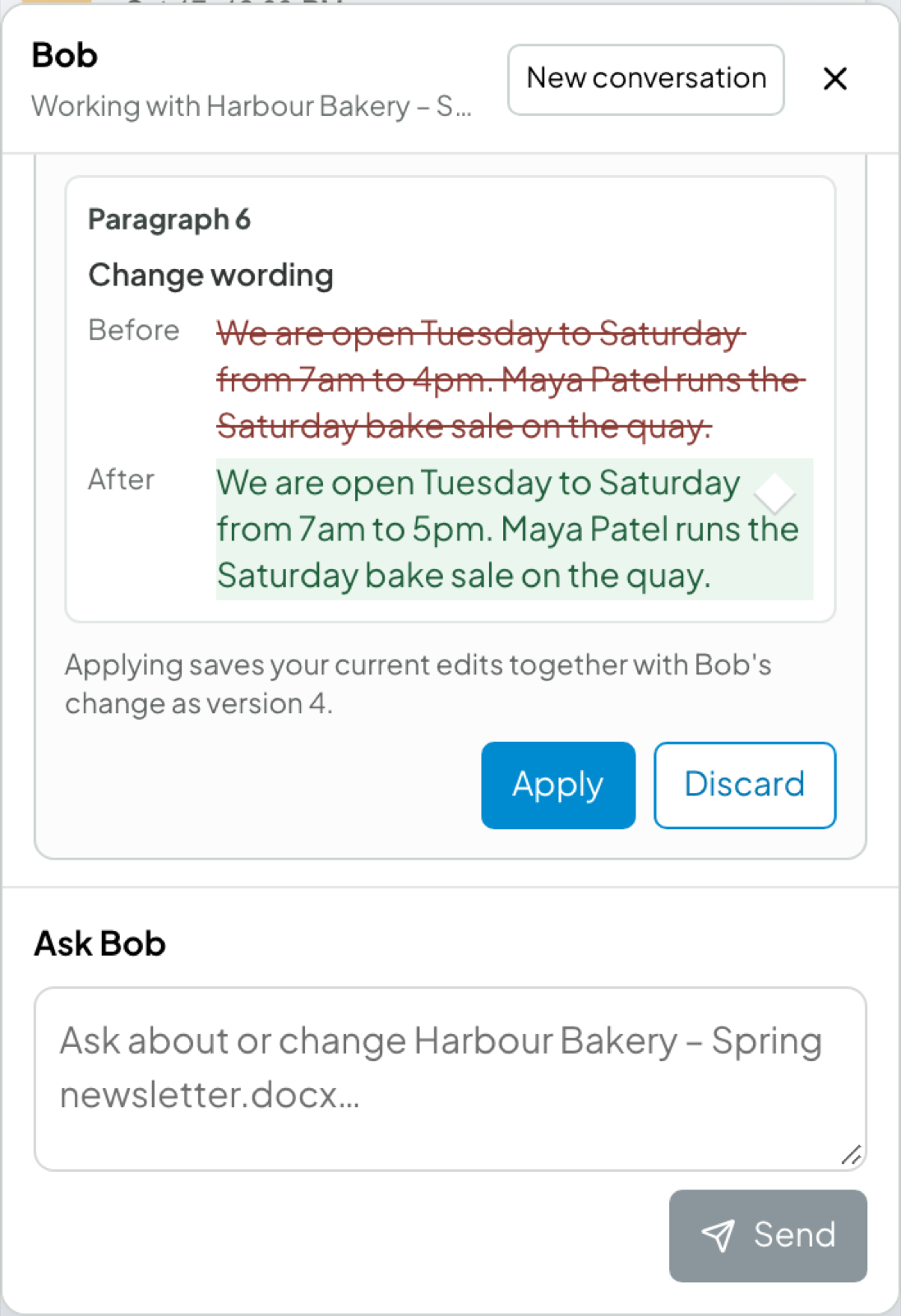 Bob never edits the page directly. He shows a proposal first.
3. Read the proposal
Bob shows his proposal as a card headed with a count, such as 1 change: 1 wording, with his description and a Before and After for each paragraph. Compare the Before and After text. Check dates, times and names. A small on-device model can get a detail wrong, and it is quick to misread a line, so this check matters.
If the card says Removes or hides content, Bob wants to delete something. Apply stays greyed out until you tick I understand this removes or hides this content. If you did not ask for that, select Discard.
4. Apply or Discard
- Select Apply to make the change. The panel says Applied as version 3 (or the next number). Your own unsaved edits are saved in the same version. In the page, Bob's change shows as a tracked change: the old text struck through and the new text beside it, and the status line says review Bob's tracked changes.
- Select Discard to throw the proposal away. The document stays exactly as it was. You can ask again, more precisely.
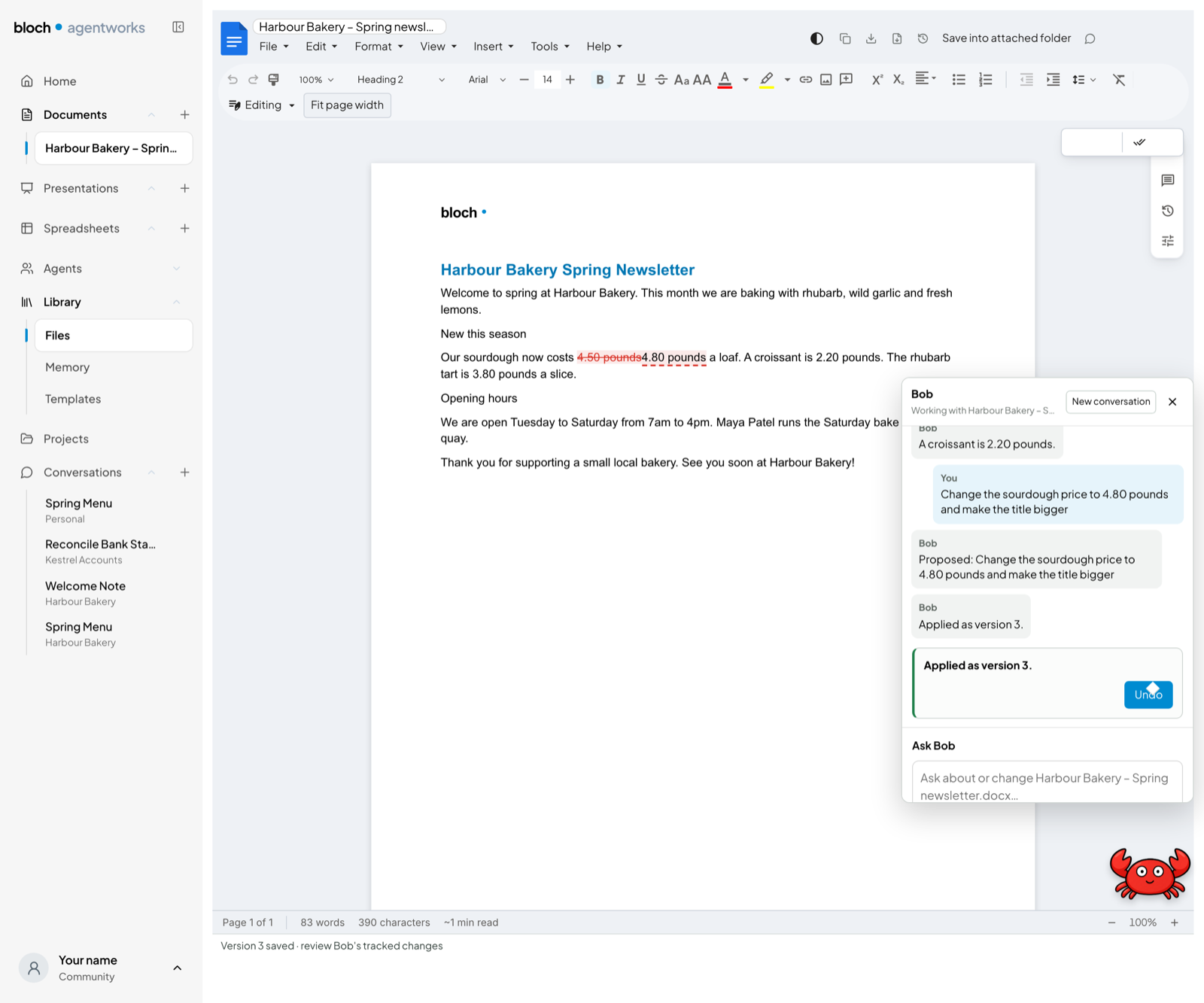 After Apply, Undo puts the document back as it was.
5. Undo, and version history
In Bob's panel, select the blue Undo button under Applied as version 3 (not the undo arrow in the editor's toolbar) to reverse Bob's change. The panel then says Undone as version 4. Undo is itself saved as a new version, so nothing is lost. It is only offered while the document is exactly as Bob left it. If you have edited it since, use Version history instead.
To see every version, select the clock-style Version history button in the editor's toolbar. Each version shows its date and time. Select Restore Version and its number to bring that version back.
Using the same review process elsewhere
In the document panel, Apply accepts the proposed edit. Ordinary email sends, calendar changes and local file changes use an approval request showing the exact action. Some work can use standing permissions you set up, such as automatic Friend replies. See Approvals for those settings.
Next
- Bob in your documents: spreadsheets, presentations, comments and export.
- Email and Telegram: connect a mailbox when you want Bob to draft emails.