Install Blochworks
This page gets you from download to a Bob who can answer. It takes about ten minutes, plus the time a model download takes if you choose one. You will meet a few names for the same product. On a Mac the app in Applications is called Bloch Agentworks and the workspace inside it is branded blochworks. The Windows installer file is named AgentWorks-0.1.0-Windows-x64-Setup.exe, and the licence text under About and legal says AgentWorks. They are all Blochworks.
What you need
- A Mac with Apple Silicon (an M1 chip or later). Intel Macs are not supported by this beta.
- Free space for both the Mac .dmg download and the installed app. Check the size supplied with your download; a model needs space in addition to the app.
- A model for Bob. You can allow about 3.3 GB more for the built-in Bonsai 8B model (about 3 GB for Bonsai 2 9B, which can also read pictures), or use a cloud or compatible local model service you already have.
This guide covers the Mac app. Windows has a separate installer and uses a connected cloud service or compatible local model server; follow Installing and updating for those steps.
Install
- Download the .dmg file from the link you were given.
- Open it and drag the app into Applications.
- Open the app from Applications.
The first time, macOS shows a warning, because the beta is not yet notarised by Apple. This is expected. Close the warning, open System Settings → Privacy & Security, and select Open Anyway next to the message about the app. You only do this once. The exact steps are in Installing and updating.
First launch
The app opens in its own window after a few seconds. You do not need to create an account or sign in. A card headed Choose a model for Bob takes the place of the message box until a model is ready.
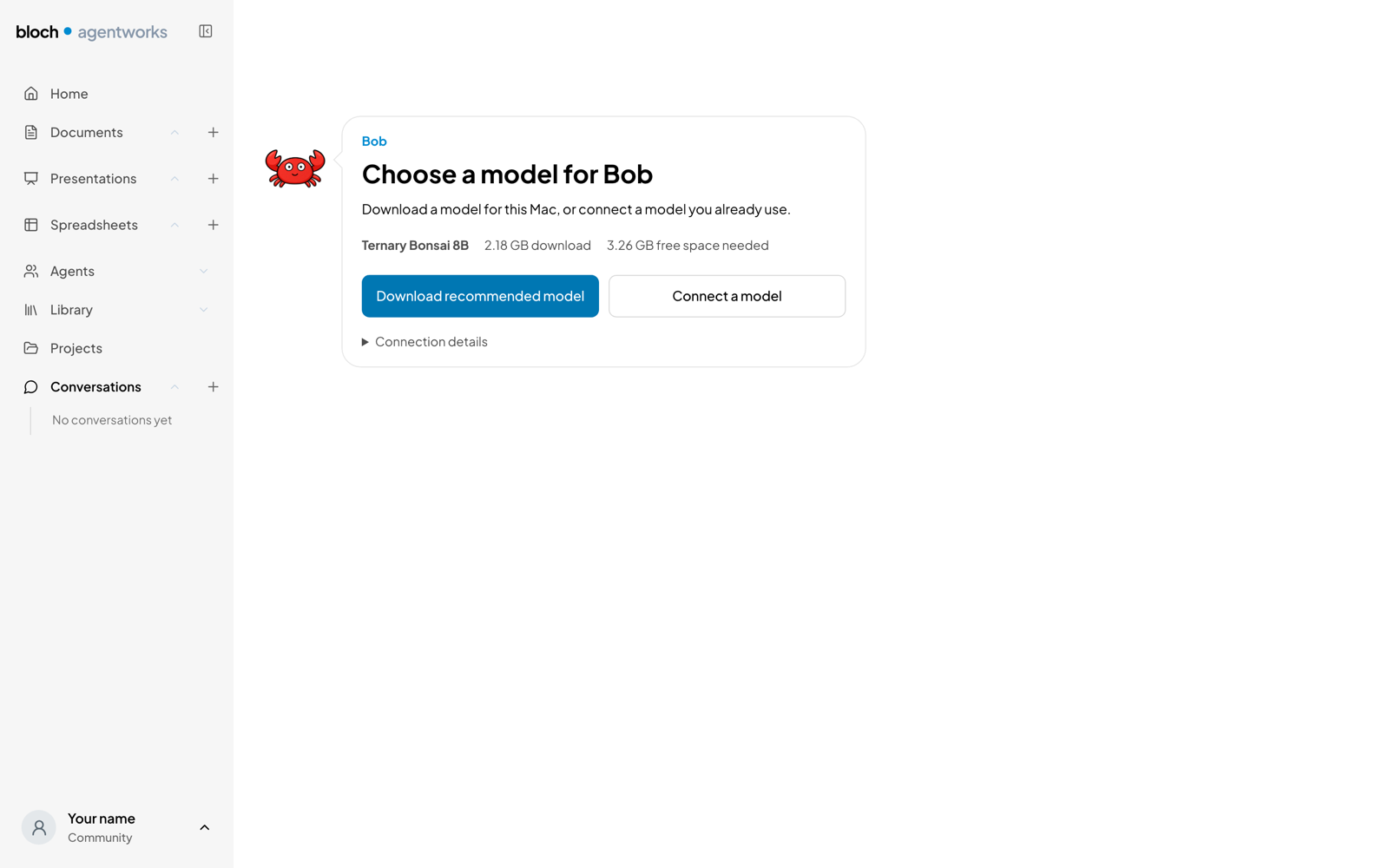 Until a model is ready, Bob cannot reply.
Get a model
You have two choices. You can change your mind later.
- Download a model to run on your Mac. Select Download recommended model. This is Bonsai 8B, a 2.18 GB download from Hugging Face. When it finishes, Blochworks runs a short speed check on your Mac, and the button changes to Connect and start chatting; select it to finish. (If you download from Settings → Models instead, the button is Use this model.) There is no model-service fee, and replies appear when the answer is ready.
- Connect a model you already use. Select Connect a model and choose a cloud service such as Claude, OpenAI or Gemini, or a compatible local server on this Mac. Cloud services receive the work you send and may bill you; a server on this Mac keeps its model requests here. Follow Choosing a model for Bob for the connection steps.
Choosing a model for Bob walks through both, step by step.
Updating
There is no automatic update. A new version arrives as a new .dmg file. Quit Blochworks, drag the new app into Applications and replace the old one, then open it. Your conversations, documents and settings are kept in your profile folder, not in the app, so they stay. Before a big update, copy your profile folder as a backup (see Your data and privacy).