Approvals
Bob can read permitted material and prepare drafts without a separate approval for each one. Sending a message or making a change normally needs your review of the exact action. This page explains those requests and the standing permissions that allow some work to run automatically.
The approval model
- Drafting never needs approval. Bob can write an email or a document draft freely. A draft of an email is saved in your mailbox with your email provider before you approve any send, so the provider holds the draft text, but nothing is sent.
- Sending needs one review of the exact final message. If anything in it changes, such as the wording or the recipient, you are asked again. An approval covers exactly the action shown, once, and nothing else.
- Other consequential actions work the same way. This includes creating a calendar event, creating, renaming, moving or deleting files, requesting a managed Obsidian note change, submitting a form in the browser, and using a tool connection you marked as needing approval.
- The action awaiting approval has not been dispatched. Preparation may already have happened, such as saving an email draft or reading availability. If the request expires or you decline it, the proposed send or change is not performed. Bob is told when you decline, and does not simply try again.
What runs without asking
Five things do not ask each time. Know them, because you set most of them up yourself:
- A Friend set to Automatic replies and acts within the permissions you gave it, without a review of each message. Files still require your review before delivery.
- Email me job results sends the results of your scheduled jobs to you, without a review.
- Tool operations set to Runs without asking can run within their assigned permissions. Outside content or a connection-wide approval rule can still require review.
- A coding agent set to Bob supervises has its ordinary permission requests answered by Bob rather than by you. It is off by default.
- A first clean public search, page fetch or Browser navigation does not ask. Once outside content has entered the turn or conversation, a new outbound query or destination waits for approval. See Web search and the browser.
If Bob has read outside content in a chat, such as an email, a web page or a file, sends, calendar changes, tool calls and new outbound web queries or destinations later in that chat ask for approval even where you would normally allow them. The request says it was made after reading outside content.
Where approvals appear
- A floating card. When something needs your decision, a card appears over the workspace, headed Your approval is needed.
- The Approvals page. In the sidebar, expand Agents and select Approvals. It shows Waiting on you and Recently resolved, a lasting record of what was approved, turned down or expired.
- Telegram, if you link it. Under Configure Bob → Platforms, Approval prompts lets you choose On this device, Telegram or Both. The Telegram options are available once your private Telegram chat is linked. Short, ordinary requests can be answered from Telegram. Long or unusual ones say Review this request in blochworks. and must be decided in the app.
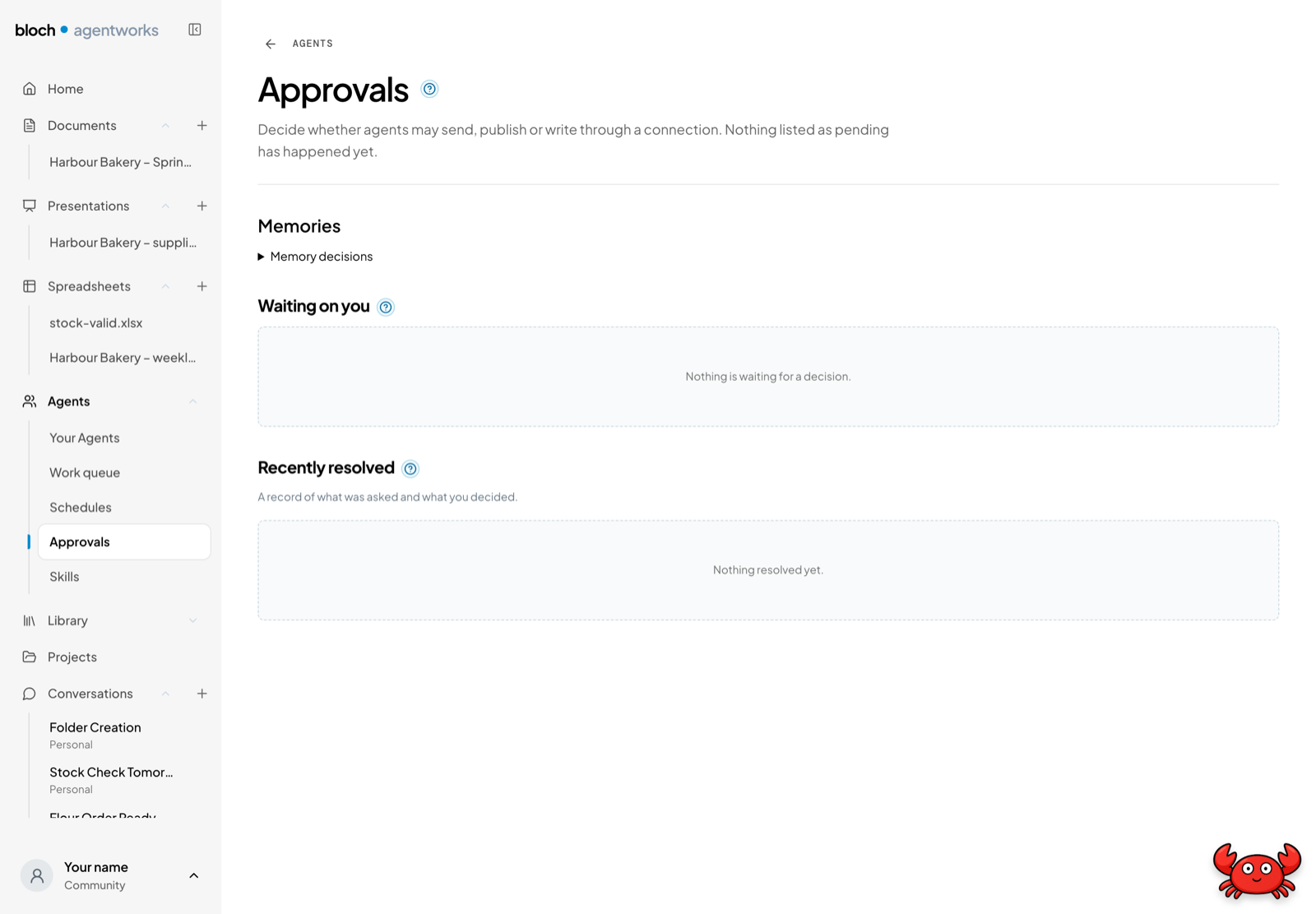 The Approvals page, under Agents in the sidebar. Requests waiting for you are listed under Waiting on you.
What an approval request shows
Each request says what Bob wants to do. Blochworks writes the short summary from the proposed action, not from the model. Select Show the full action before approving: the approval button stays unavailable until you open it, and a long action must be read to the end. Check the recipient, complete message or other exact input there. Buttons name the action, such as Send email, with Don't send to turn it down. You can add a note under Why not?, which Bob sees so he knows not to try the same thing again.
For a web query or destination proposed after outside content has been read, the card shows the exact search query or complete URL, including its path and query text, so you can see what would leave your Mac before you decide. Show the full action repeats it alongside the rest of the request. A Browser navigation also shows its browser profile and session. An old approval cannot be reused after a denial, withdrawal or relevant search or browser setting change.
If a request contains something that looks like a password or key, it warns you before you approve it.
If an approved action stops partway or the result is unclear, the request says Outcome uncertain. Check the website or service yourself before trying again. Blochworks does not retry it.
Coding agent requests
When a coding agent requests permission through Blochworks, the card shows the command or tool input being requested. By default you choose:
- Allow once lets that one action run.
- Don't allow stops it. The agent is told it was denied.
If you do not answer before the time shown, it counts as Don't allow.
The exception is Claude and Codex agents that you have switched on with Bob supervises in Settings → Agent programs. For those, Bob can allow or refuse ordinary requests for you and asks you only when he is unsure or the request is in a category you chose to always be asked about. It is off by default. See Letting Bob supervise Claude or Codex.
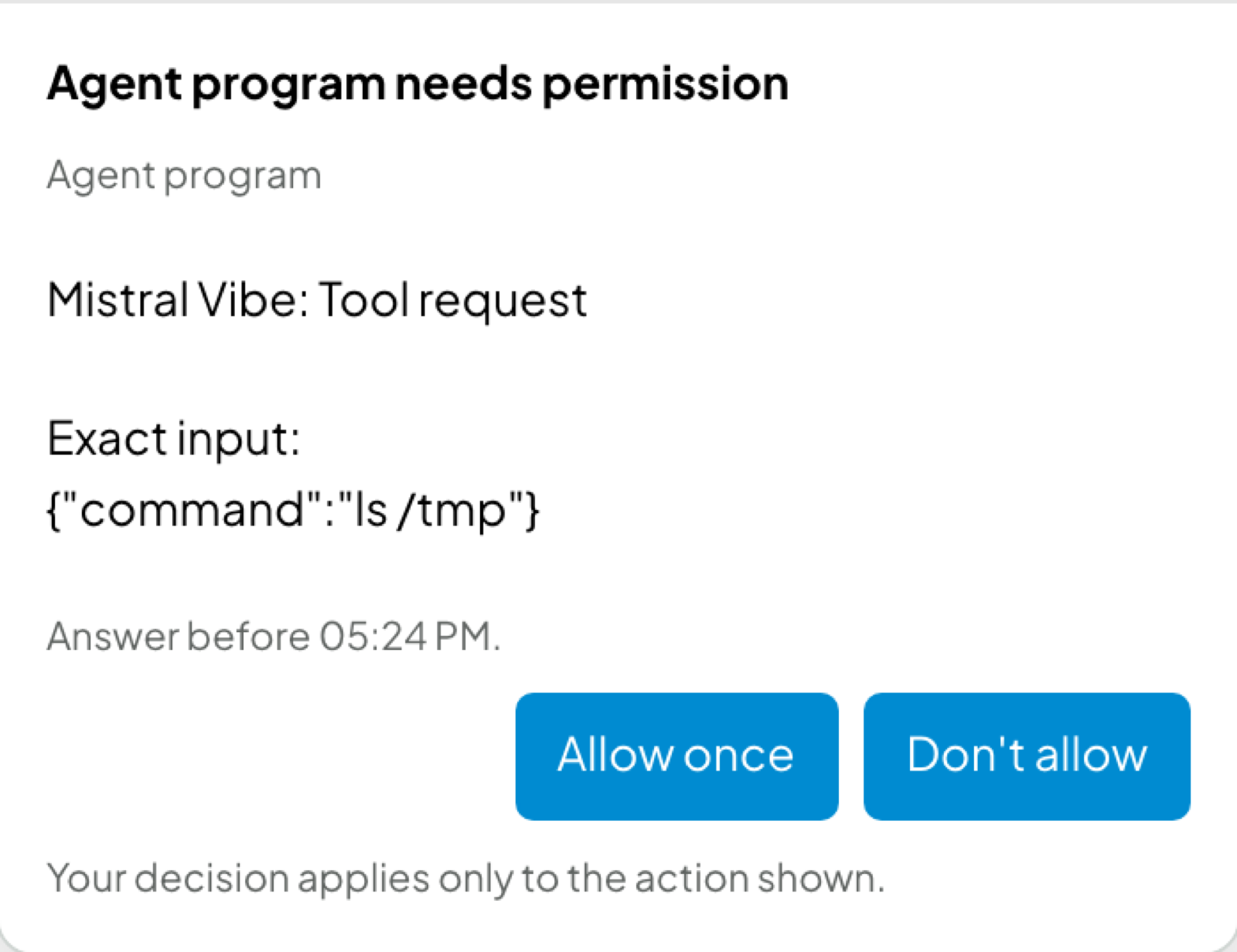 A coding agent asks to run a command. With the default setting, nothing runs until you press Allow once.
Coding agents run as programs on your Mac with your own permissions. Blochworks reviews what they ask it to do, but it does not put the program in a sandbox. Read the exact input on the card before you allow it.
Connect email and calendar first
To save a draft in your mailbox or use your calendar, connect the service in Settings → Tools → Add tool, then assign it under Configure Bob → Connections. Choose a mailbox or calendar access level that permits the work you want. Bob can help write email text without a mailbox connection, but cannot save or send it through a service you have not connected.
Also assign Email Management or Calendar Management under Bob's Skills → Tool access. Missing skills and missing connections have separate guidance. An approval cannot override either requirement.
Check the recorded result
Read the outcome shown with the action, as well as Bob’s reply. For an email, check the send result or Sent mail; for a booking or submitted form, check the confirmation from that service. If the outcome is uncertain, check before making another attempt.
A tool refusal prevents scheduled or delegated work from being reported as successful. This does not turn a model's description into proof that an external service accepted an action.
What leaves your Mac
- Mail reads, availability checks and provider-saved drafts contact the relevant service before any send approval. Sending an email or writing a calendar change follows the approval or standing-permission rules above.
- If you choose Telegram for approvals, the text of each request, including email text and invitation details, is sent to Telegram for you to read.
Limits and good to know
- You can decide requests in the app, an approved remote browser, or your linked Telegram chat where buttons are offered. Only approve access for devices and accounts you control.
- There is no "always allow this recipient" setting.
- Unanswered requests expire: after 72 hours for chats, and after 24 hours for scheduled jobs and delegated work.
- Sending a new message does not approve or decline an earlier request. Bob's chat and composer stay open beside the pending approval. After deciding the earlier request, use Resume task when offered to continue the held work.
- Removing an agent's Tool access skill cancels its earlier pending approvals and queued work, including dependent Friend work. Adding the skill back does not restore them; prepare a fresh request.