Bob in your documents
Blochworks has its own Word, spreadsheet and presentation editors, so you do not need Microsoft Office. While a document is open, Bob can read it with you, answer questions about it, and propose changes. This page covers how that works, what Bob will and will not change, and how to get back to an earlier version.
Office Tool access
Bob needs the matching Word Document, Excel Workbook or PowerPoint Presentation Tool access skill to answer about an open file or prepare a change. New Bob agents start with all three. If you remove one, you can still edit and save that type of document yourself; Bob's assistance becomes unavailable until you restore the skill. See Skills and permissions.
The same rule applies when you ask an agent to create a new Office file. Assign the appropriate skill to the agent doing the work.
Opening Bob inside a document
- Open a document from Documents, Presentations or Spreadsheets in the sidebar, or from Library and then Files.
- Select the crab, labelled Open Bob, to open Bob's panel. The panel's heading is Bob and it reads Working with followed by the file's name.
- To close the panel, select the X in its corner. Escape closes the normal chat panel; a pending permission prompt keeps its own keyboard handling.
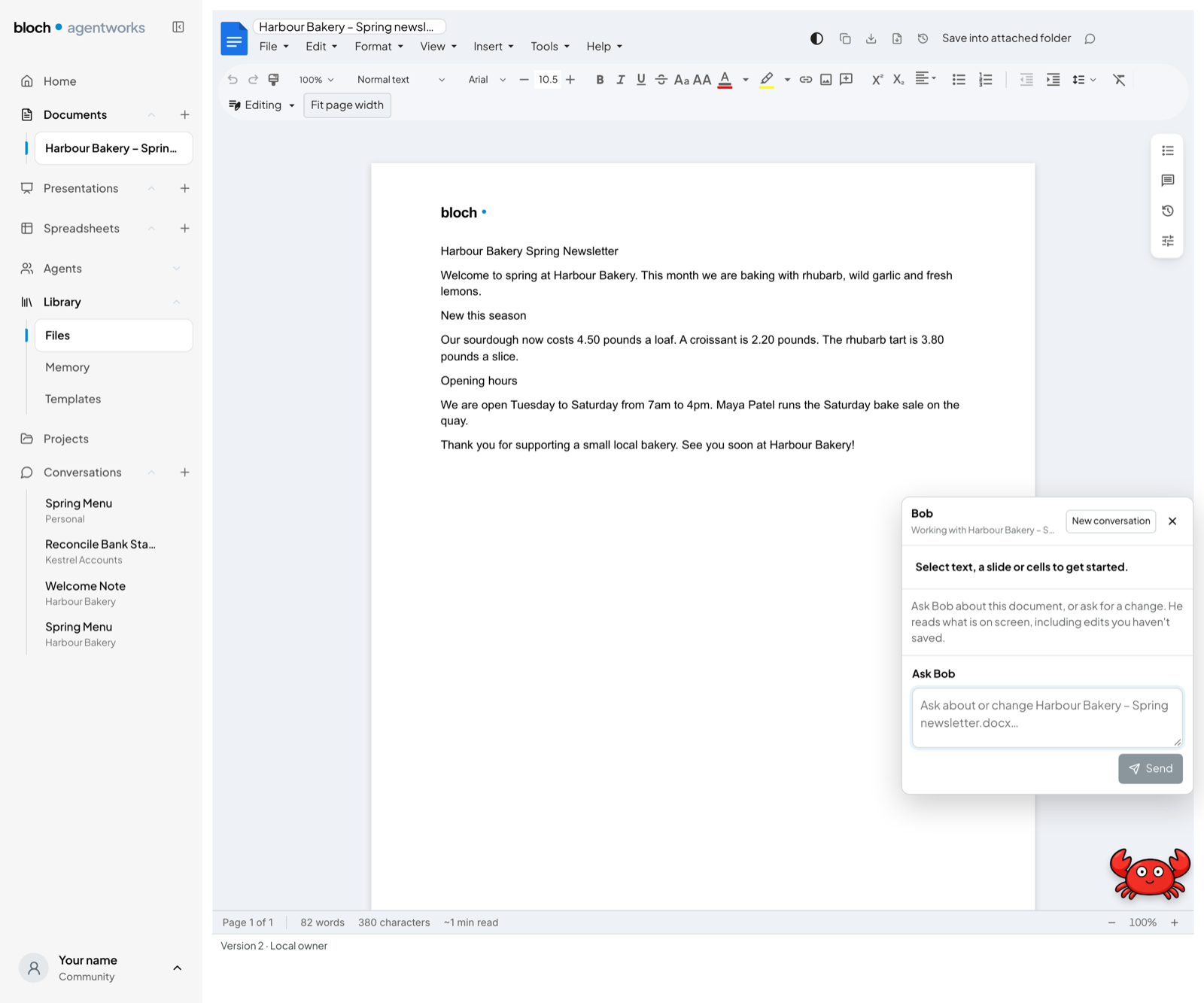 Open Bob from the crab to ask about the document you are working on.
Asking Bob a question
Type in the Ask Bob box and press Enter. Use Shift and Enter for a new line.
Bob reads what is on screen, including edits you have not saved yet. Ask him things such as "What does the second paragraph say?" or "What is the price of a croissant?". His answers are short.
Asking Bob to change something: proposals
Bob never changes your document on his own. When you ask for a change, he shows a Proposed change card first. Nothing changes until you press Apply.
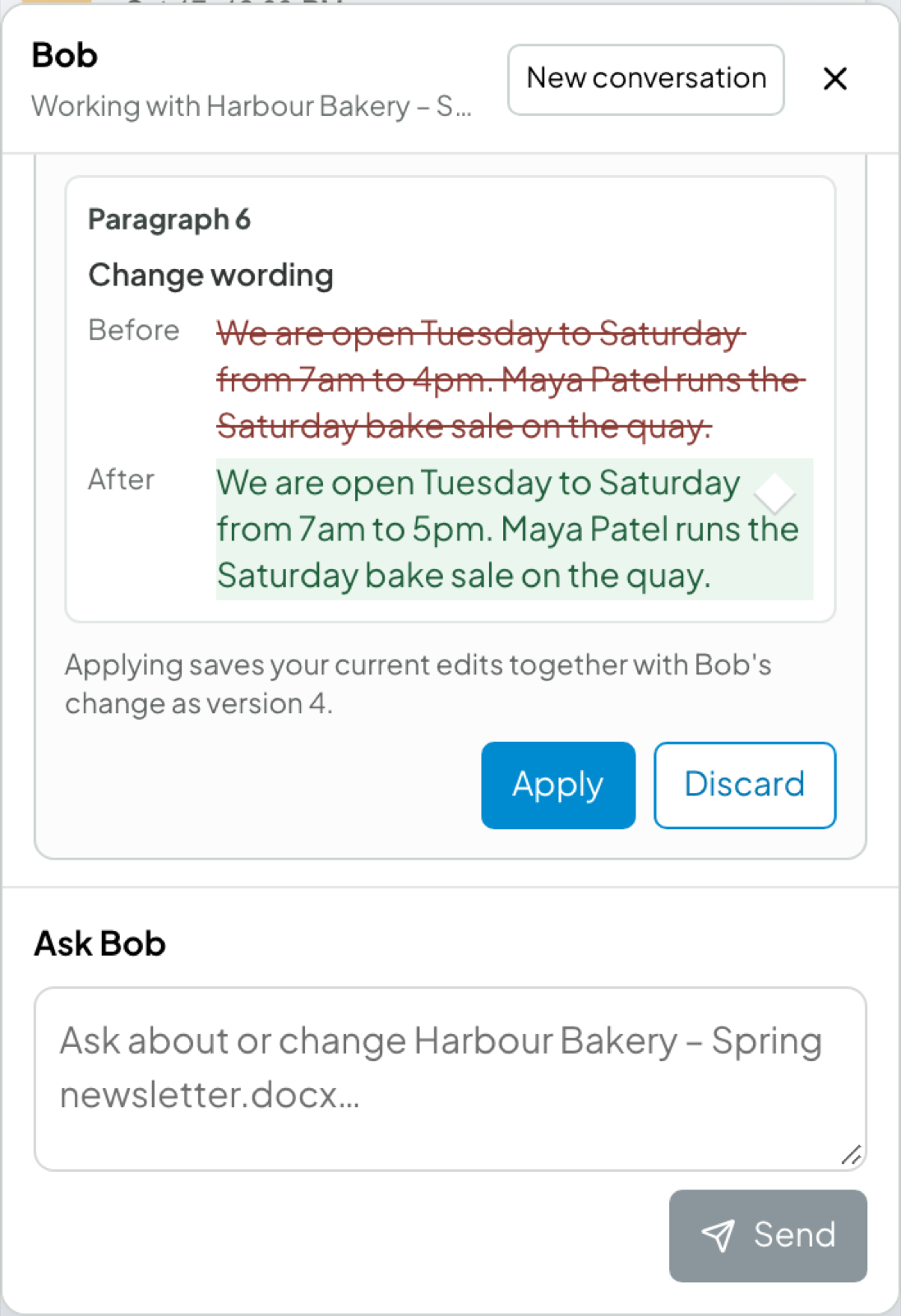 Each proposal shows what Bob will change, with the Before and After text side by side.
- Read the headline and Bob's description of the change.
- Compare the Before and After text, and check any numbers in it.
- Select Apply to make the change, or Discard to throw the proposal away. Discard leaves the document as it was.
If a proposal has more changes than the card initially shows, select the link to show all changes and read the remaining changes before applying it. The Apply and Discard controls remain available while you review the proposal.
When you select Apply, the card tells you that your unsaved edits are saved with Bob's change, as a new version. The panel then confirms the version number.
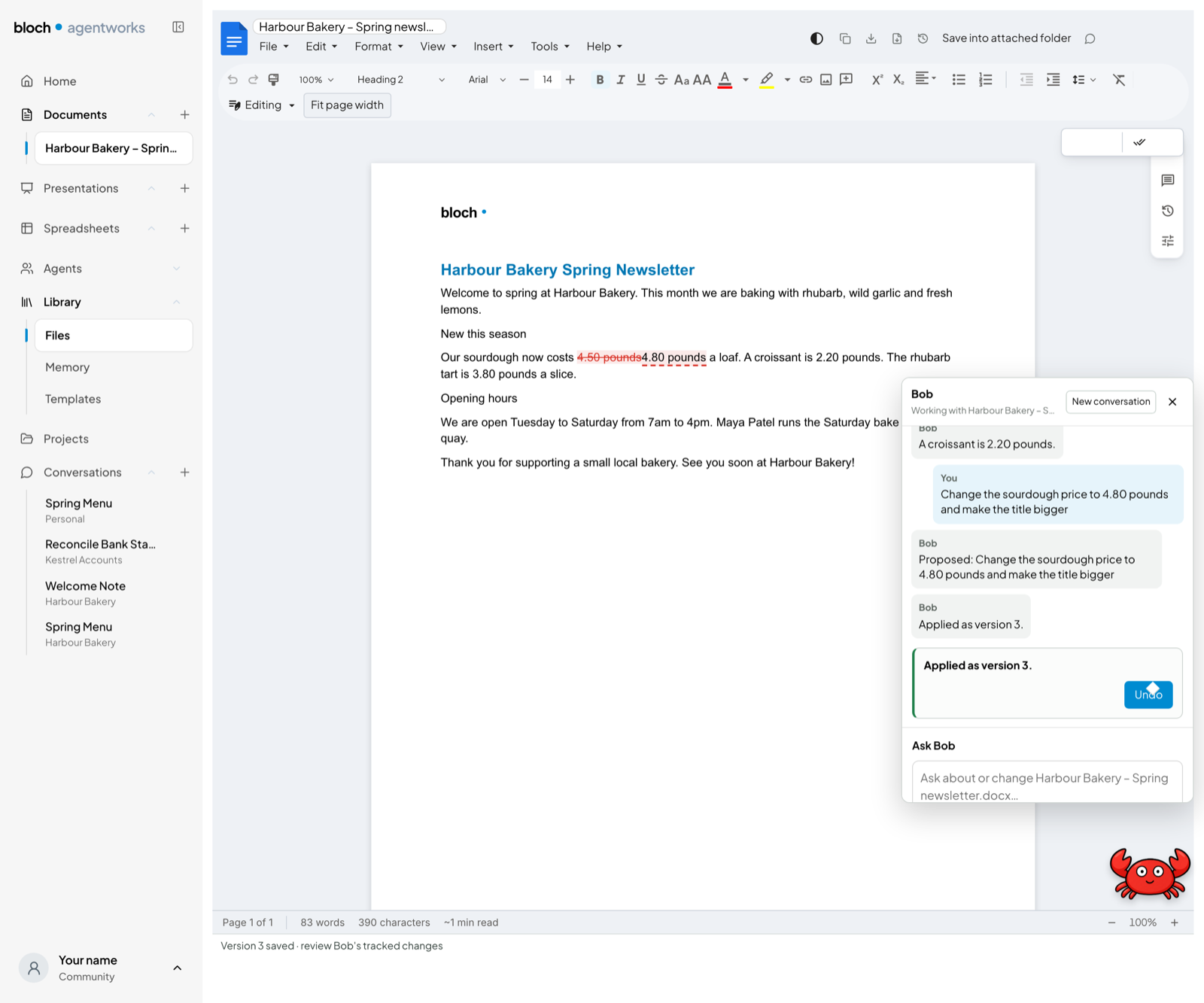 After Apply, select Undo Bob’s change if you want the change reversed.
Undo
Undo Bob’s change puts the document back as it was before Bob's change. This is separate from the editor's normal Undo command. Undoing Bob's change saves a new version, so the earlier versions remain in the history.
Undo is only offered while the document is exactly as Bob left it. If you have edited it since, Undo is refused and explains why. In that case, use Version history instead (see below).
Bob's text edits can appear as tracked changes. Accept or reject an unresolved tracked change before asking Bob to edit that paragraph again. Applying a proposal and accepting its tracked changes are separate steps.
Read every proposal before you select Apply. Bob is quick, but he can misread a passage or propose more than you asked for.
When Bob proposes to remove content
If a proposal deletes or hides something, the card shows a Removes or hides content box that lists what will go. Apply stays greyed out until you tick I understand this removes or hides this content.
If you did not ask Bob to remove anything, the card also says You didn't ask Bob to remove anything — check this carefully.
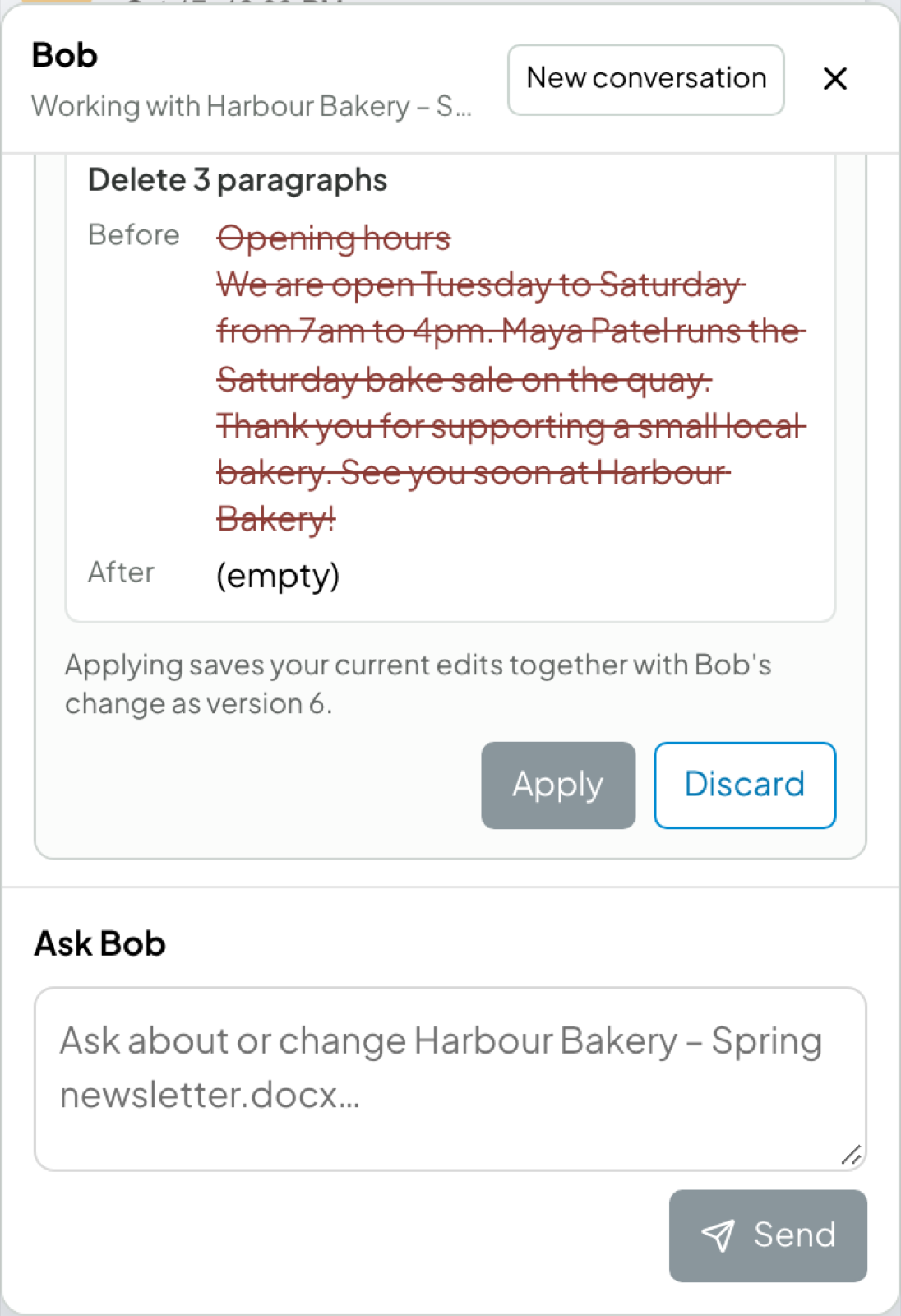 Here Bob proposed deleting three paragraphs when you had asked about one line. Apply stays off until you tick the box, and Discard leaves everything as it was.
If the proposal is not what you meant, select Discard. You can then ask again, more precisely.
Selection tools: Improve, Proofread and Translate
In a Word document, select some text. A Selection tools strip appears above Bob's panel with three options:
- Improve offers a choice of Polish, Make shorter or More formal, then Prepare suggestion. The result comes back as a proposal, with the same Apply and Discard buttons.
- Proofread checks British English spelling and grammar and suggests corrections. It works on English text only.
- Translate translates between English and French, German or Spanish, in either direction. The result is labelled as a draft translation.
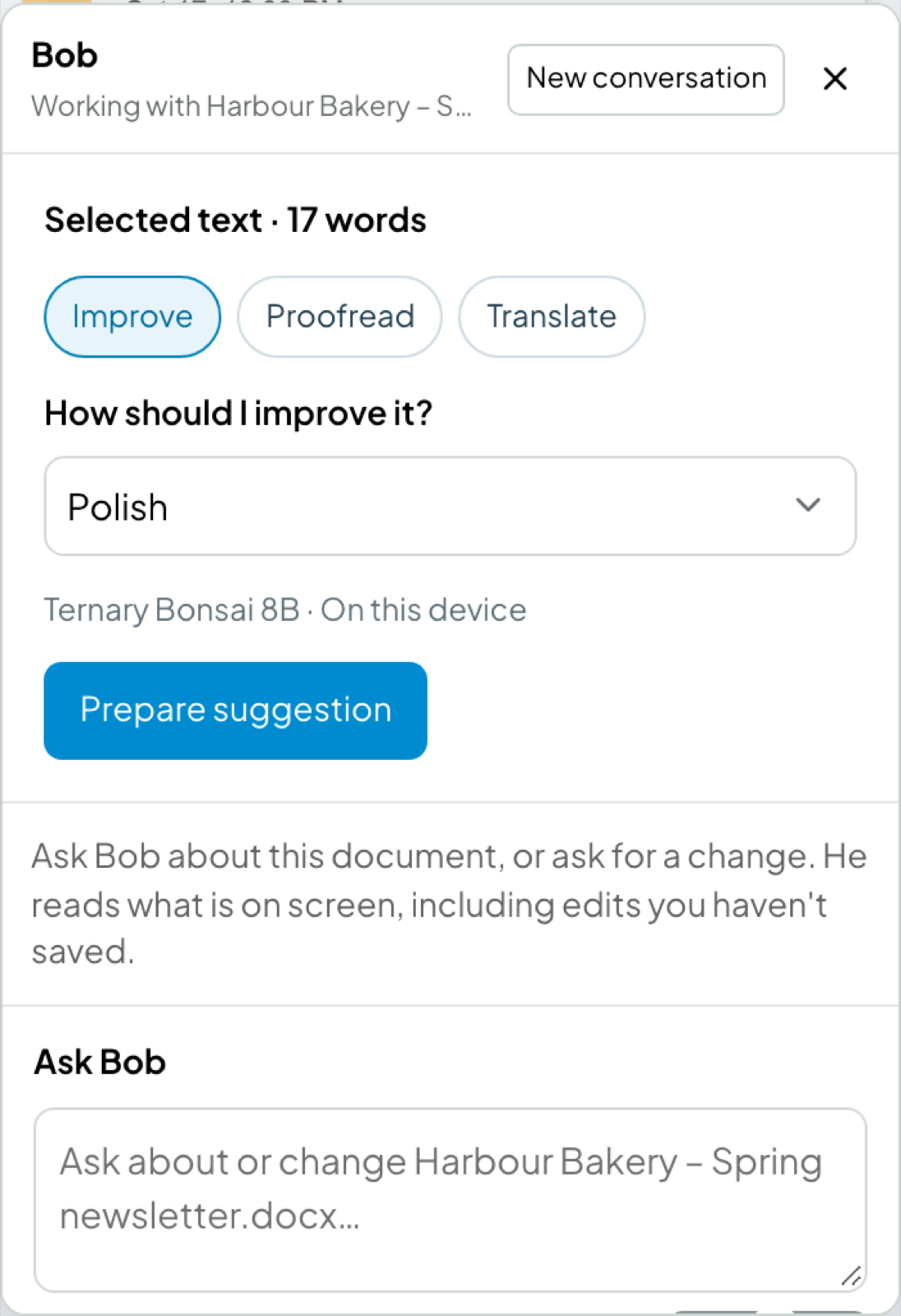 Select text first, then choose a tool. The small print under the options shows where the work is done.
Read the suggestion before you apply it, particularly a translation. The translation proposal carries a warning because the engine can change instructions or qualifications as well as words. Compare its meaning, names, dates and numbers with the source.
Spreadsheets
Bob can read a spreadsheet, answer questions about it, and make these changes after you approve them:
- set a cell's value or formula, its number format and its style (bold, italic, colour, borders, alignment)
- set column width and freeze panes
- merge or unmerge cells
- add a new sheet
Bob will not make these changes. Do them yourself in the editor:
- insert or delete rows or columns
- sort the table
- delete, rename or move a sheet
- add a chart
Bob does not check the arithmetic in a spreadsheet for you. If you ask him for a total or any other calculation, check the result against the cells yourself before you rely on it.
To save a spreadsheet, use File and then Save to blochworks, or press Command+S on a Mac or Ctrl+S on Windows. Wait for the save to finish before closing or exporting the workbook.
Presentations
Bob can set the title and text of a slide, add, duplicate, delete and move slides, change a slide's layout, and insert images from the project's uploads. He can also set speaker notes and change text size, colour and bullets.
He cannot switch a deck's theme.
Presentations can take longer than a short text reply, especially with an on-device model or several slides. Wait for the proposal before sending the same request again.
Versions and Restore
Each time you save, and each time you apply one of Bob's changes, the document gets a new version.
To see them, select the clock-style Version history button in the editor's toolbar. The list shows each version with its date and time. Select Restore beside a version to bring that version back. Restoring also creates a new version, so the history is never rewritten.
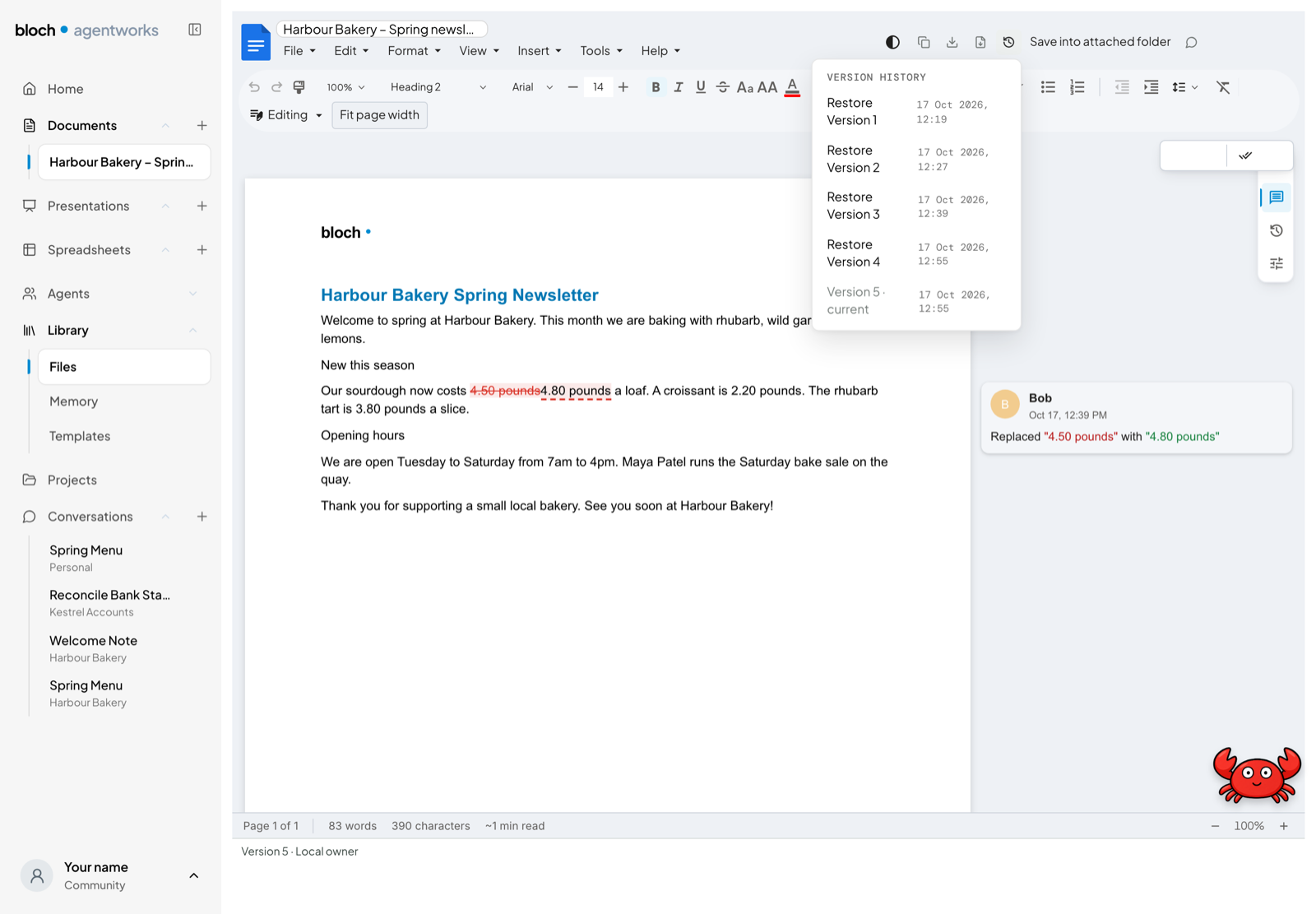 Restore brings back an older version. The newest version is marked current.
Comments
In a Word document, select the comments button in the toolbar to open the blochworks comments panel. Select Add a comment…, type your note and select Add comment.
A comment can be sent to Bob to deal with: select Address with Bob on it. Select Resolve when the comment is dealt with.
A document must be saved before you can add a comment. Comments stay in Blochworks and are not included in files you export.
Exporting
Save the document before exporting it. An export started in the editor refuses unsaved changes, so the resulting file matches the latest saved version. A download from a chat card also uses that saved version; it cannot include edits still open in the editor.
- Word: select Download Word document, or use the File menu to export as PDF, ODT or Markdown.
- Spreadsheets: select Download Excel workbook.
- Presentations: select Download Office file in the desktop app, or Export PowerPoint where that editor action is shown.
On the Mac app, a Save dialog opens and you choose where the file goes. If the file already exists, you are asked before it is replaced.
A PDF leaves out page headers and footers, and the export message tells you so. If you have unsaved changes, save them before trying the export again.
Showing or hiding Bob
Bob's crab is shown everywhere by default. You can turn it off:
- Open Settings, then Preferences.
- Switch Show Bob window to Off.
With this switch off, the crab disappears from Home and from inside documents, so you cannot open Bob's panel in a document. Bob is still available in the main chat.
To bring Bob back into your documents, switch Show Bob window back on in Settings and then Preferences.
Creating a new document
Select the + beside Documents, Presentations or Spreadsheets in the sidebar. A new Word document uses the built-in Bloch template.
New documents, presentations and spreadsheets made with + start under Personal. After saving, you can move a file from its editor:
- Save any current edits, then select Move to project.
- Choose a Destination project and select Move saved document.
- Read the confirmation. Agents with access to the destination project may then read the file.
- Confirm the move, then reopen the file from Library to continue editing.
The move keeps the saved file's identity and version history. If a newer version has been saved elsewhere, or the destination is no longer available, the move is refused and the file stays where it was.
Limits and good to know
- Read every proposal before you select Apply. Check the Before and After text, and check any numbers.
- Check numbers Bob works out. He can make arithmetic mistakes, so compare totals with the cells yourself.
- Bob may say he could not answer. For a very large document, he may reply that he couldn't answer just now. Try again with a smaller part, or ask about a specific section.
- Bob does not change what he has not been shown. If you ask about a part of a document he cannot see, he will say so and change nothing.
- Larger requests take longer. The model, Mac and number of slides affect how long a proposal takes.
- Undo has conditions. It works only while the document is unchanged since Bob's change. Otherwise use Version history.
What needs your approval
In the document panel, Bob’s proposed edits wait for Apply. Select Discard to reject a proposal. After applying it, Undo Bob’s change is available while the document is unchanged; otherwise use Version history. For a change that removes or hides content, you must also tick the acknowledgement box.
What leaves your Mac
Bob's on-device model keeps the document on this Mac. If you have connected a cloud model for Bob, the text of the open document is sent to that provider when you ask Bob about it or ask for a change.
For Improve, the small print under the options says either On this device or Text sent to connected provider. Read it before you run the tool.