Bob's friends
A friend is a person you let Bob talk to on your behalf, over email or Telegram. A friend might be a supplier who asks about delivery times, or a family member who wants help with homework. Friends talk to Bob, not to your private files. Adding a friend gives them no access at all. You decide, step by step, what each friend can do.
You manage friends in Settings, under Bob's friends.
Before you add a friend: connect a channel
A friend reaches Bob through a channel you have already connected:
- a Gmail or Outlook mailbox, connected under Settings, then Tools, or
- your own Telegram bot, connected under Agents, then Your Agents, then Configure Bob, then Platforms.
Connect the mailbox or bot, then assign it to Bob under Configure Bob. Only then can you add a friend's identity. The Identity tab says so: "Connect an email account or Telegram bot for Bob before adding a friend's identity." Full steps for both are on Email and Telegram.
How to add a friend
- Open Settings, then Bob's friends.
- Optional: open How I work and what I expect and write your general working practices. Bob may share this with friends, so write nothing confidential in it.
- Type the friend's name in Friend's name and select Add friend.
- Select the friend in the list. There are four tabs: Identity, Permissions, Memory and Activity.
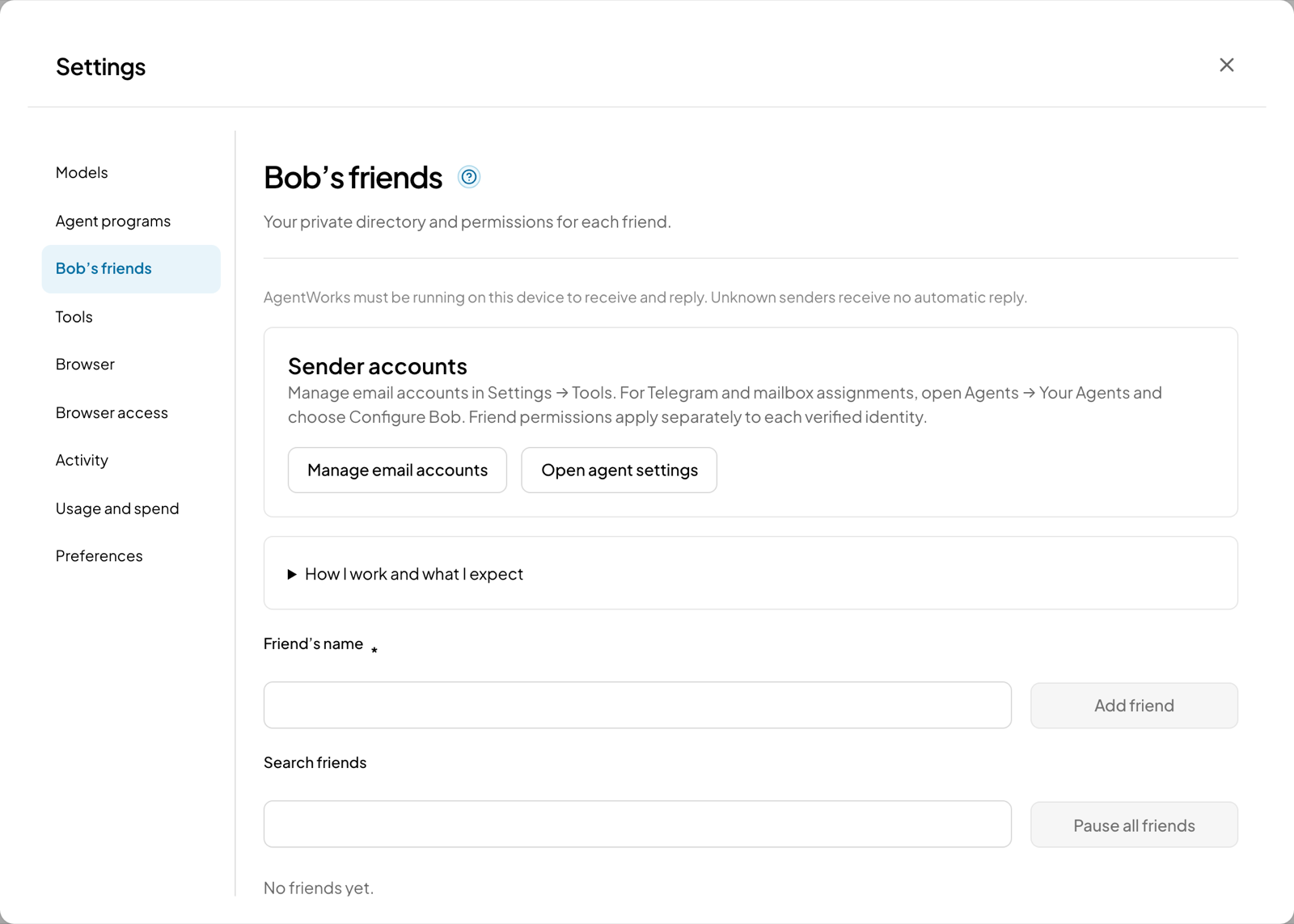 The Bob's friends page before any friend is added.
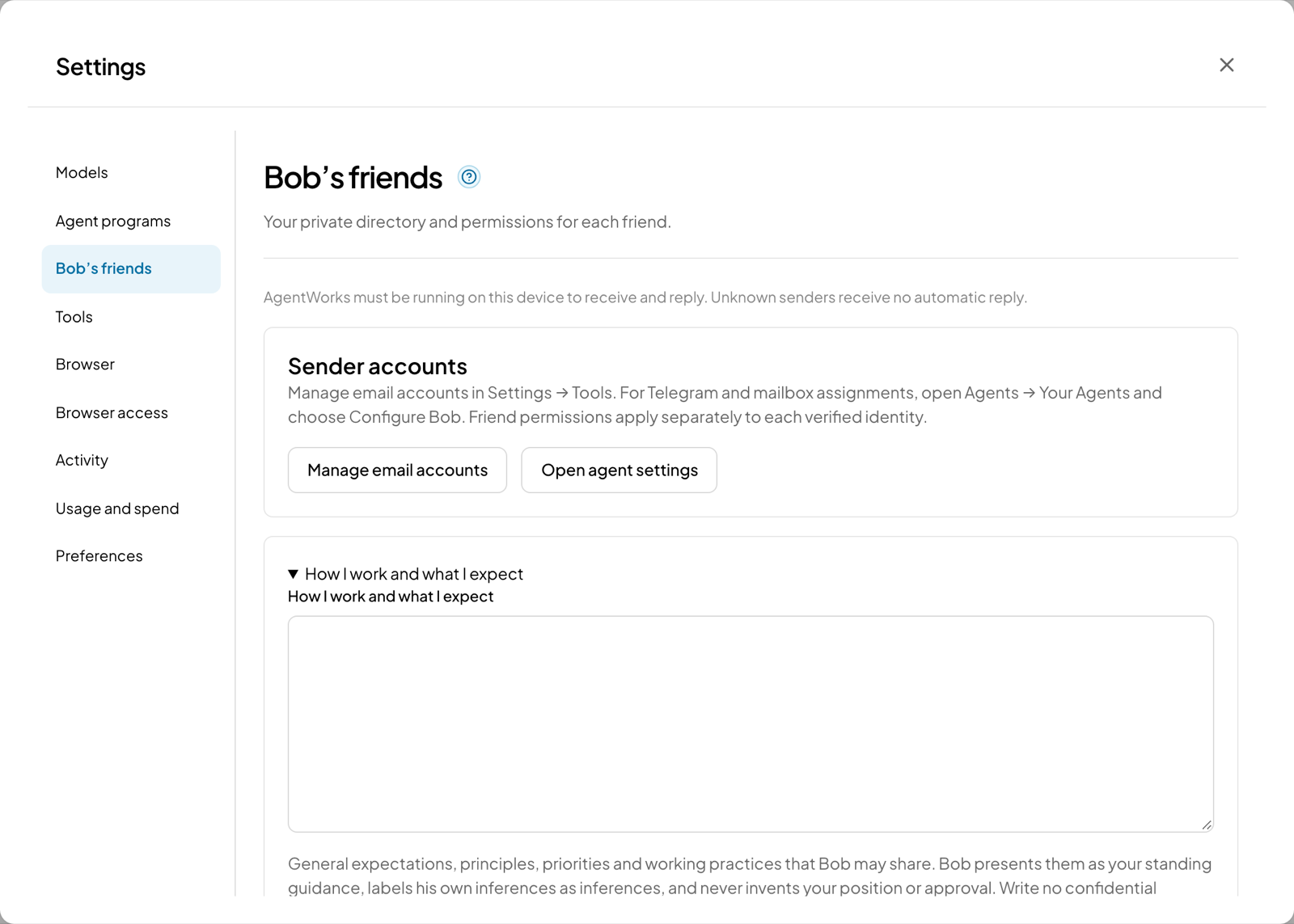 Working practices are shared with friends, so keep them general.
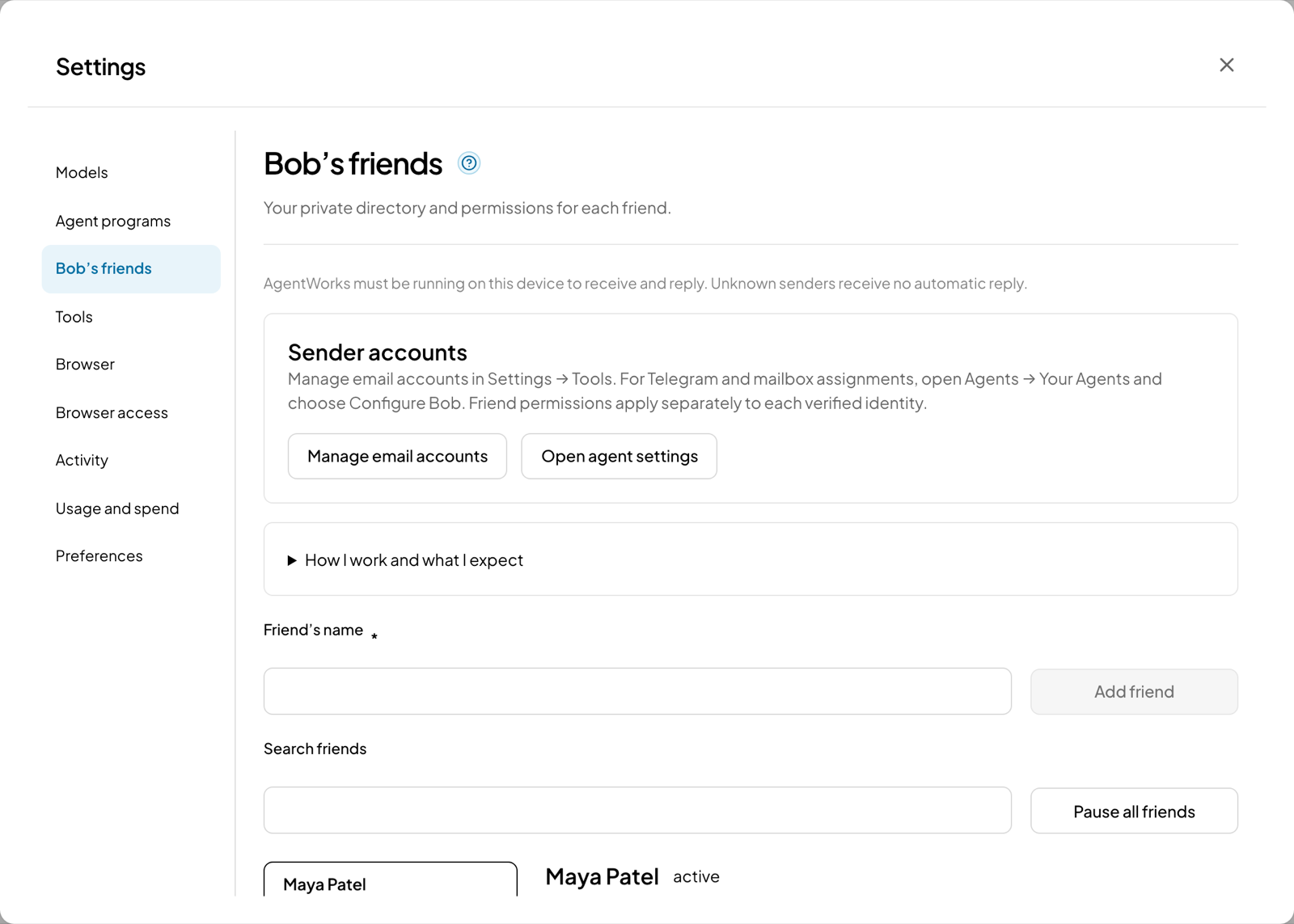 A new friend starts active, with nothing allowed yet.
Give Bob a private brief
The brief is for Bob only. It tells him how to behave with this person.
- Select the friend, then open the Memory tab.
- Type your instructions in Brief for Bob, under "How Bob should behave with this person". The limit is 8,000 characters.
- Leave the page. The brief is saved when you come back to it.
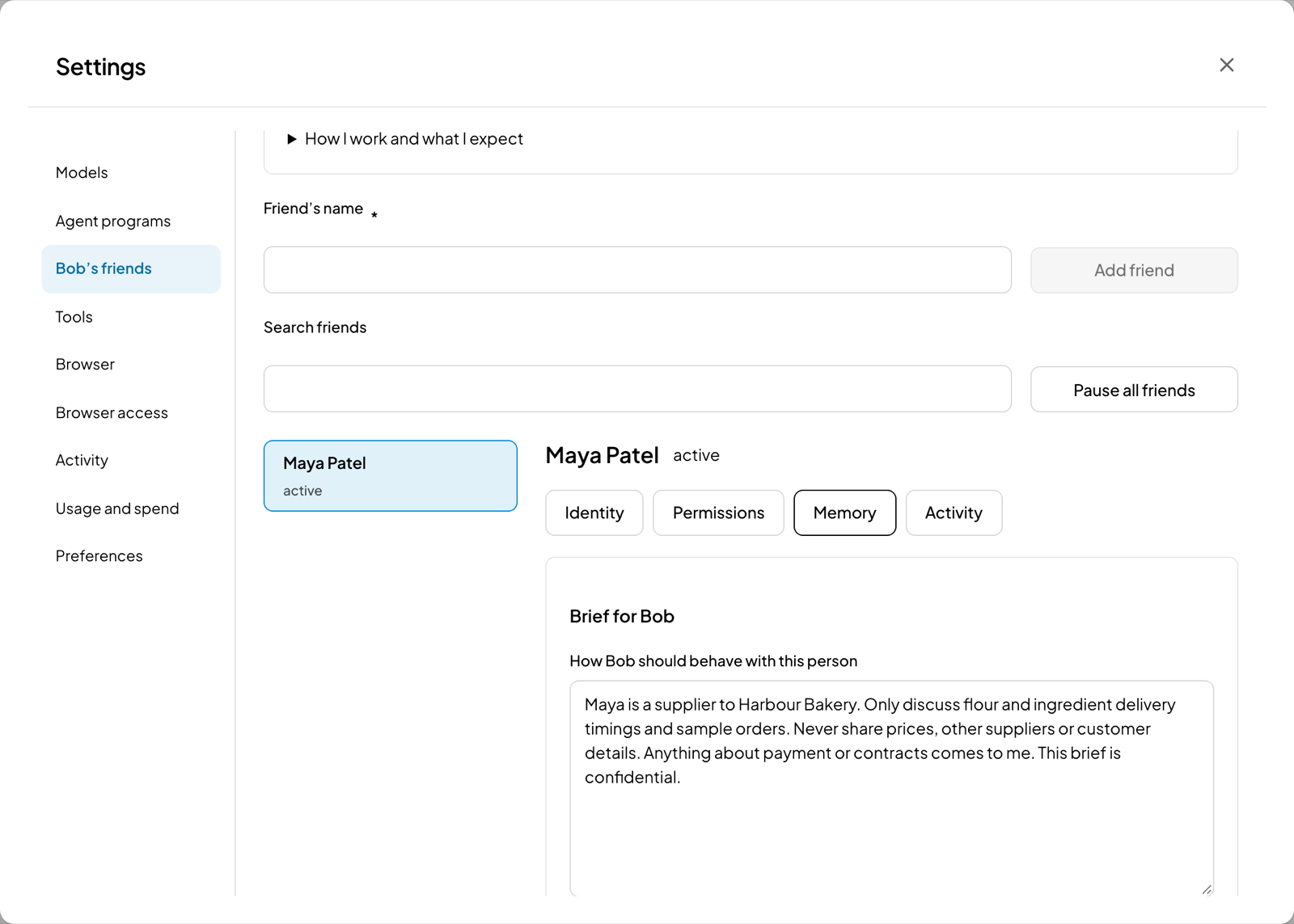 The brief guides Bob’s replies to this person.
The friend is not shown a copy of the brief, but the model uses it to write replies and may repeat details. Keep passwords, payment details, other clients’ information and anything else confidential out of it.
Verify the friend's identity
Bob uses a friend's messages only after you have verified the identity behind them. Until then, nothing from that identity is used.
- Telegram: create a verification invitation for the friend. It is a single-use code that is valid for one hour. Give it to the friend, who sends it to your bot. When the friend's account has used the code, the page shows who redeemed it and asks you to confirm that it is the right person. Confirm only when you are sure. Forwarding the invitation does not prove who someone is.
- Email: prepare a verification email. It contains a one-hour code, and you review and send it from Activity. The friend must reply from that exact address with the code.
An email from a friend is checked again on arrival. If a message fails the checks, the friend shows a short reason, such as "Email not admitted". Email older than the friend or the verification is never used.
Permissions: what each friend may do
Each verified identity has its own permissions, set on the Permissions tab. A new identity starts with incoming messages off, replies on Ask first, and no actions allowed.
- Read this identity's incoming messages: a tick box. Bob reads the friend's messages only when it is on.
- Replies and New conversations: choose Never, Draft only, Ask first or Automatic within limits.
- Help available to this identity: whether Bob may read images and documents the friend sends, research public topics, and prepare text, Markdown, Word, spreadsheet or presentation files for the friend. File preparation also needs Bob's matching Tool access skill.
- Task skills for this identity: a selected subset of eligible built-in working methods that Bob has been assigned. These methods do not grant the friend any tool or connected service.
- Actions this identity may request: reading your availability, offering meeting times, booking, rescheduling or cancelling a meeting Bob created, and adding a private reminder or task for you. Each is set to Denied, Ask first or Automatic within limits. You also choose which calendar Bob uses.
Limits, such as how many actions a friend may trigger in 24 hours, and an optional expiry date, are set on the same tab. Blochworks sets a default of four actions a day.
For public research, give Bob Web Research, then enable Research public topics for the verified identity. A search service configured in Settings → Tools applies across the workspace; it is not assigned to Bob as a connection. Friend research also depends on the service allowing this use. A request that needs fresh owner approval cannot be sent from unattended Friend work.
Ask first and Automatic
Ask first means Bob drafts the reply and you approve it before anything is sent. For availability, Bob reads your free and busy times before you approve, but the free and busy times are never shown to the friend unless you approve the reply. Your approval controls what is shared. Titles, participants and descriptions of your meetings are never read for this.
Automatic within limits means Bob replies, or acts, within the permissions you gave, without a review of each message. Replies still have to pass Blochworks' checks. A reply is held for you if it contains a square bracket, repeats a long run of words from the brief (twelve in a row) or signs off as you. A short instruction, or the same point put in different words, is not caught by that check, so keep anything confidential out of the brief. If you have written a private brief, a separate model check compares the complete reply and any proposed calendar action against it. If that check is unavailable or fails, the proposal is held for your review. The check can still miss a problem, so use Automatic only for work you are comfortable delegating within the selected limits. Any file a friend would receive is always reviewed by you, even in Automatic.
Start every friend on Ask first. Move one to Automatic only after you have read a few of its replies and are happy with them.
Office files and task skills
Word documents, spreadsheets and presentations have separate help permissions. These options are off for every existing and new identity until you enable them.
- Give Bob the corresponding Word Document, Excel Workbook or PowerPoint Presentation skill under Configure Bob → Skills.
- Open the friend’s Permissions tab and find Help available to this identity.
- Under Office files, tick Prepare Word documents, Prepare spreadsheets or Prepare presentations for that verified identity.
- Select Save available help.
The friend can then ask Bob to prepare the selected file type from the material they have supplied. Bob produces a .docx, .xlsx or .pptx file. It does not use your private documents, templates, saved memory or other chats. Spreadsheet cells contain literal values rather than executable formulas; macros and external data connections are excluded.
Open the friend’s Activity to review the complete reply and file. Download the file to inspect it before approving delivery. Your approval covers that exact file and recipient. Every file requires review, including when replies are set to Automatic within limits.
An existing Friend help permission cannot supply a Tool access skill Bob no longer has. You can remove the paused grant or restore Bob's skill for future requests.
Removing Bob’s matching skill makes the format unavailable to friends and cancels pending work. Restoring it permits new work but does not revive an old draft. A friend cannot change these permissions or approve a file.
For working methods, open the same verified identity's Permissions tab. Under Task skills for this identity, select only the methods this person may request and choose Save task skills. The selection must also be assigned to Bob. Adding a method to Bob later does not give it to every friend. These methods work on material admitted from this identity and provide no search, Office output, private files or other tools on their own. The help permissions above and Bob's Tool access still control any operation. Browser actions, Obsidian, generic connected tools, private workspace resources and delegation are not Friend task skills.
What a friend can and cannot get
A friend's messages go to a model that has no direct tools. It can read the friend's admitted message, brief and selected task-method instructions, then write a reply. Blochworks carries out a permitted request only within that identity's help permissions and Bob's access. A friend cannot read your inbox, files, notes or other friends' conversations, and cannot approve anything.
Bob's replies say they come from Bob, the assistant, and are signed as such. Bob never writes as you or signs as you.
A small local model can draft a short reply from a friend's admitted message, but you should review its tone, facts and commitments when setting up the friend. Use a stronger model for a request involving several facts or calculations, and still check the reply. The model cannot give the friend more help or access than you selected.
Pausing, blocking and deleting
- Pause all friends stops every friend at once.
- Pause and Block on a friend's Permissions tab stop that friend. Pause and block cancel work that has not yet been sent. A send already committed may still finish. Blocking keeps your records so you can inspect them.
- Delete friend removes the friendship, its messages, learned facts and drafts. A send that has already gone may still reach its recipient, and Blochworks cannot remove copies held by the recipient, the mail provider or backups. Read the warning before you confirm.
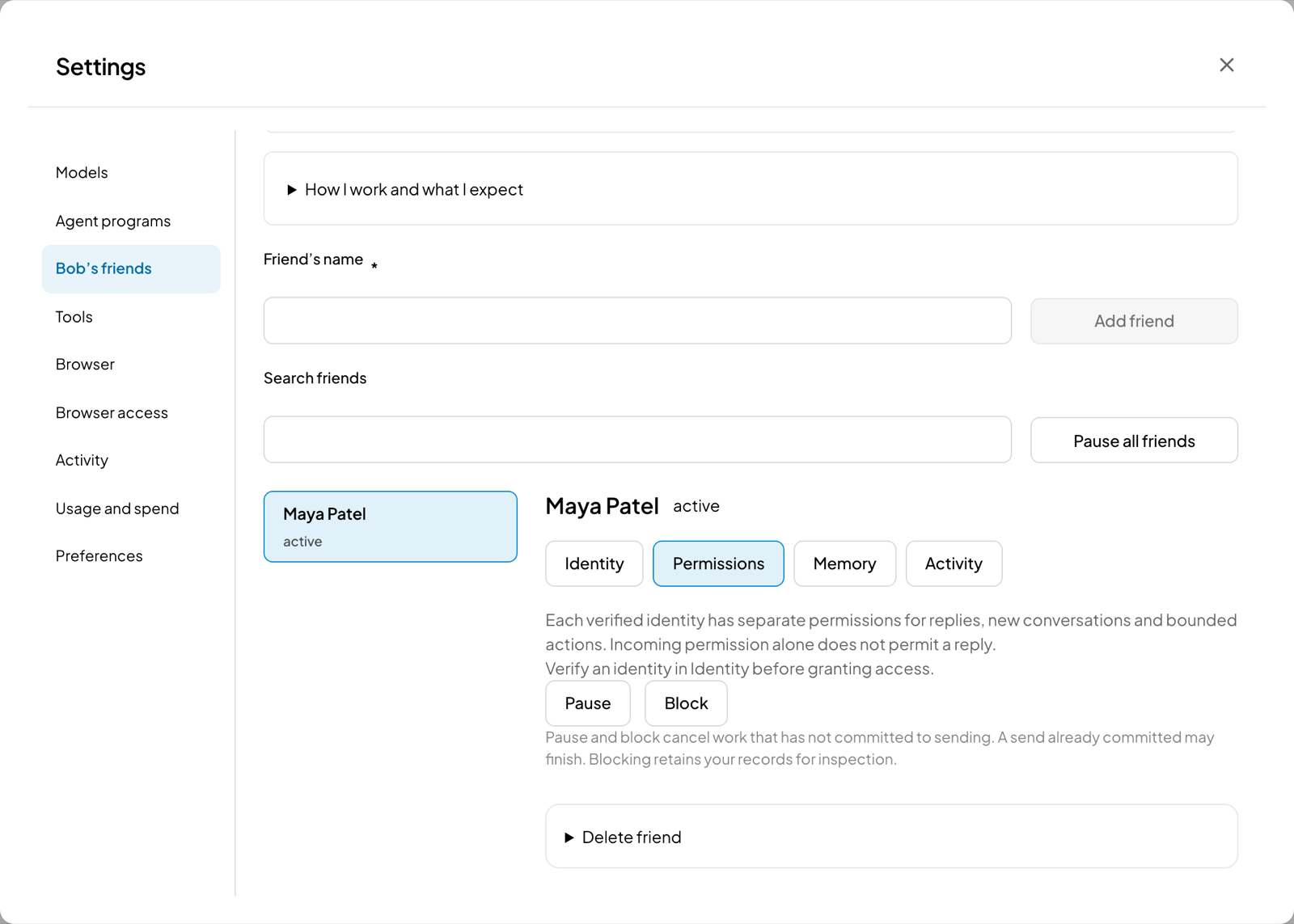 Pause and Block stop a friend's work. Delete is at the bottom of the same tab.
What needs your approval
- Every reply, when a friend is on Ask first.
- Every file a friend would receive, even when the friend is on Automatic.
- Any new draft after you have edited one. Changing a friend's permissions also cancels unsent work, and Bob asks you to review a new draft.
- Any booking, rescheduling or cancellation, unless you have set it to Automatic.
Bob cannot approve, change permissions or change its own brief.
Learning from friends
Under Memory, Learning from this friend is Off by default. If you turn it on, Bob may suggest facts it has learned, and you review each one. Nothing a friend says becomes a fact you rely on until you have approved it, and your private notes never reach the friend.
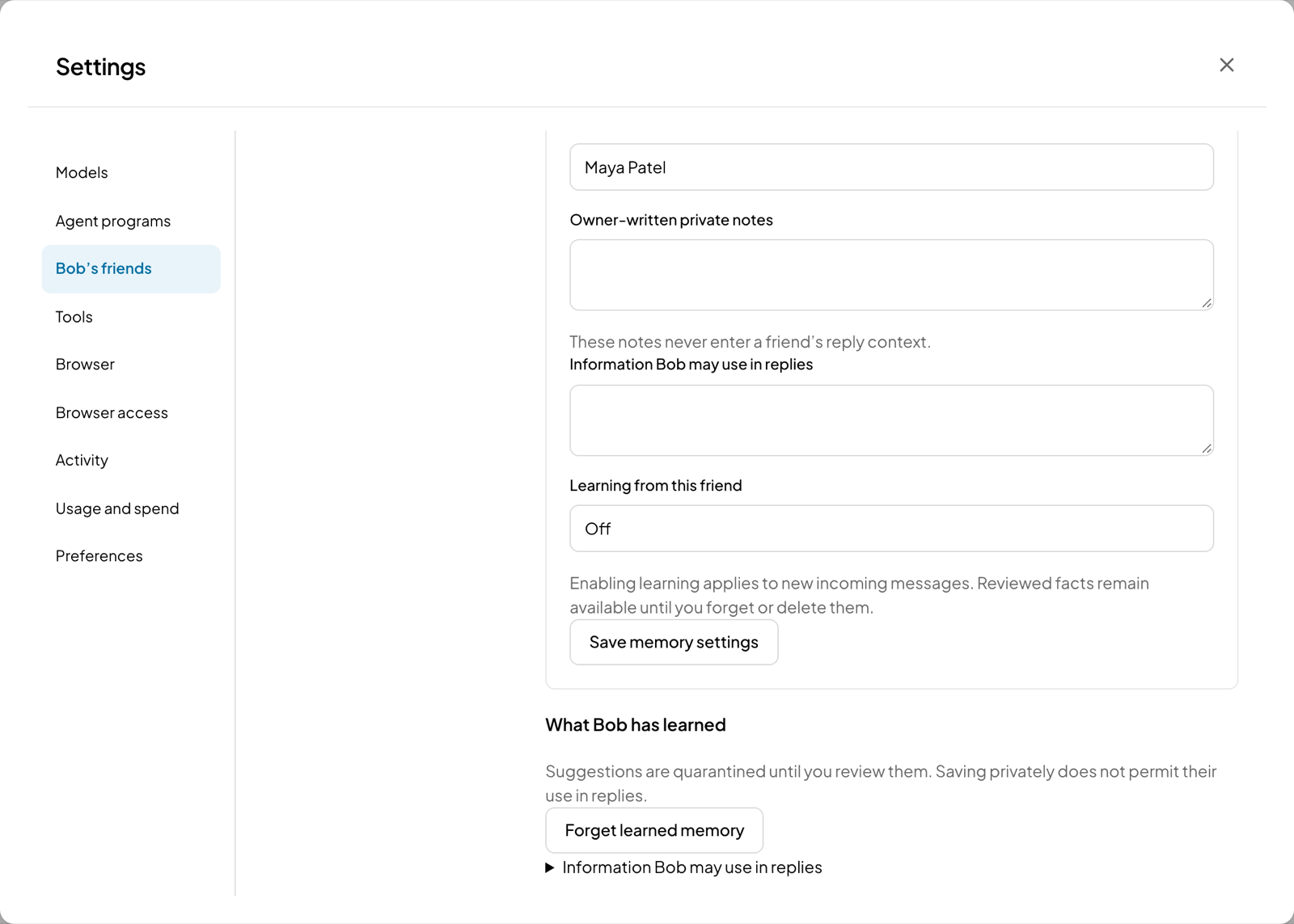 Learning is off until you turn it on. Suggestions wait for your review.
Limits and good to know
- A friend can only reach Bob while Blochworks is open on your Mac. Unknown senders get no automatic reply.
- Bob sends a message once. If the result is unclear, the draft is marked as possibly sent, and Blochworks does not resend it. Check your mailbox or Telegram before you try again.
- A friend's messages are limited, and Blochworks sets an hourly limit on how many replies it prepares.
- Bob cannot take part in group chats or act on forwarded messages.