Chats and projects
Everything you do with Bob happens in a conversation, and every conversation belongs to a project. A project keeps a client's work, or a topic, together: its chats, its files and its instructions. This page covers how to use them day to day.
Projects
Every chat belongs to a project. If you do not choose one, a chat goes into Personal. Personal is permanent: it cannot be archived or deleted, and only you can see it.
To manage projects, select Projects in the sidebar and then All projects.
- To make one, select New project, give it a Project name and, if you like, some Instructions for Bob, then select Create project.
- To change one, select Manage project on its card. You can rename it, archive it or delete it.
- To see its conversations, select Chats on the card, or Open.
Archiving or deleting a project does not erase its contents straight away. Think of it as putting the project away.
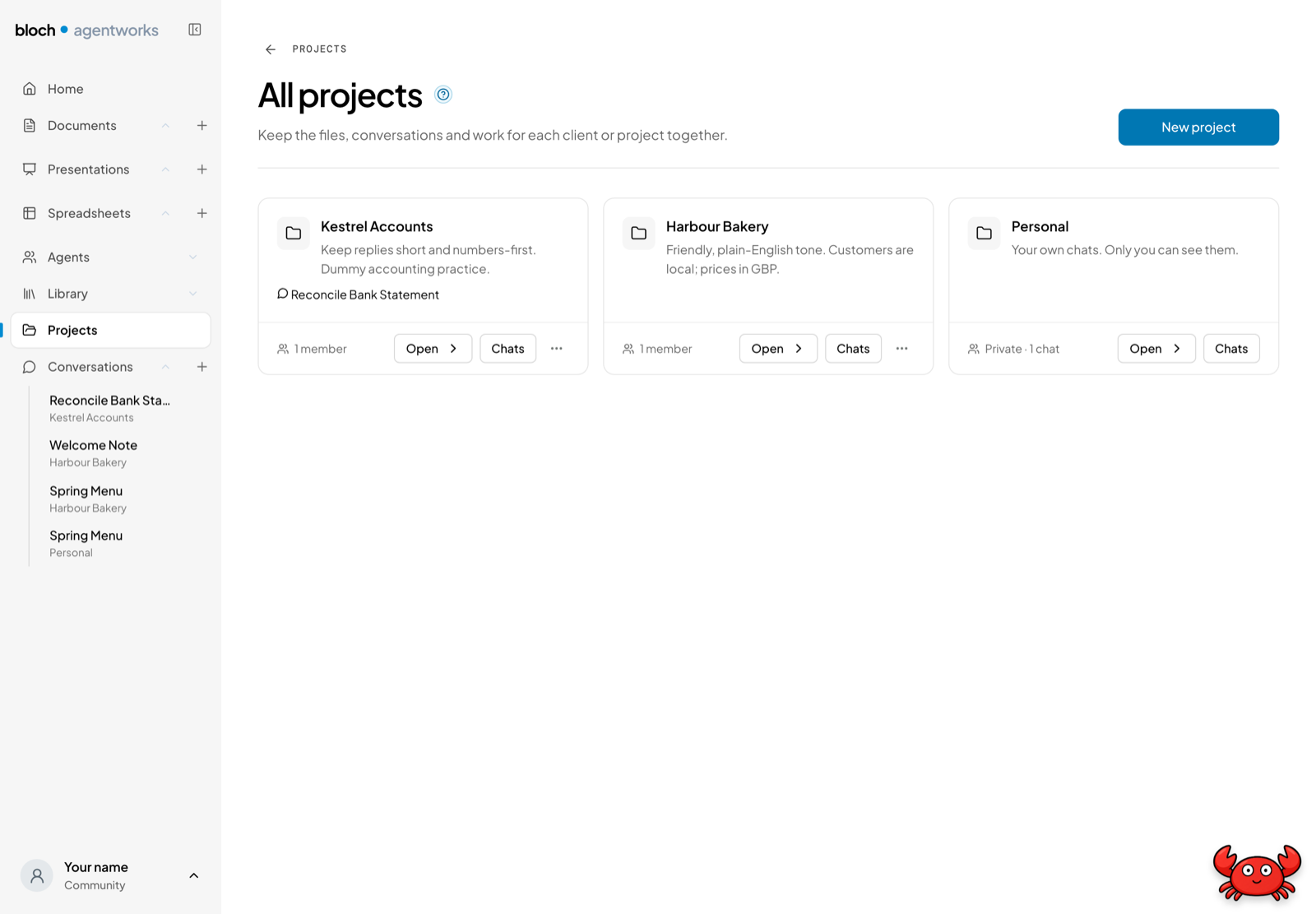 Each project card shows its conversations and the Open, Chats and menu buttons.
Starting and moving chats
There are two ways to start a chat:
- The + next to Conversations in the sidebar starts a chat in Personal.
- The + on a project's own row in the sidebar (its label is New conversation in followed by the project name) starts a chat inside that project, so it picks up the project's files and instructions.
To move an existing chat into a project:
- Find the chat in the sidebar under Conversations.
- Select the ... button on its row.
- Under Move to project, choose the destination project. A chat's saved documents normally move with it. If moving them would expose private work to a shared project, Blochworks asks whether to Move its documents too or Leave documents behind. Review the destination and choose deliberately. If the move is refused because a document or uploaded file conflicts with the destination, leave the documents behind or resolve the conflict before trying again. An active scheduled job can also prevent a move until its run ends.
Writing to Bob
- Type in the box that says Ask anything.
- Press Enter to send. Press Shift and Enter for a new line. You can also select the send button.
- Type @ followed by an agent's name to direct a message to that agent. The choice sticks for the rest of that chat.
- Use a slash command to load a Task skill's instructions for that one message. This does not grant its required tools; the selected agent must already have the relevant Tool access and connection.
Only one reply can run at a time across the whole app. If Bob is busy in another chat, the box says A response is still running in another chat, and Send is disabled until that reply finishes or is stopped. Each chat keeps its own unsent draft.
Stopping a reply
While Bob is working, the send button turns into a square Stop generating button. Select it to stop. The chat then shows Response cancelled. and the unfinished answer is not kept.
If a reply fails part-way for another reason, such as a length limit, Bob keeps the part he wrote and says why it stopped.
Attachments
Use the paperclip, Attach files, to give Bob documents to read. You can also drag files onto the message area or paste an image.
- Up to 5 files per message.
- Each file can be up to 4 MB.
- Allowed types are PDF, Word (.docx), Excel (.xlsx), PowerPoint (.pptx), text, Markdown, CSV, JSON, common image types, and audio files (MP3, WAV, OGG, M4A, FLAC, AAC, WebM). Of the built-in models, only Bonsai 2 9B can read images (PNG, JPEG or WebP); none can read audio, and a model that cannot read a file's type will say so. See Choosing a model for Bob.
- Executable programs and macro-enabled Office files are blocked.
- You need a saved project open before you can attach. If you do not, the paperclip says Open a saved project before attaching files.
Each file shows Uploading... and then Ready. Send stays disabled until every file is ready. If a file is rejected, the message says why, for example files must be 4 MB or smaller, and you can select Dismiss.
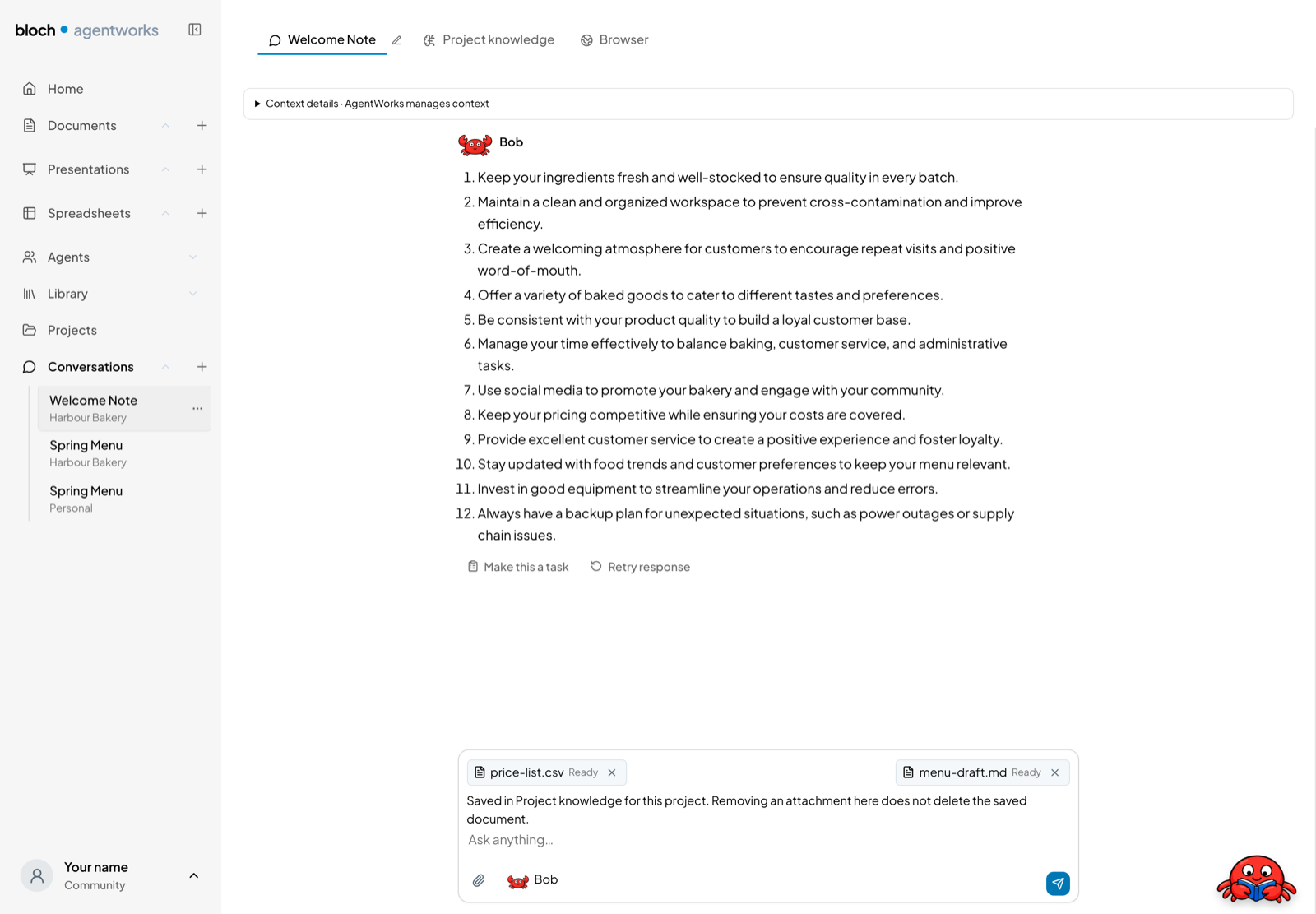 Attached files are saved to the project's knowledge. Removing one here does not delete the saved copy.
Attached files are saved to the project's knowledge, or to Personal if the chat is in Personal. Files in a project (or in Personal) are available to Bob in every chat in that project, not only the chat where you attached them.
Bob is told to treat what is in an attached file as information, not as instructions. Even so, anything that sends a message or changes something still needs your review first. Do not rely on a document to keep Bob from acting on its contents.
Library
The Library in the sidebar holds the documents, presentations and spreadsheets Bob creates for you, along with files you have saved to a project. You can filter it by type and by location. Saved work stays in the Library even after you delete the chat that made it.
Home
Home shows a summary of your recent work and anything waiting for you, such as approvals and scheduled work. It does not ask a model to write it. The work part is built from what is saved on this Mac.
If you have connected an email account or a calendar, Home also reads a small sample of your mail and your upcoming events from the provider when you open it or refresh it (a result is reused for about a minute): up to 20 flagged messages per account and recent messages from today, plus your events for the next seven days. It shows subjects, short previews and event titles. This needs only an enabled connection; the connection does not have to be assigned to Bob. Disable or remove the connection to stop it. If the provider cannot be reached, Home says the update is unavailable and shows the saved work.
Context details and long chats
Under a conversation, select Context details to see how much Bob can hold in mind for that chat, where that number came from, and whether any of your files were read as full documents or as extracted text. This is for checking, not for setting anything.
When a chat grows past what fits, Blochworks writes short notes about the older part and shows Earlier conversation summarised. Those notes can leave things out or misread them, so check anything important against the original messages. Summarising the chat does not delete the original messages; deleting, purging and retention have separate rules.
Deleting chats
To remove a chat from the active list, open its ... menu and select Delete chat..., then confirm. Open Deleted chats in the sidebar to restore it. If you want to remove its conversation and messages permanently from this workspace, choose Purge chat there and confirm again. Blochworks refuses a purge while a task, scheduled job, approval, active reply or personal saved document still depends on the chat. Resolve that work first.
Purging a chat does not delete saved Library files, memories, exports, provider copies or backups. They must be reviewed separately. Automatic retention is also separate and off until you enable it in Settings → Preferences.