Email and Telegram
Bob can work with your mail and with Telegram, but only once you connect them yourself. This page covers connecting a Gmail or Outlook mailbox, what Bob may do with it at each access level, how drafts and sending work, the Email me job results setting, and connecting your own Telegram bot so that approvals can reach your phone.
Ordinary email sends need a review of the exact message. Friends can use the automatic reply permissions you give them, while file deliveries still need review. Telegram uses a bot you create yourself.
How to connect Gmail or Outlook
- Select Settings, then Tools.
- Select Add tool, then choose Gmail or Outlook / Microsoft 365 from the email group.
- Choose a Mailbox access level (see the table below).
- Select Sign in with Google or Sign in with Microsoft. Your browser opens the provider's own sign-in page. Blochworks never sees your password.
- Go to Agents, then Your Agents, choose Configure Bob, and assign the mailbox to Bob.
Connecting a mailbox does not give Bob access to it. Bob can use it only after you assign it in step 5. The one thing that reads a connected mailbox without that assignment is Home, which shows a short sample of recent and flagged mail (subjects and previews) and upcoming events when you open it; see Chats and projects. You can connect only one mailbox at a time.
Also select Email Management under Configure Bob → Skills → Tool access and save. The skill and assigned mailbox are both required. A read-only mailbox stays read-only when the skill is assigned. Email Management covers reading mail, saving provider drafts, removing drafts managed by Blochworks and asking to send the exact draft; it does not give Bob arbitrary mail deletion.
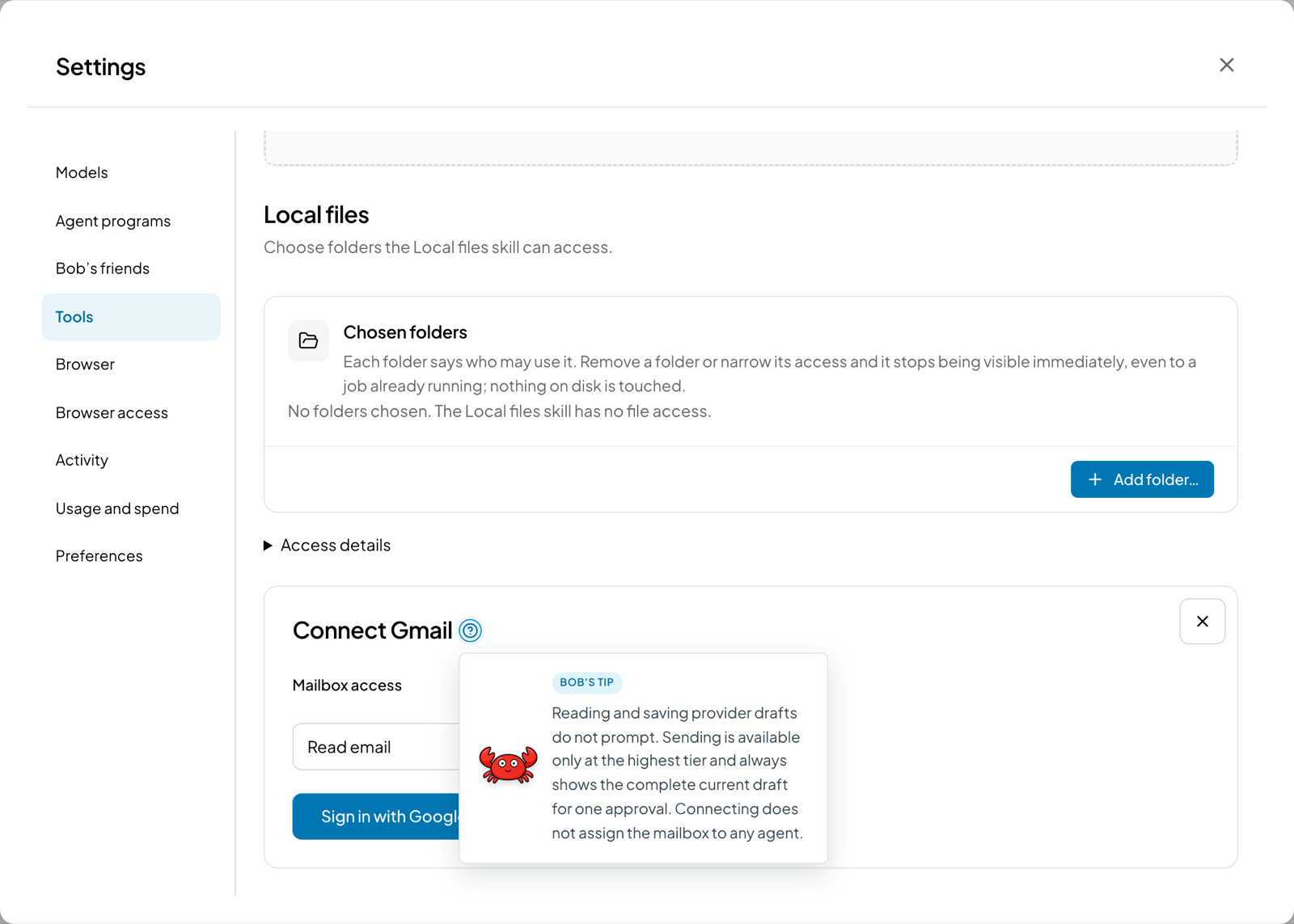 The Connect Gmail form. The Bob's tip (the question mark next to the title) explains the levels.
Mailbox access levels
The Mailbox access menu has three levels. Pick the lowest one that does what you need.
| Level, as shown on screen | What Bob can do |
|---|---|
| Read email | Search and read your mail. Bob reads up to 25 messages at a time. Bob cannot save drafts or send. |
| Read email and save drafts | Everything above, and Bob can save drafts in your mailbox. Bob cannot send. |
| Read email, save drafts and send after approval | Everything above, and Bob can ask to send. Ordinary sends need your review; separately configured automatic Friend replies use their standing permissions. |
Only the highest level can send. Choosing it shows a note from the provider. For Gmail it says that Google's draft permission also permits sending at Google's side, that blochworks enforces the level you select and requires approval for ordinary sends, and that Google may require verification of this restricted permission. For Outlook it says that the highest level also requests permission to send mail.
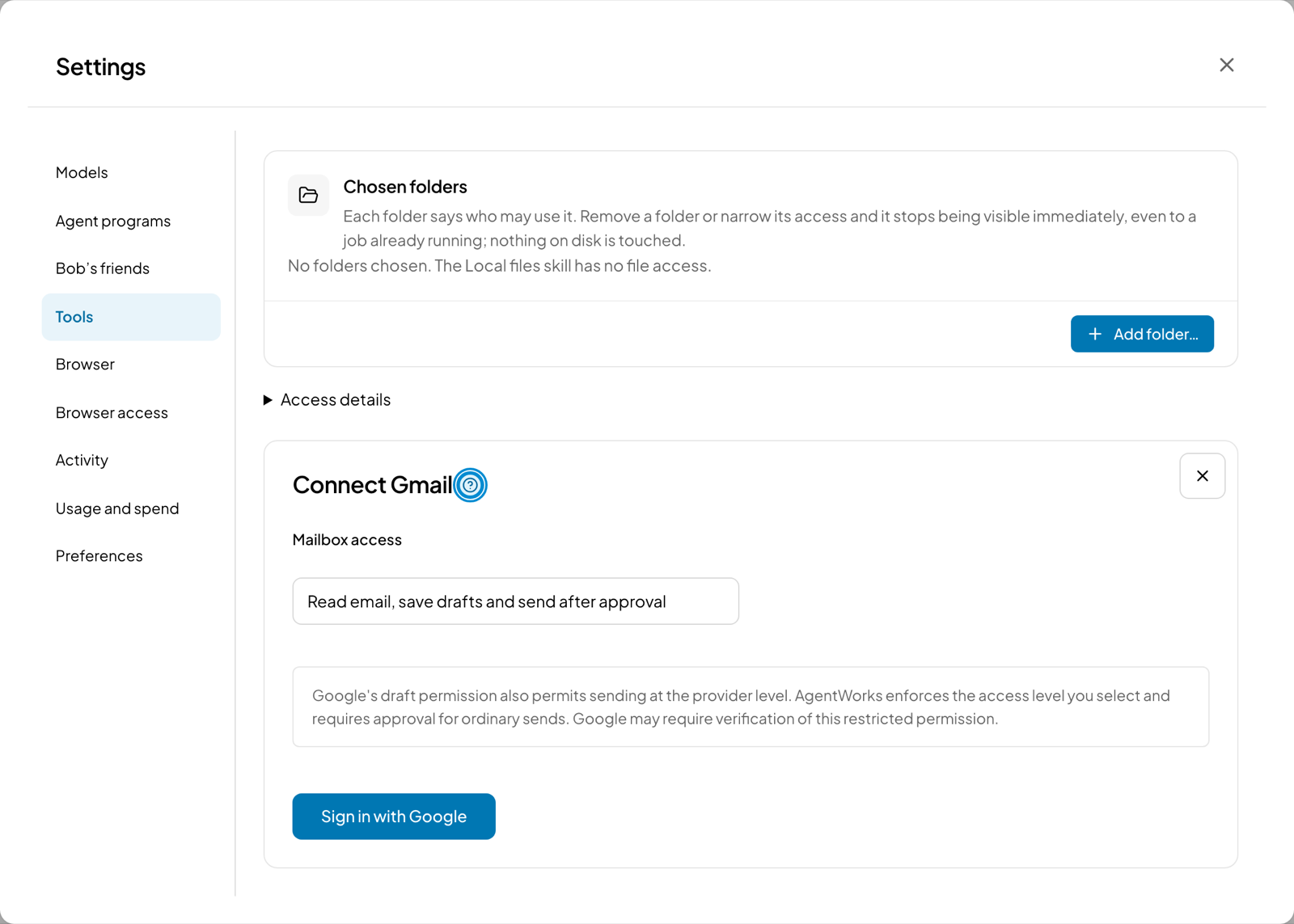 At the highest level, the note under the menu explains what the provider's permission also allows.
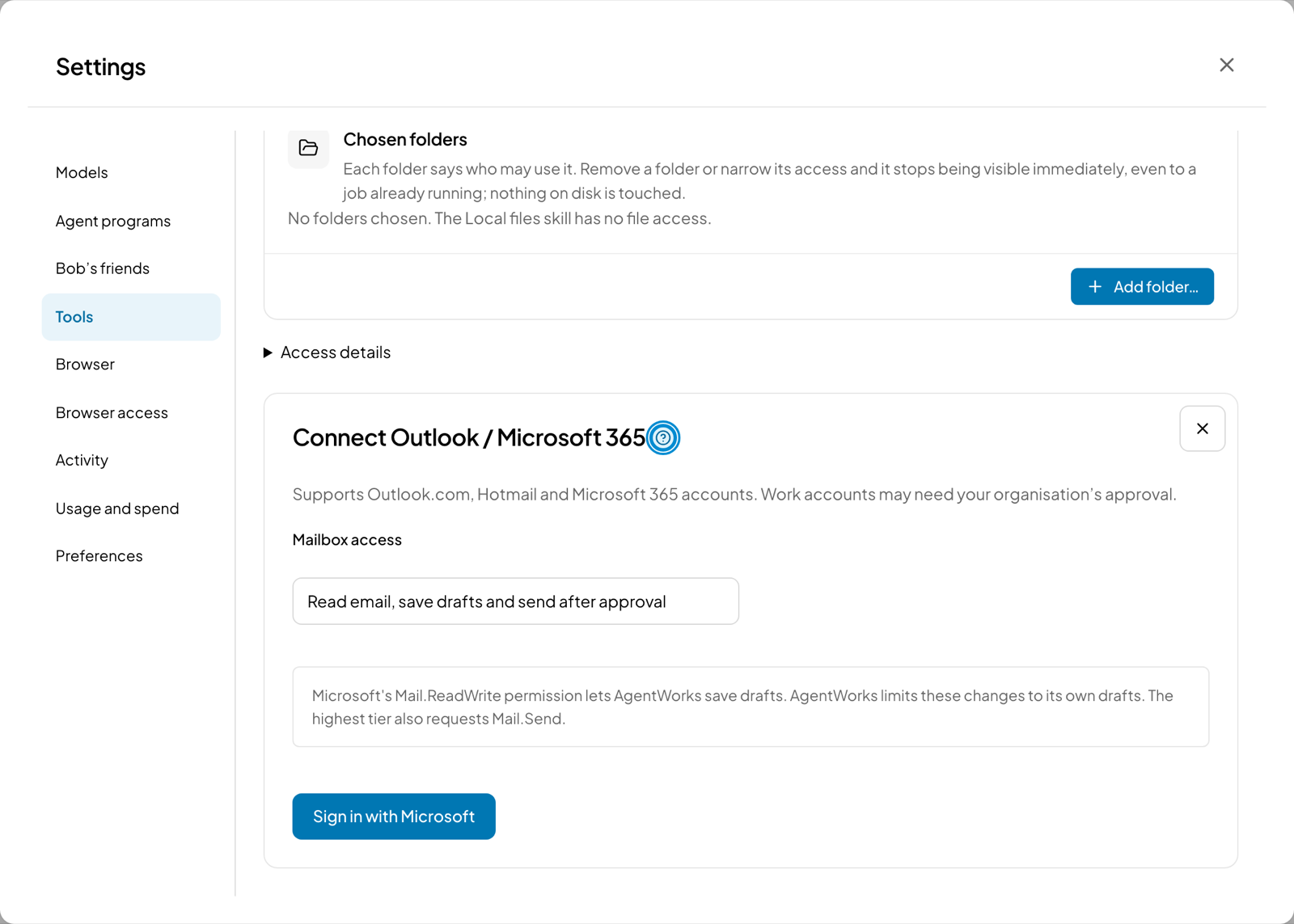 The Outlook form at the highest level. Blochworks limits draft changes to its own drafts.
You can lower the access level at any time and the change takes effect straight away, including for approvals that are waiting. Raising it needs a new sign-in.
Drafts: Bob writes, you send
When you ask Bob to reply to an email, or to prepare one, he writes a draft and saves it to the Drafts folder of your mailbox. Saving a draft does not ask for approval, so you will find it in your mail app, not in Blochworks.
For an ordinary email send, Bob follows these steps:
- Bob asks to send an existing draft.
- Blochworks shows you the complete current message: recipients, subject, body and any attachments.
- You select Send email to send it, or Don't send to keep it as a draft.
If you want a change, edit the draft in the approval editor or in your mail app. Any change to the message makes the earlier approval void, so the message needs a fresh review before it can go. Blochworks also reads the draft again just before sending, and refuses to send it if it has changed.
A send happens once. If Blochworks cannot tell whether a send went through, it stops all sends from that mailbox until you check your Sent mail and authorise a new draft yourself. Bob cannot clear that stop. Check Sent mail before you try again.
Calendar access
Connect your calendar through Settings → Tools → Add tool, then assign it to the agent that will use it. Read access allows listing events and finding free time. Creating an event also needs the relevant write access and approval. Calendar Management does not provide general event editing or deletion.
The agent also needs Calendar Management under Tool access. Email Management does not grant calendar access, even when both services use the same provider. A missing account, disabled connection, insufficient access level or missing skill must be resolved before the requested work can run.
Email me job results
Email me job results sends you a copy of each completed scheduled job result, to an address you choose. It is in Settings, under Preferences. It uses its own sender, not your connected mailbox.
- Open Settings, then Preferences, and find Email me job results.
- Select Set up sender. Choose a Sender service: Resend or a Microsoft Graph service mailbox. Fill in the sender address, the sender name, your recipient address and the details the service needs.
- Select Save sender. Then select Send test email. The test sends a real message to the saved recipient.
- Tick Email me when a scheduled job produces a result.
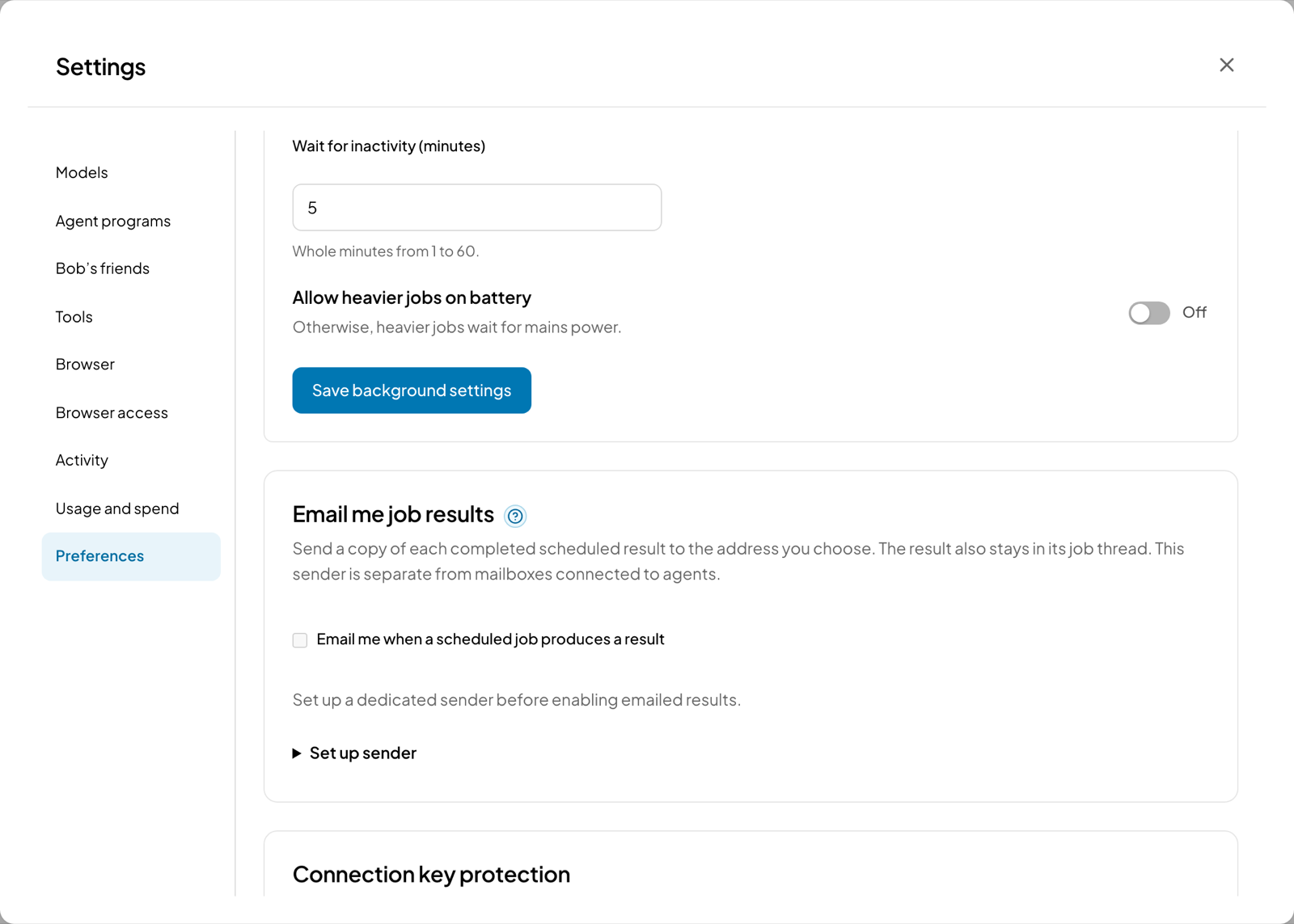 The page says to set up a dedicated sender before you enable emailed results.
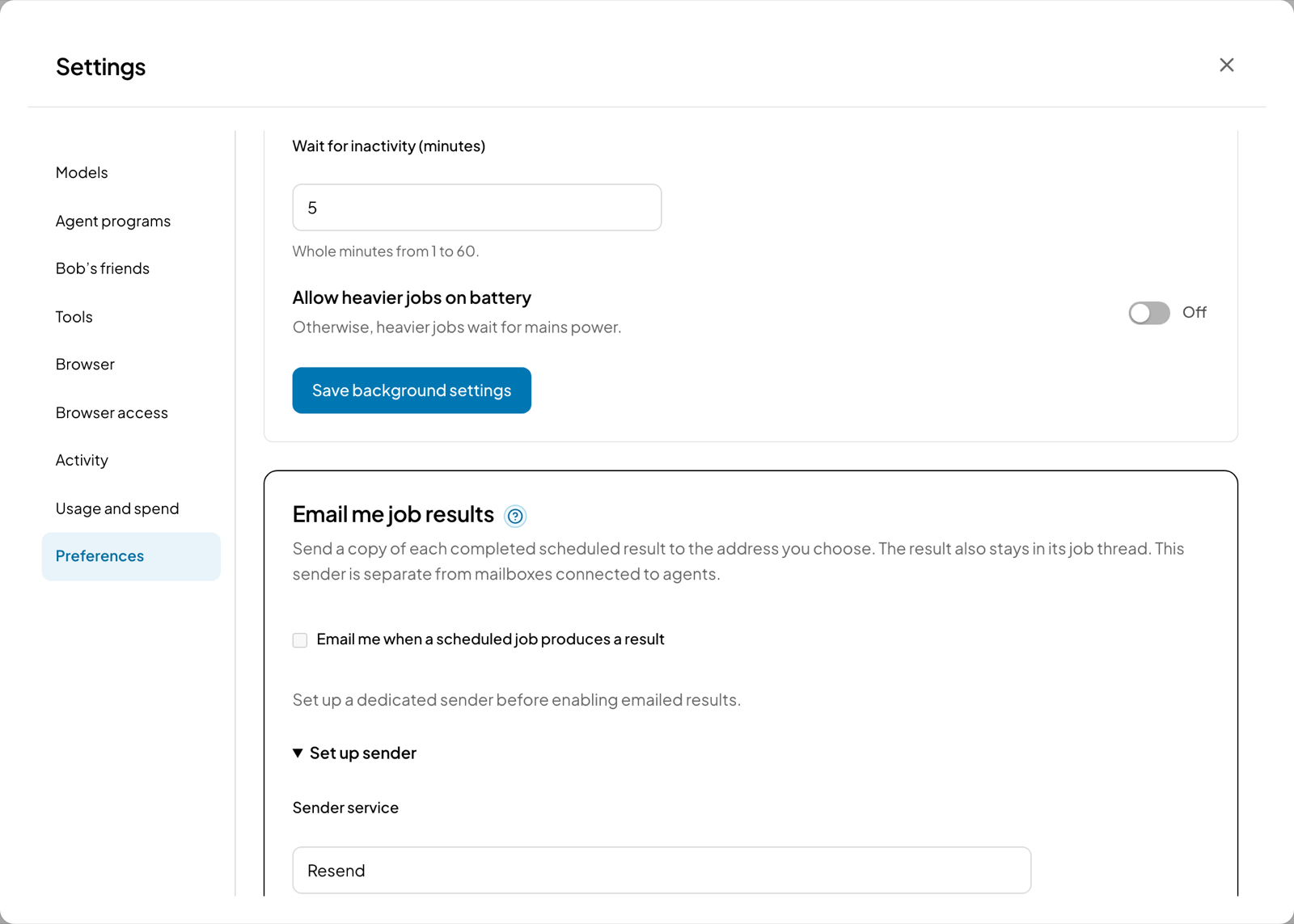 Set up sender: choose the service that will send the message for you.
This setting is opt-in. It sends only results created after you turn it on. It does not ask for a review of each message, because the recipient is your own saved address. Results include any attachments. The result also stays in its job thread.
The content of each emailed result passes through the sender service you chose, such as Resend. Choose a service you are comfortable with.
Telegram: connect your own bot
Telegram lets you talk to Bob from your phone, and lets approvals reach you there. Telegram connects to Bob only, not to specialist agents. You need your own bot. You create it in Telegram, and Blochworks never creates one for you.
- In Telegram, open a chat with BotFather and create a new bot. BotFather gives you a bot token: a long password-like string that identifies your bot. Copy it.
- In Blochworks, go to Agents, then Your Agents, choose Configure Bob, and find Platforms.
- Paste the token into Bot token and select Connect Telegram. Blochworks checks the token with Telegram.
- Select Link my Telegram. A code appears with a command that starts with
/start. Open the bot in Telegram and send the command in a private chat with it. - When Telegram replies that your account is linked, you can send Bob a message from your phone.
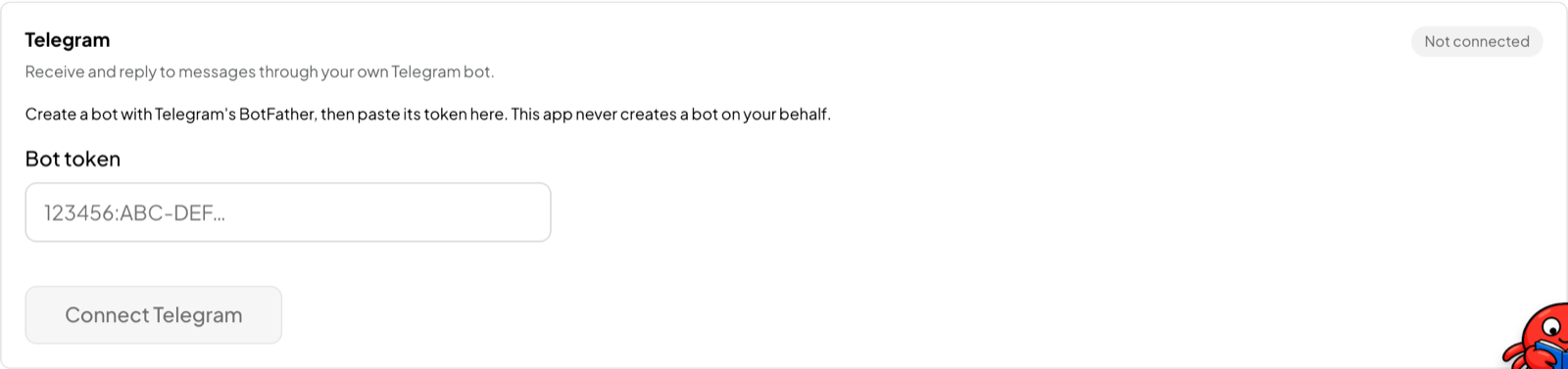 The Telegram card before connecting. It stays unconnected until you paste a token.
The link code works once and is valid for one hour. Telegram messages reach Bob only while Blochworks is open on your Mac.
Approvals in Telegram
Under Platforms, the Approval prompts menu chooses where Bob asks for permission: On this device, Telegram, or Both. The Telegram and Both options are greyed out until you have linked your Telegram account. Select Save approval preference to keep your choice.
When Bob needs your approval, the Telegram message says Bob needs your approval. A short request may have buttons such as Send email and Don't send; only your linked chat can use them. Requests that need the full action reviewed have no Telegram approval button. Open Blochworks, read the full action and decide there. A private Friend draft is also reviewed in Blochworks.
If a Telegram reply is interrupted
A reply interrupted by stopping the turn, closing the app or changing the linked account is not automatically replayed. Check the Telegram chat and the conversation in Blochworks before sending the request again. If a send may have reached Telegram but its result is unclear, Blochworks does not resend that reply. Disconnecting or relinking the bot requires you to review its connection and approval preference again; it does not turn an earlier decision into standing permission.
What needs your approval
- An ordinary email send needs one approval of the exact final message. Every change needs a fresh review.
- Drafts do not need approval. They are saved to your mailbox's Drafts folder.
- Email me job results sends without a per-message review, to the address you saved.
- Friends on automatic settings can reply without a review. Files always need review before delivery (see Bob’s friends).
What leaves your Mac
Only the services you connect:
- Gmail or Outlook: the mail Bob reads, the drafts he saves and the messages you approve for sending go to Google or Microsoft, as they would from any mail app.
- Telegram: messages you send to your bot, Bob's replies and approval messages go through Telegram's servers.
- Email me job results: each emailed result goes through the sender service you set up.
Limits and good to know
- Blochworks does not work for Telegram while the app is closed. Friends over email and Telegram also need the app running.
- Telegram does not act on group chats or forwarded messages.
- Bob reads at most 25 messages per search in your mailbox.
- If a send's outcome is unclear, Blochworks does not retry it automatically. Check Sent mail first.
- Read a mail or message Bob has summarised against the original before you act on it.