Files and library
Files reach Blochworks in three ways: as attachments to a chat, as documents you import from your Mac, and as folders you allow Bob's local file skill to use. Everything you make in Blochworks is kept in the Library. This page explains each route, the size limits, and how to keep your work safe when you import a file.
Attaching files to a chat
Use the paperclip, Attach files, in the message box. You can also drag files onto the message area, or paste an image.
- You can attach up to 5 files to one message.
- Each file can be up to 4 MB.
- Allowed types are PDF, Word (.docx), Excel (.xlsx), PowerPoint (.pptx), text, Markdown, CSV, JSON, common image types, and audio files.
- Executable programs and macro-enabled Office files are blocked.
- You need a saved project open before you can attach files.
Each file shows Uploading... and then Ready. Send stays off until every file is ready. Ready means the upload is stored for the chat; it does not mean that malware scanning succeeded or that Bob has read every part of the file.
Attached files are saved to the project's knowledge, or to Personal if the chat is in Personal. Removing one from the draft message does not delete its saved copy. Files in a project (or in Personal) are available to Bob in every chat in that project.
Bob is told to treat what is in an attached file as information, not as instructions. Anything that sends a message or changes something still waits for your review. Do not rely on a document to stop Bob acting on its contents.
How Bob reads PDFs
When you attach a PDF to a chat, Blochworks reads its text.
- Bob reads as much of a PDF's text as fits in the space available for it, and tells you how many pages he read, for example Read 20 of 60 pages for this excerpt. The rest stays available from the stored original.
- If a page is a scan, with no text layer, Blochworks tries to read it with OCR, which is text recognition. OCR is attempted for English only and stops at 12 pages.
- If some pages could not be read, Bob is told which ones. Check the coverage or extraction notice rather than treating a partial answer as a reading of the whole PDF.
Do not rely on Bob's answers from scanned documents. Text recognition can misread names, dates, amounts and tables, and an answer from scanned pages can fail or be incomplete. Bob may decline to answer, or give only part of an answer. Always check against the original file.
Your Library
Select Library in the sidebar, then Files. This list holds everything you have made in chat, plus the files uploaded to your projects. It is sorted by last updated, newest first.
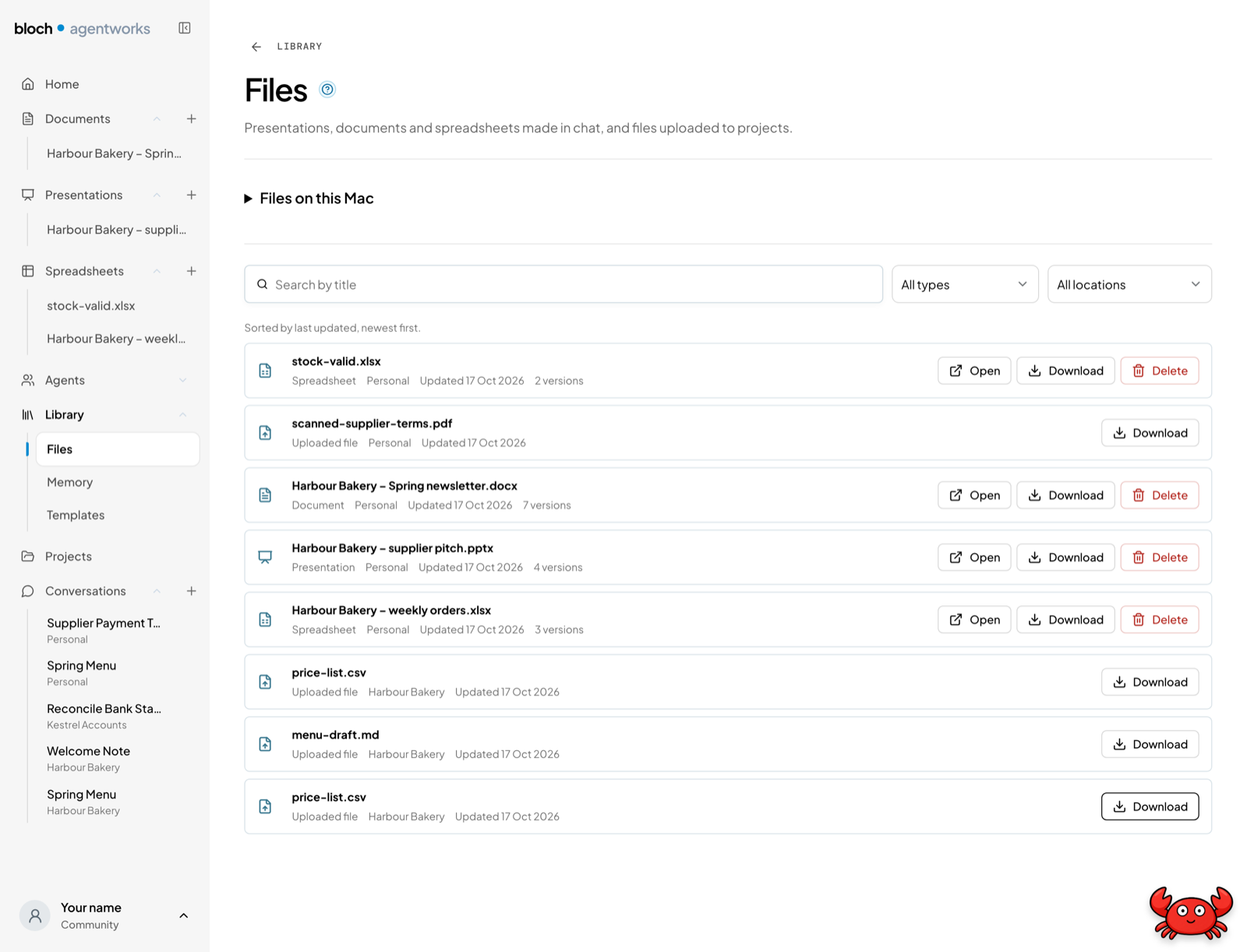 Each row shows the type, the location, when it was last updated and how many versions it has.
- Type a name in Search by title.
- Use All types to show only one kind of file, such as spreadsheets.
- Use All locations to show the files in one project, or in Personal.
- Open opens a saved document in its editor or an uploaded file in a preview when its type is supported. Download saves the file to your Mac. Delete asks for confirmation before removing either a saved document or an uploaded file from this workspace.
The Library shows the newest 500 documents and the newest 500 files. Search reaches older ones as well. If two uploads have the same name in one location, each row shows a different Upload ID so you can choose the right file. The scan label says Scan reported clean, Not scanned for malware or Scan status unknown; a file marked unscanned or unknown has no clean-scan result.
Deleting a file
Select Delete on the exact Library row. Bob asks you to confirm in his bubble. Select Delete document for a document or Delete uploaded file for an upload. Use Cancel if the title or Upload ID is not the one you intended.
Deleting a saved document removes its workspace file and versions from Library and Home. Deleting an upload removes that file from Library and project knowledge; its stored bytes are deleted or queued for cleanup. Chat text, work history, downloaded exports, backups and copies held by a connected service have separate lifecycles. Removing an attachment from a draft message also leaves its saved project copy in place.
In the Mac app, the Library also has a collapsed section called Files on this Mac. It lists folders on your Mac that you have attached to a project.
Templates
Select Library, then Templates. There is one section each for document, presentation and spreadsheet templates.
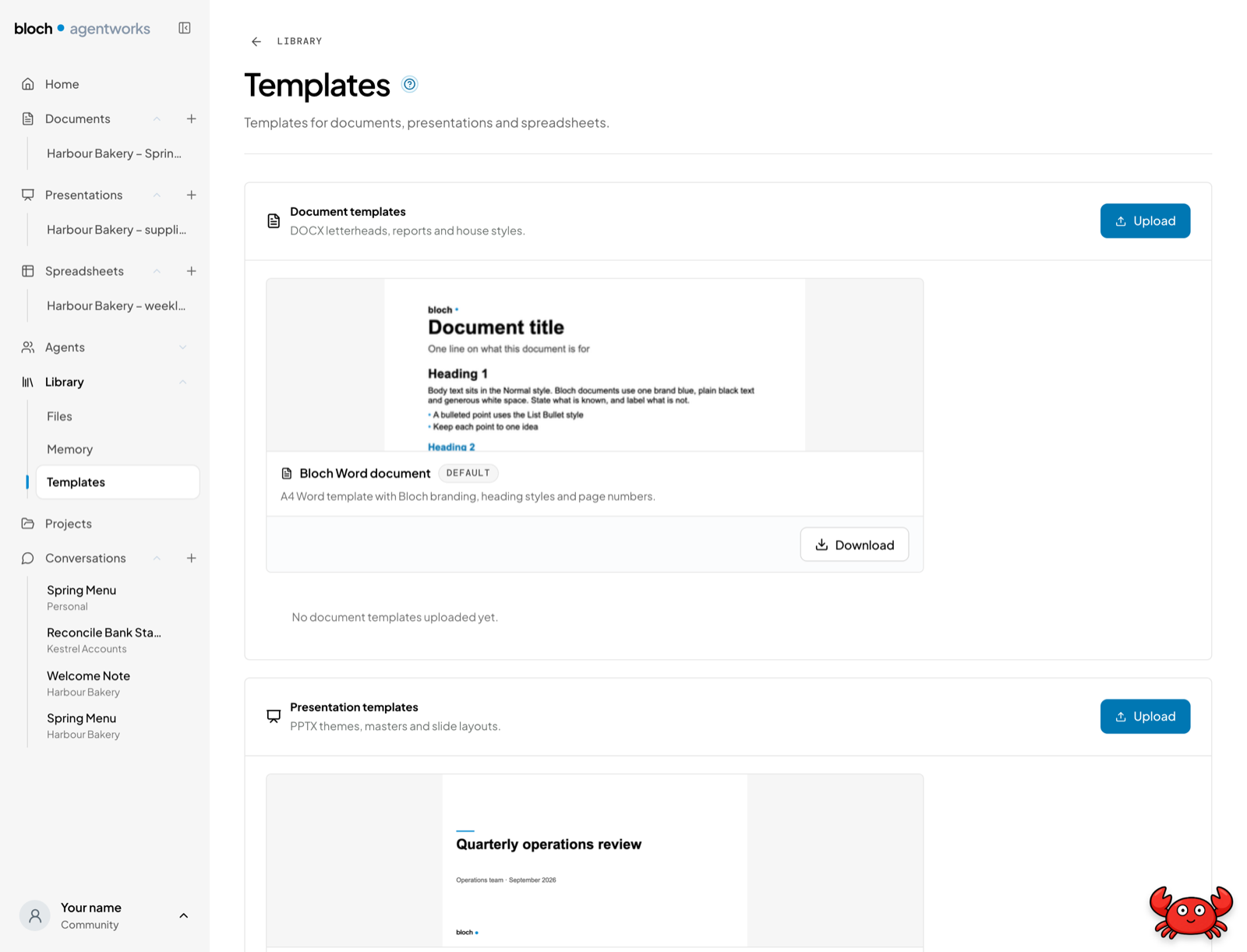 The Bloch Word document is the default. Download it to see the house style.
- To use your own template, select Upload in the right section and choose the file.
- Uploaded templates are checked first. Macros, embedded programs and remote content are refused, and a template can be up to 4 MB.
- The original file is saved on this Mac.
Importing Word, Excel and PowerPoint files
To open a file from your Mac, use File, then Open, in the editor. The file chooser accepts .docx, .xlsx and .pptx files. Older formats (.doc, .xls, .ppt), macro-enabled files and password-protected files are refused.
- The original file on your Mac is not changed.
- Later edits stay in Blochworks. They are not written back to the original.
- Word files can be up to 32 MB. Excel and PowerPoint files can be up to 10 MB.
- An Excel file is checked before it opens. Once it opens, select save to keep your changes.
The imported workbook opens as a separate document. Check its title and save it to keep any changes you make.
Importing a Word file creates a separate saved document with its own identity, even when you started from an open document. Check the new title and project before editing. If you need an earlier version of a saved document, use Version history in its editor.
Local folders
Local folders let Bob's local file skill read and organise files in folders you choose. They are set up in Settings, then Tools, at the bottom of the page in the Local files section.
- Open Settings, then Tools.
- In Local files, select Add folder....
- Choose the folder in the picker. A folder you cannot use, such as your whole home folder or a system location, is refused with a reason.
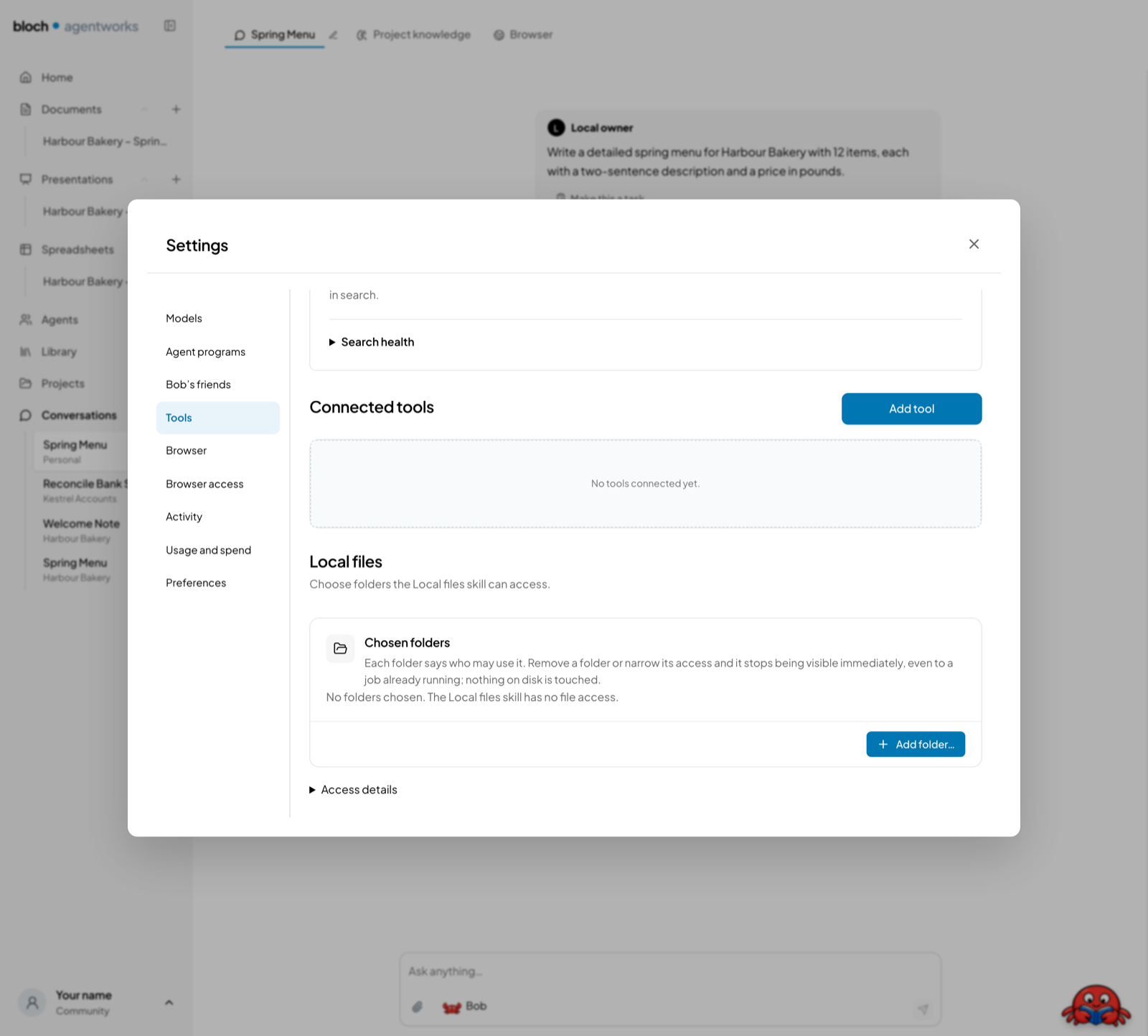 Until you add a folder, the Local files skill has no access to any files.
What the Local files skill can do in a folder you have chosen:
- search for files and folders, and read the text of a file
- create files and folders, and rename, move or copy items
- move an item to the bin folder inside the chosen folder
It cannot delete anything, empty the bin, overwrite an existing file, run a program, or look outside the folders you chose. Any change it proposes waits for your approval, and the approval shows the exact source and destination.
Only agents that have the Local files skill can use these folders. Removing a folder stops access straight away. It does not change anything on your disk.
Tool access and folders
Local Files Tool access and folder access are separate requirements. Assigning the skill does not open your home folder or supply a missing folder grant. Removing either the skill or a folder grant stops further access through these tools. See Skills and permissions.
Searching project material through an agent’s workspace tools requires Workspace Evidence. Creating or assisting with Office documents requires the matching Office skill. Attaching, opening and editing files yourself remain available independently of Bob’s skills.
Size limits
- Chat attachments: 5 files per message, 4 MB each.
- Word import: 32 MB. Excel and PowerPoint import: 10 MB.
- Template upload: 4 MB.
- A PDF in a chat: Bob reads as much text as fits and says how many pages he read. Scanned pages are read by text recognition up to 12 pages.
What needs your approval
Attaching a file to a chat needs nothing from you beyond sending the message. Importing a file needs nothing either. Deleting a saved document or uploaded file from the Library asks you to confirm the exact row. A change a Local files agent wants to make to a folder waits for your approval.
What leaves your Mac
- Text from an attachment is sent to the model Bob uses for that chat. If that is a cloud model, the file's text leaves your Mac.
- In the model settings, Attachment processing controls how files reach the model. Local models only stops any attachment from going to a remote model.
- Text an agent reads from a local folder goes to the model that agent uses. If that is a cloud model, it leaves your Mac.