Choosing a model for Bob
Bob needs a model before he can answer you. A model is the AI that does the thinking. On a Mac you can download a built-in model, or you can connect a model service. That service may be a cloud provider such as Claude or OpenAI, or a compatible local server you run yourself. Windows has the connection route but does not include built-in Bonsai downloads. You can change Bob's model later.
What you see on first launch
The first time you open Blochworks on a Mac, a Choose a model for Bob card takes the place of the message box. It offers the recommended built-in model with its download size and the free space it needs, alongside Download recommended model and Connect a model. On Windows, the card says Connect a model for Bob and offers Connect a model. You cannot type a message until a model is ready, because the card replaces the message box.
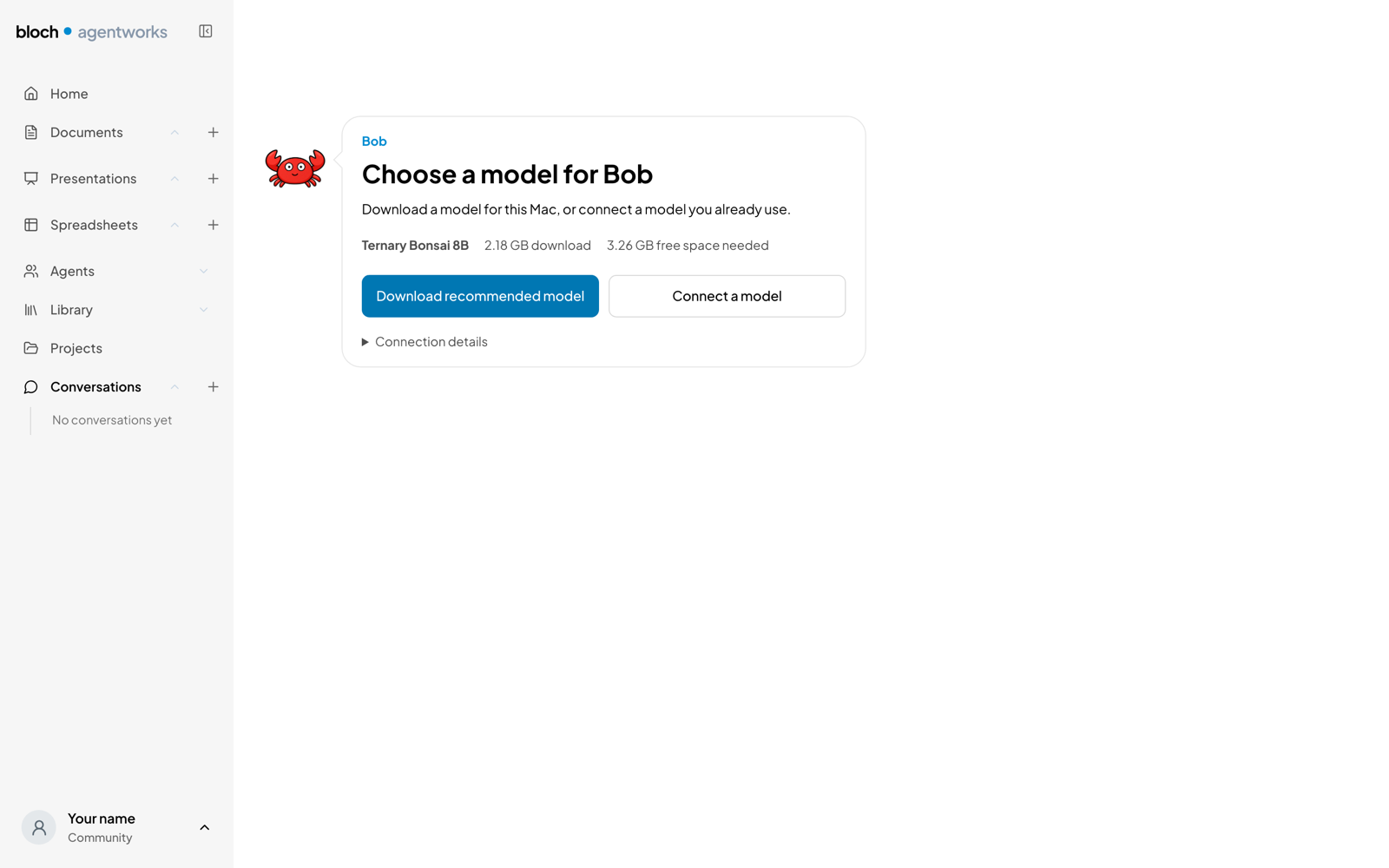 Until a model is ready, this card takes the place of the message box.
If you already run Ollama on this Mac and have nothing else set up, Blochworks may connect Bob to it automatically and name the connection Local Ollama. It never replaces a connection you set up yourself.
Use a built-in model (Mac only)
Built-in models are downloaded once and then run on your Mac. You need an Apple silicon Mac. Bonsai 8B needs at least 8 GB of memory; 16 GB is more comfortable, because the model needs about 5 GB of memory free when it loads (about 6.5 GB for Bonsai 2 9B) and Blochworks will not load it if your Mac is short. Bonsai 2 9B and 27B need 16 GB or more.
- Select Download recommended model on the card, or open Settings > Models > Built-in models.
- Check the tab. Bonsai 8B is marked Recommended for everyday Bob, and it is the model the first-launch card downloads. It is a 2.18 GB download and needs about 3.26 GB of free space. See Bonsai 8B or Bonsai 2 9B for the other choice.
- Select Download model. The file comes from Hugging Face. Progress shows downloaded bytes, such as "0.93 GB of 2.18 GB", and a percentage when the total is known. Download time depends on your connection.
- To stop for now, select Pause download. You can quit the app and come back later. The button then reads Resume download and carries on from where it stopped.
- When the file has arrived, Blochworks checks it against a fixed fingerprint. A damaged or wrong file is thrown away and you see Download failed with a reason.
- Blochworks then runs a short speed check on your Mac. If it reports that the Mac is slow, you can accept it with Try anyway, or leave it.
- Select Use this model. The button changes to In use by Bob. If you started from the first-launch card, the same step is the button Connect and start chatting, which appears once the download is ready and the speed check has finished.
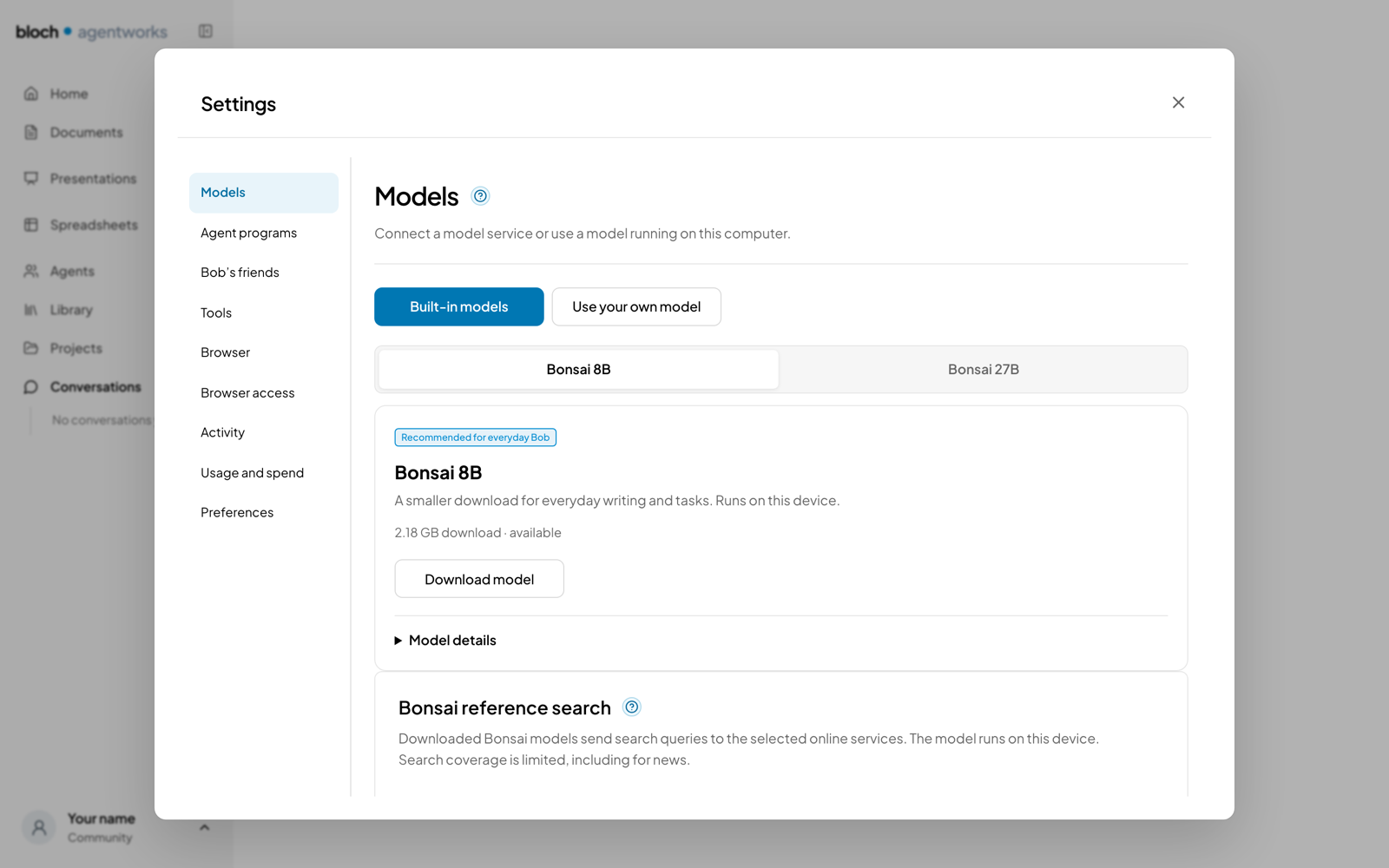 The 8B tab shows its size, a short description and the Download model button.
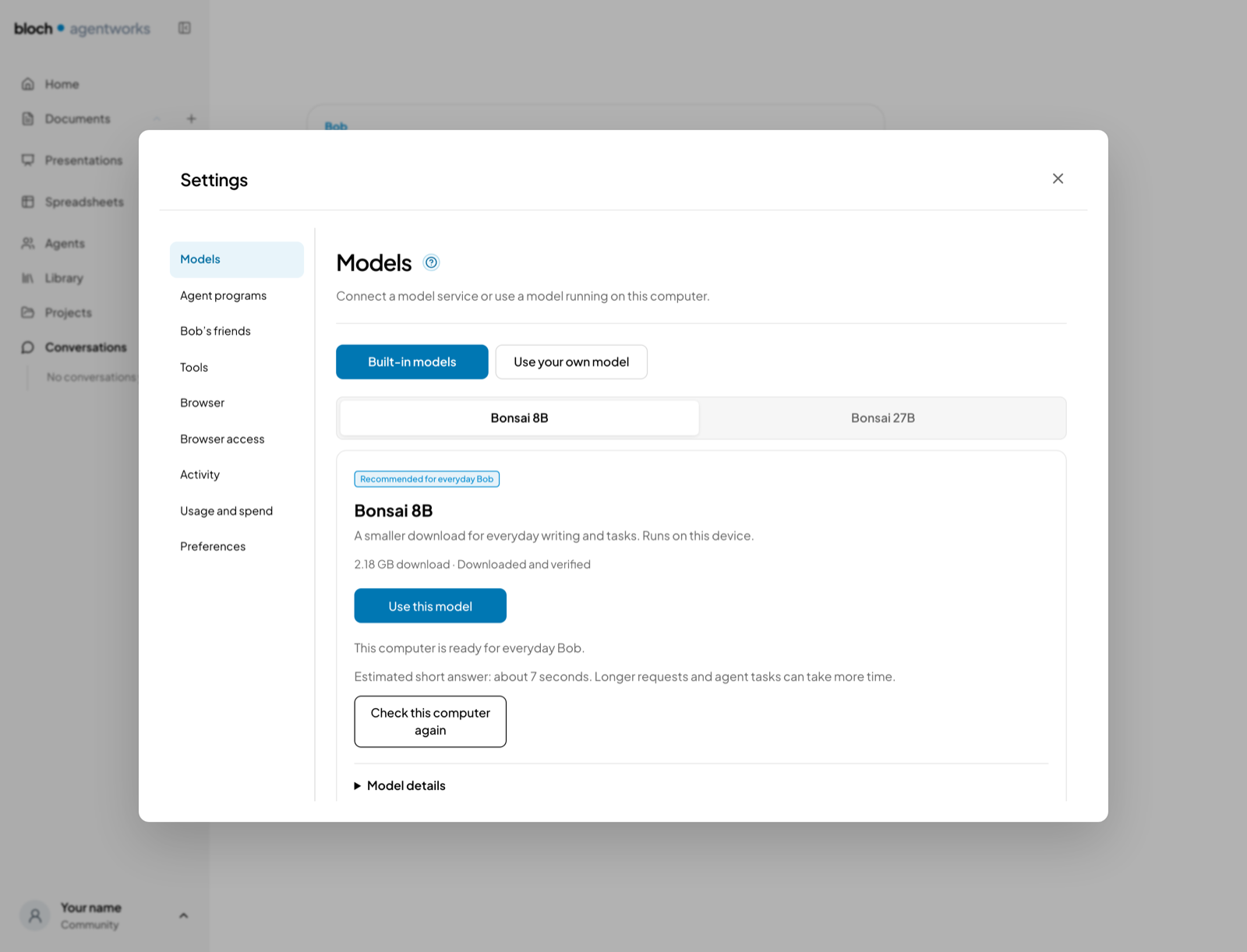 After the speed check, Use this model makes Bob use it.
Built-in replies appear when the answer is ready. Bonsai 8B is best used for short, supplied-text edits and reply drafts that you will check. Work involving several sources, comparisons or calculations needs a stronger model and a review of the sources and output. The model, amount of material and other work running on your Mac affect how long a reply takes.
Bonsai 8B or Bonsai 2 9B
On a Mac with 16 GB of memory or more there is a middle choice, Bonsai 2 9B. Its tab says it is recommended for everyday writing and tasks on a Mac with at least 16 GB, so on a 16 GB Mac you will see a recommendation on both tabs. To choose:
- Bonsai 8B is the smaller download and the one the first-launch card offers.
- Bonsai 2 9B is the one to choose if you want to ask Bob about pictures. It can read images you attach to a chat (PNG, JPEG or WebP). It is about 2.42 GB, plus a 0.62 GB image component that downloads with it, so allow about 3 GB plus working space. Like the other built-in models, it can make mistakes reading an image, so check anything important against the original.
Download and use it in the same way as Bonsai 8B. Its starting context is 16,384 tokens.
The larger 27B option
The Bonsai 27B tab offers a larger model. Its packs are slower and need more memory; choose one when your Mac can run it and the task needs more capability. Check its answers against the source material, particularly for research, figures and finished documents:
- The compact pack is about 5.95 GB and is for Macs with 16 GB up to 24 GB of memory. On a 16 GB Mac, close other applications before you load it.
- The standard pack is about 7.21 GB and is for Macs with 24 GB or more.
There are three tabs: Bonsai 8B, Bonsai 2 9B and Bonsai 27B. The pack that suits your Mac's memory is preselected. If a tab has no pack for your Mac, it says so and points you to another Bonsai model or to your own service.
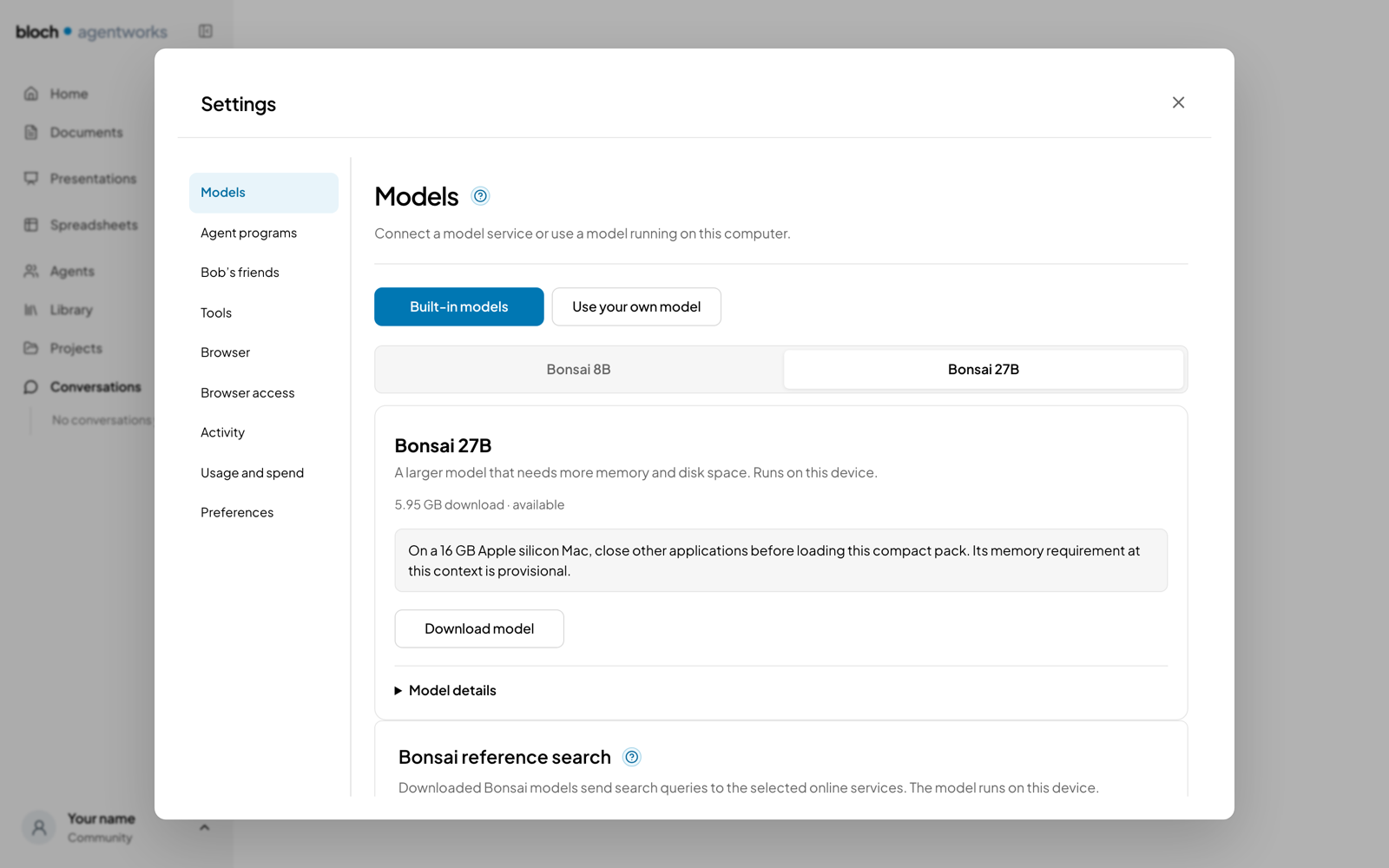 On a 16 GB Mac the 27B tab asks you to close other applications before loading it.
How much Bob can keep in mind
Every built-in model is capped at 32,768 tokens. A token is a small piece of a word, so roughly three-quarters of a word. In plain terms, the cap is how much Bob can keep in mind at once. Your messages, the files you attach and Bob's own replies all count against it.
The starting setting depends on your Mac's memory. For Bonsai 8B it is 8,192 tokens on an 8 GB Mac and 16,384 on a 16 GB Mac. To change it, open Model details under the model and move the context slider. It moves in steps of 4,096. A smaller number uses less memory. A larger one lets Bob hold more of a long conversation, but it needs more memory. When a chat grows past what fits, Blochworks writes short notes about the older part. Summarising the chat does not delete its original messages. Chat deletion and retention use separate controls.
Removing a downloaded model
Open that model's Model details and select Delete download. Blochworks asks you to confirm Delete downloaded model? before removing the pack. If the app refuses deletion, it names the selections and dependent work that still use the pack. These can include Bob or another agent, an improvement or background model choice, a scheduled job with a saved model, a running job or a saved chat continuation. Change the relevant model selections and resolve dependent work before trying again. You do not need to delete historical jobs merely to free the download. Deleting a pack frees its downloaded model files but leaves saved chats and documents in the workspace. You would need to download it again to use it.
Connect your own model service
Use this to connect a cloud model service you already use, or a compatible model server you run yourself. The Mac app has Ollama and LM Studio choices for servers on that Mac. On Windows, connect a compatible local server through a custom OpenAI-compatible address; the app does not install that server or offer the Ollama and LM Studio preset buttons. Cloud providers may bill you for usage. Blochworks takes no fee.
- Open Settings > Models > Use your own model.
- Under Choose a model service, select OpenRouter, OpenAI, Claude, Gemini or Grok. The Mac app also offers Ollama and LM Studio. To use a compatible local server on Windows, select OpenAI, open Advanced, select Edit address and enter that server's API root, usually ending in
/v1. - Key: for a cloud provider, paste its API key. The step tells you where to get one (for Claude, console.anthropic.com). A custom local server may not need a key; follow that server's instructions. Blochworks warns you about obvious mistakes, such as stray spaces or a key in the wrong format.
- Test: Blochworks asks the service or server which models are available and sends one small test message to check that a model answers. If the test fails, the message gives a fix. Use Try again, Re-enter key or Details as appropriate.
- Model: choose the default model. Blochworks shows its context window and the longest reply it allows. For a local server whose limits it cannot detect, you type them in and confirm that they match the server's configuration.
- Done: name the connection, and tick Use for Bob to make it Bob's model.
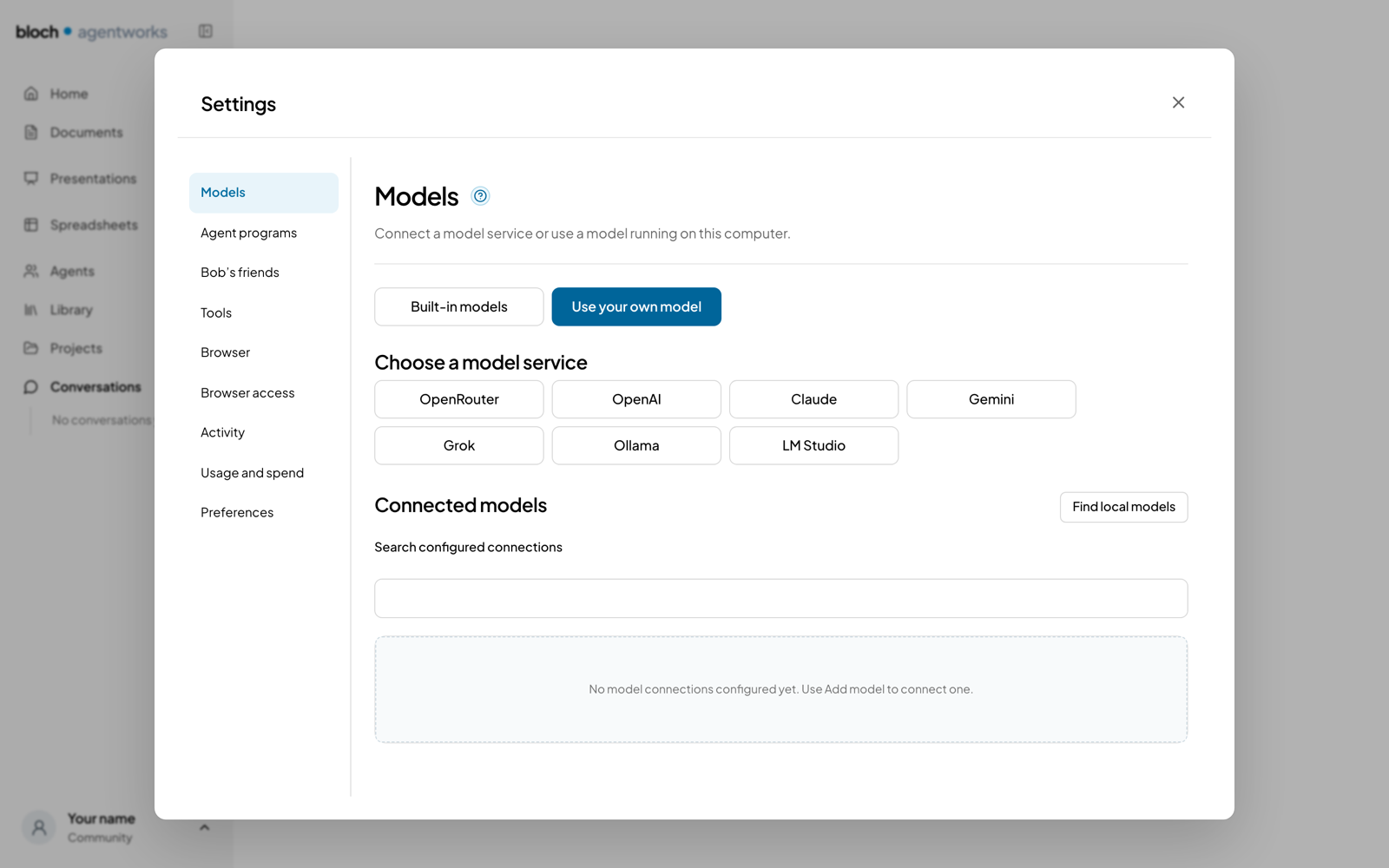 Pick a service from the buttons under Choose a model service.
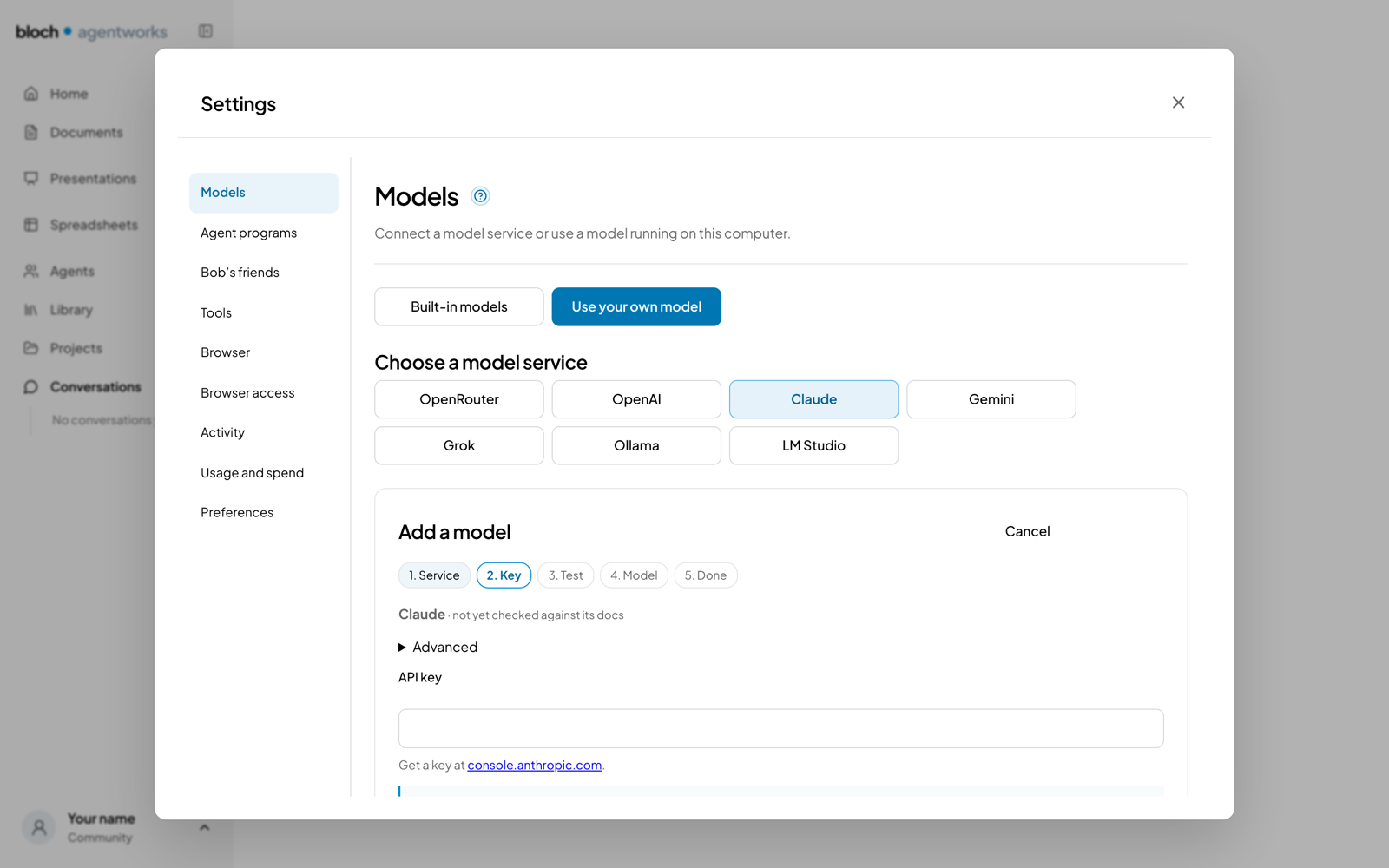 The Key step for Claude. Paste your key here.
Keys are stored encrypted on this computer and sent only to the address of the service you chose. Check a custom server address before saving it: a server on another computer receives the work sent to it.
What each choice means for cost and privacy
- A built-in model has no model-service fee and needs no account. Bob's replies are produced on your Mac. The one-off download comes from Hugging Face, which sees your internet address and the download request, but not your chats.
- A cloud model service is billed by the provider on your own account. Your messages, the instructions for each turn and any files you attach for that reply are sent to that provider. Read the provider's data terms before you send anything sensitive.
- Ollama or LM Studio on this Mac runs the model on this computer. Messages stay here while the server's address is this computer.
- A compatible server on a Windows PC can keep model requests on that PC when its API address points back to the same computer. You install and manage the server and its model separately. A server elsewhere, including one on your network, receives the requests sent to it.
Bob may also search the web when a question seems to need it. Web search is on by default and sends search words to DuckDuckGo and Wikipedia, so keep private details out of questions that need the web. The web search and browser page explains what is on now.
Limits and good to know
- Windows has no built-in Bonsai model. Connect a cloud provider or a compatible local server to use Bob. The Windows app does not include the bundled offline document-recognition and translation components available in the Mac package.
- Only Bonsai 2 9B reads pictures. Bonsai 8B and 27B read text only, and no Bonsai model reads audio. The model's Model details say whether it can be asked about attached images.
- Speed check is an estimate. Long answers and agent tasks take longer than the estimate.