Installing and updating
This page explains how to install Blochworks, get past the first-open warnings, update to a new version and remove it. Blochworks is the app you use to work with Bob. The installer and Finder may still call the app Bloch Agentworks; its workspace is branded blochworks; the Windows installer file and the licence text under About and legal say AgentWorks.
Before you start
- Mac: you need a Mac with Apple Silicon (an M1 chip or later). Intel Macs are not supported by this beta.
- Windows: you need a 64-bit Windows PC. You connect a model service rather than downloading a built-in Bonsai model. The service can be a cloud provider or a compatible local server that you run separately.
- Disk space: leave room for both the Mac .dmg download and the installed app. Check the size supplied with your download. If you want Bob to run a built-in model on your Mac, Bonsai 8B needs about 3.3 GB of free space in addition to the app. Bonsai 2 9B needs about 3 GB, and the larger 27B models need much more.
Install on a Mac
- Download the .dmg file from the download link you were given.
- Open the .dmg file. A window opens with the app and a shortcut to your Applications folder.
- Drag the app into Applications.
- Open Applications and open the app.
The first open will show a warning
The beta is not yet notarised by Apple. Notarisation is Apple's check of software from developers who have joined its developer programme. Until that is in place, macOS does not recognise the app and will show a warning the first time you open it. This is expected for this beta. It does not mean the app has been found to be harmful.
When the warning appears:
- Close the warning.
- Open System Settings, then choose Privacy & Security in the sidebar.
- Scroll down to the section about the app. You will see a message that the app was blocked.
- Click Open Anyway, and confirm with your Mac password or Touch ID.
- Open the app again. From now on it opens normally.
You only need to do this once. The exact wording of the warning depends on your version of macOS.
The app may still be described as Bloch Agentworks in Finder. Open it to reach the blochworks workspace.
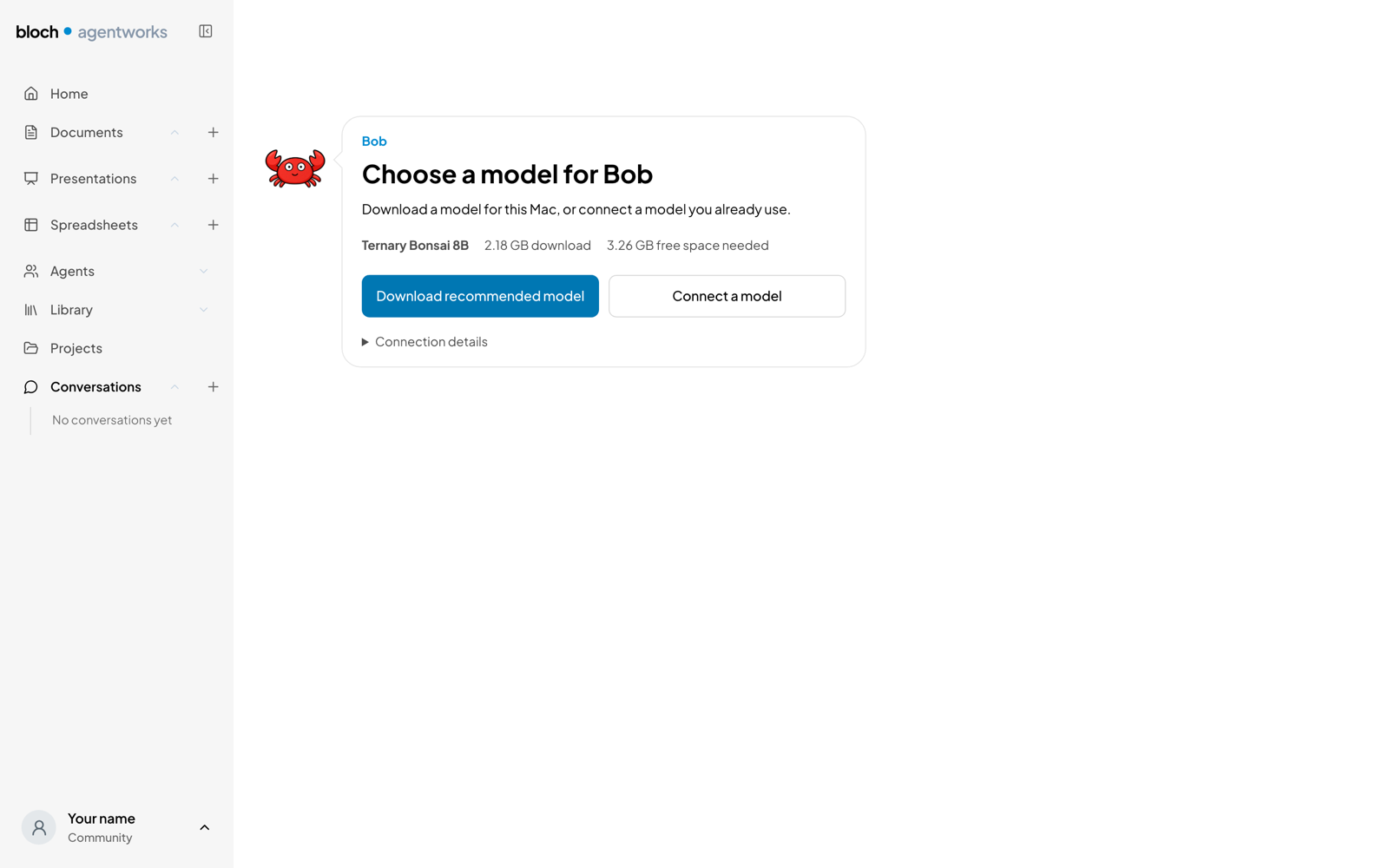 On first launch, Bob asks you to download a model for this Mac or connect a model you already use.
Install on Windows
- Download the Setup file (it ends in .exe).
- Double-click it. The installer runs for your user account and does not ask for administrator rights.
- Accept the licence and choose where to install, or keep the default location.
The installer is not yet code-signed, so Windows SmartScreen will show a warning the first time:
- The message says Windows protected your PC.
- Click More info.
- Click Run anyway.
The Windows installer file is called AgentWorks-0.1.0-Windows-x64-Setup.exe, and the installed app and its data folder are called Bloch Agentworks and Bloch Agentworks Windows. Windows does not include the built-in Bonsai models or the bundled offline document-recognition and translation components. To use Bob, open Settings → Models and connect a cloud model service, such as OpenAI, Claude or Gemini. You can also connect an OpenAI-compatible model server that you run separately on the same PC: choose OpenAI, open Advanced, select Edit address and enter the server's API address, usually ending in /v1. Test the connection and choose its model. The Windows app does not install or manage that server, and its Ollama and LM Studio preset buttons are not shown. If you use a server on another computer, your model requests go to that computer.
First launch
On both systems the app starts a private copy of itself on your computer. It shows the workspace in its own window after a few seconds. Nothing is downloaded at this point, and you do not need to create an account or sign in.
You then choose how Bob will think:
- Connect a model you already use. In Settings → Models, connect a cloud provider or a compatible model server you run yourself. Cloud providers receive the work sent to them. A server on another computer receives it too; a server on this computer can keep model requests here. See Your data and privacy.
- Download a model for your Mac. On a Mac, you can download a built-in model. It is a one-off download of about 2 GB, and after that Bob runs it on your Mac.
If you already use an older Mac version of the app, the workspace offers to Import your previous workspace. You can ignore the offer.
Updating
There is no automatic update yet. New versions arrive as a new .dmg or .exe file. To update:
- Quit Blochworks. On a Mac, choose Quit from the menu. Make sure no chat is still working.
- Install the new version over the old one. On a Mac, drag the new app into Applications and replace the old one. On Windows, run the new installer.
- Open the new version.
Your work is kept. Your conversations, documents, connections and settings live in your profile folder, not inside the app, so replacing the app does not remove them. If an update cannot open an older profile, keep the profile intact and use the startup guidance below rather than deleting it.
Before a major update, back up your profile folder. The steps are on Your data and privacy.
If the app does not start
The startup message gives a short code without showing your private folder path, keys or background-service output. If it says profile_permissions, quit the app and check the ownership and permissions of a workspace folder you restored from backup. It must remain private to your account. Do not change permissions on unrelated folders or delete the profile to make the app start. If it says runtime_assets, replace the app from the verified installer and keep your workspace folder. A credential_store message means the connection key could not be prepared or opened safely. Quit and reopen the app; if the code returns, check access to the macOS Keychain and keep the code for support. For a background-service failure or timeout, quit and reopen the app. If the same code returns, keep the code for support.
The startup check does not repair a private profile or reset credentials on its own. Restoring from backup is covered under Your data and privacy.
Find the source for your exact build
Open the user menu and choose About and legal. It shows this app's version, build ID and source commit. On a packaged Mac build, Show bundled source in Finder opens the matching source archive supplied with the app; copy it somewhere safe before unpacking it. A browser build offers Download this build’s source instead. The archive includes the matching source and build and installation scripts, but no workspace data. If the app says the archive cannot be verified, reinstall from the matching installer or use the archive supplied alongside it.
Uninstalling
To remove the app:
- Mac: drag the app from Applications to the Trash.
- Windows: open Settings → Apps, choose the app, and select Uninstall.
Uninstalling the app does not delete your data.
-
Mac: your app-managed workspace data stays in this folder until you delete it:
~/Library/Application Support/ai.bloch.agentworks.community-companion-experimentalTo remove the app-managed data, delete that folder too. If you chose the macOS Keychain option for your keys, you can also delete the Keychain item named for the connection key.
-
Windows: your app-managed workspace data stays in the Bloch Agentworks Windows folder inside
%APPDATA%. Delete that folder to remove it.
Exports you saved to another place, such as your Documents folder or a USB drive, are separate files. Files in local folders or managed Obsidian vaults you chose also stay in place. Deleting the profile folder does not delete these files, your backups or copies held by connected services.
System requirements at a glance
| Mac | Windows | |
|---|---|---|
| Processor | Apple Silicon (M1 or later) | 64-bit Intel or AMD |
| Models | Built-in models on this Mac, or a connected cloud or compatible local service | A connected cloud service or compatible local server; no built-in Bonsai download |
| Free disk space | Room for the .dmg download and installed app, plus model space if you download one (Bonsai 8B needs about 3.3 GB in addition to the app) | Room for the installer and app; a separate local model server needs its own model storage |
Check the system requirements supplied with your download before installing.