Memory
Bob can remember facts and preferences, such as your opening hours or how you like replies written, so you do not have to repeat them in every chat. Memory is kept on this Mac unless you choose to connect an outside memory service. This page explains how things get saved, how to check and change them, and what you approve.
Saving something yourself
To save a fact straight away, say so in a chat. For example:
- Type Remember that followed by the fact, such as Remember that Harbour Bakery opens at 7am on Saturdays.
- Press Enter. The memory is saved at once. Bob replies with Saved for this project and agent and the fact.
- Select View saved memory under the reply to open the memory dialog for that agent.
You can also add a memory by hand in the memory dialog, in the box Add a fact or preference, and choose a scope for it.
Bob's own suggestions
Bob can also suggest things he thinks are worth remembering, such as a preference he noticed in your messages. These are not saved until you decide. They wait under Suggested memories (n) with three buttons:
- Approve saves the suggestion.
- Reject throws it away. Nothing is saved.
- Edit lets you change the wording before you approve it.
How Bob makes suggestions is set by Saving preferences and facts in the memory settings. It has two choices:
- Only when I ask: Bob saves only what you tell him to remember.
- Suggest for approval: Bob may suggest things, and you approve or reject each one. This is the default.
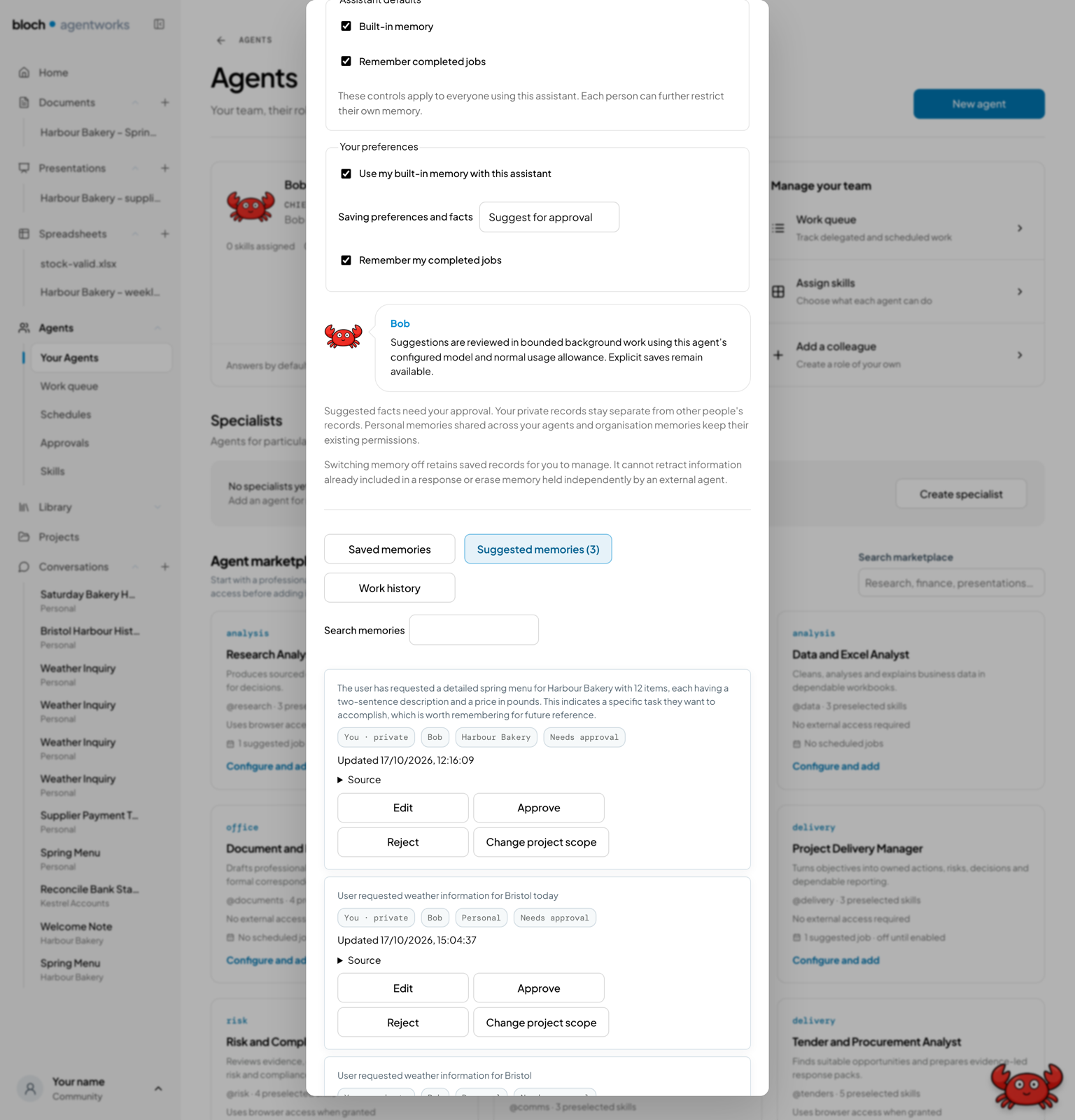 Suggestions wait here. Nothing in this list is used until you approve it.
If Bob keeps suggesting things you do not want, choose Only when I ask. Your explicit "Remember that" messages still save straight away.
Where to see and change saved memories
Memories can be seen in two places. In the sidebar, select Library and then Memory for a page that lists your saved memories. You can add something to remember there and filter the list. Each agent also has its own memory dialog. To open it:
- Select the View saved memory link under a Bob reply, or
- Open the agent in Agents, and find the section headed Memory for the agent's name.
The dialog has three tabs: Saved memories, Suggested memories and Work history. Each saved memory shows where it came from and its scope, such as Personal or Across this agent's projects.
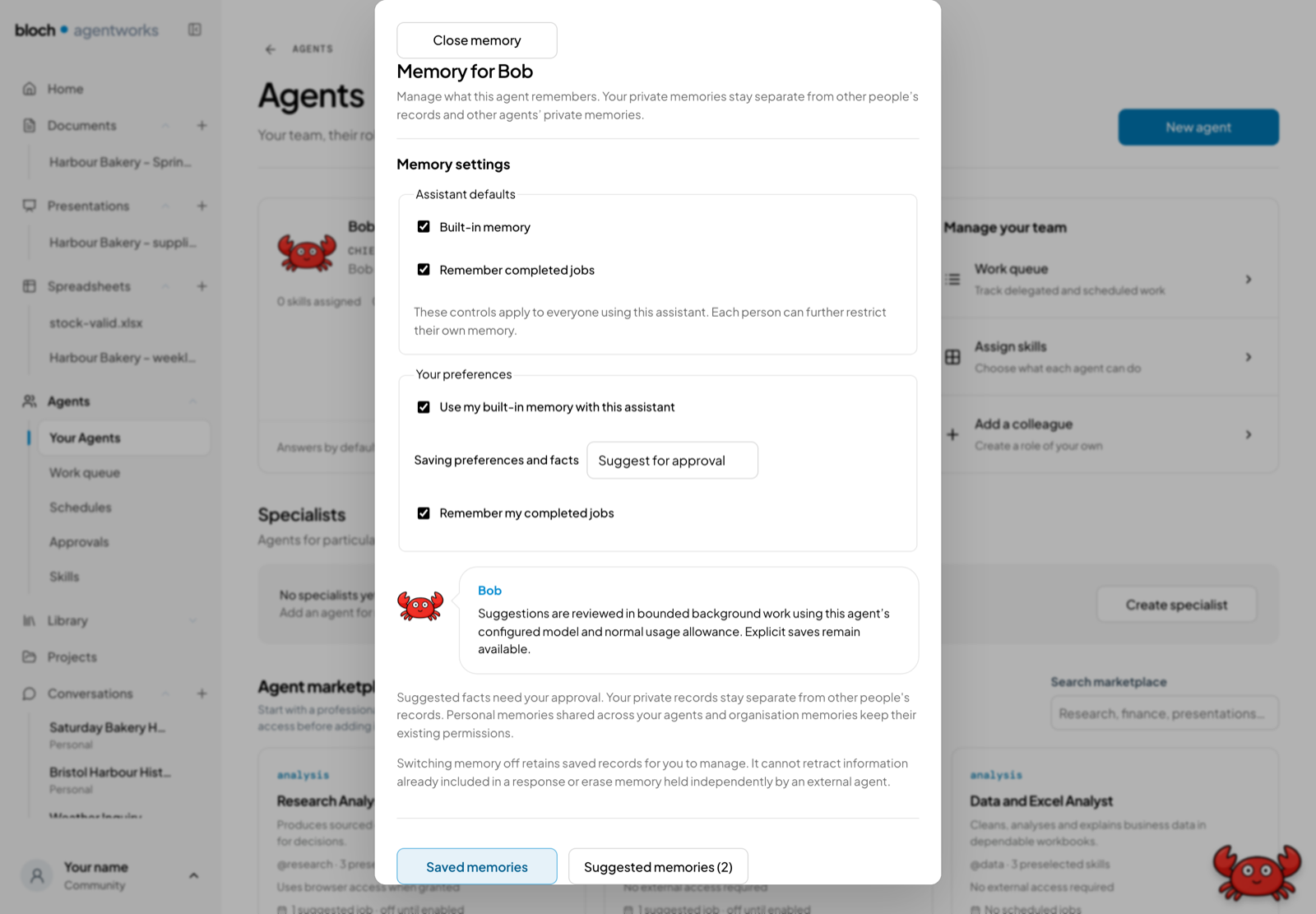 The memory dialog opens with the memory settings at the top, including the saving mode.
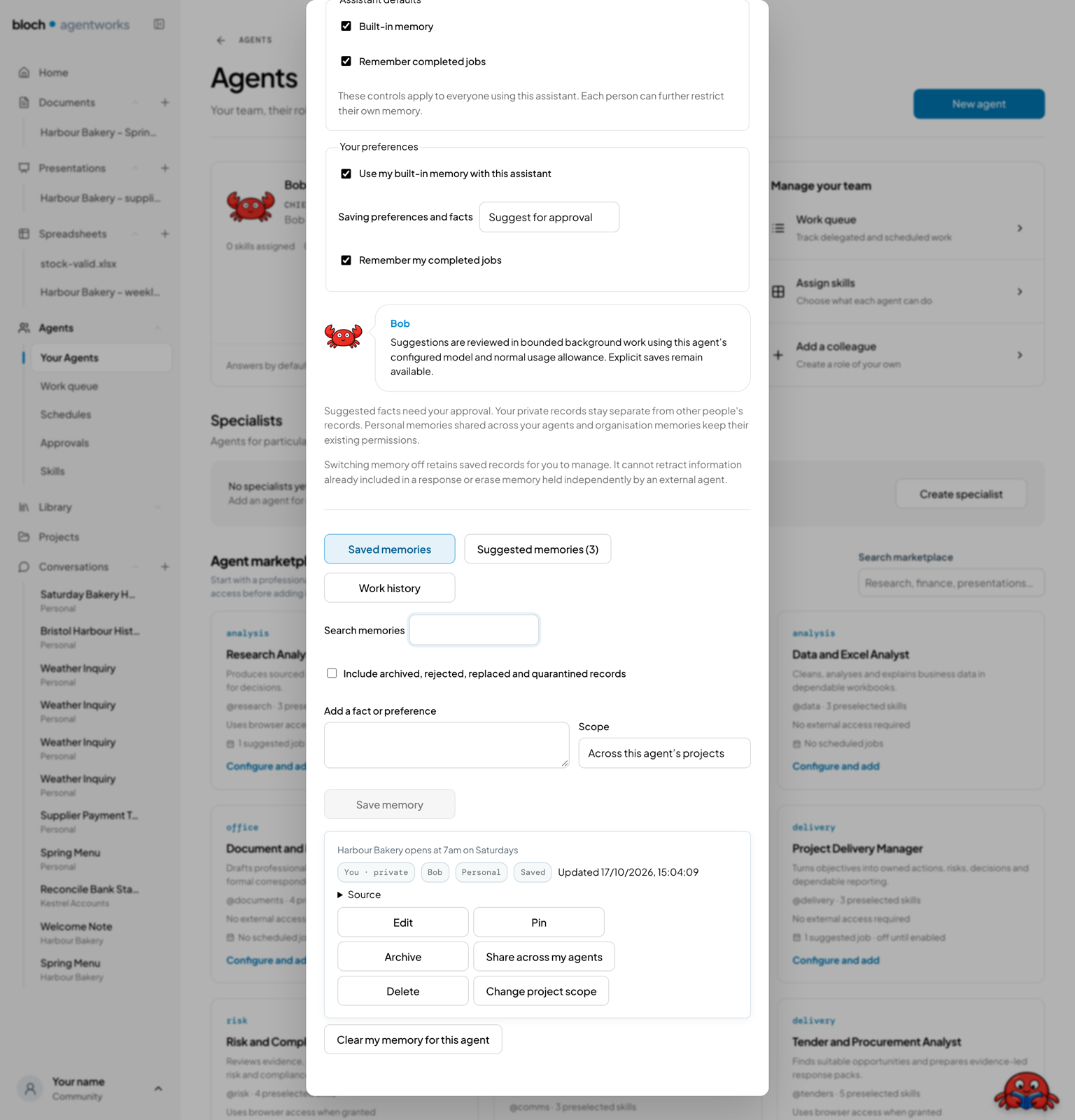 Each saved memory has its own buttons. Pin keeps a memory from being set aside, and Archive stores it without deleting it.
Editing a memory
- Select Edit on the memory.
- Change the wording and save the correction.
Bob confirms with Memory corrected.
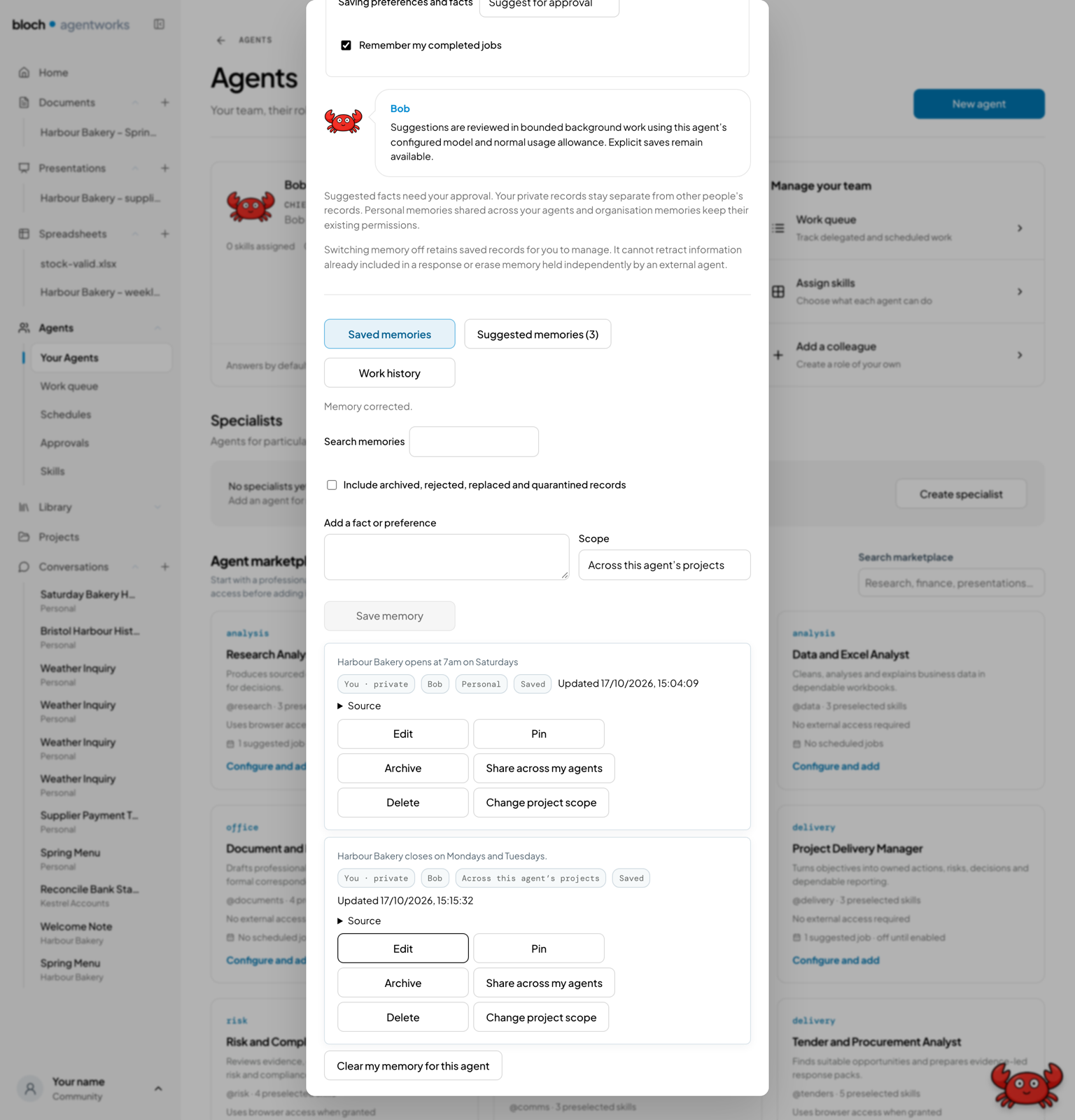 After you save a correction, the memory keeps its scope and shows the new wording.
Deleting a memory
- Select Delete on the memory.
- Read the confirmation and select Confirm deletion.
A deleted memory is removed from Blochworks. To remove everything Bob has saved for one agent, select Clear my memory for this agent at the bottom of the dialog.
Rejecting a suggestion
When you reject a suggestion, Bob confirms with Suggestion rejected. and it leaves the list.
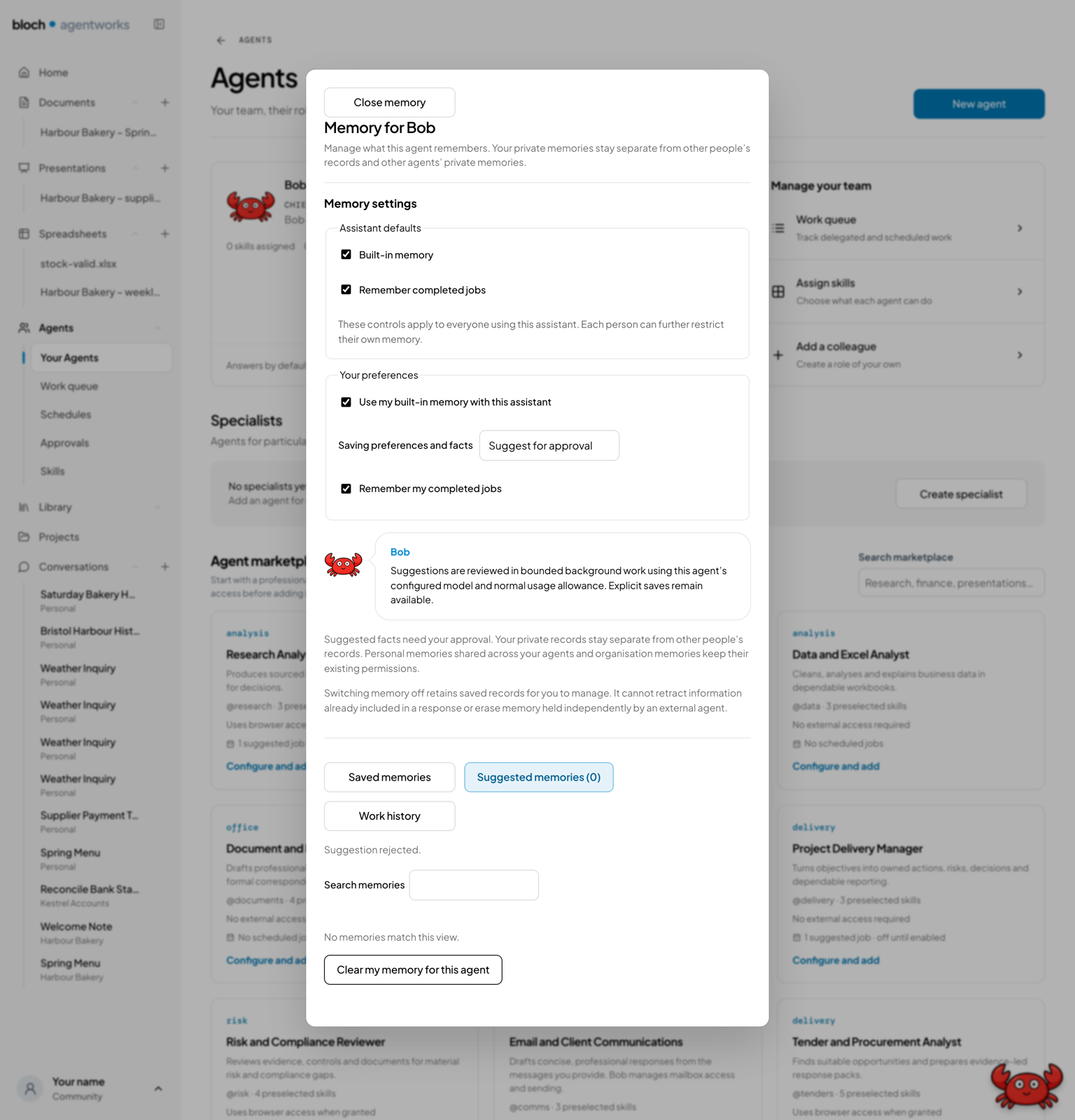 A rejected suggestion is removed from the list and is not used.
Turning memory off
Clear the switch Use my built-in memory with this assistant in the memory settings. Switching memory off keeps the saved records for you to manage. It does not take back anything Bob has already used in a reply.
Workspace Evidence permission
An agent needs Workspace Evidence Tool access for its saved-memory tools and background memory suggestions. Its existing memory mode, project scope and approval settings still apply. Your saved records remain available for you to manage in the memory screens. See Skills and permissions.
What needs your approval
- Nothing is needed to save a memory you asked for with Remember that, or to add one by hand.
- Bob's suggestions need your approval before they are saved.
- Deleting a memory asks you to confirm.
What leaves your Mac
- Built-in memory is stored on this Mac. Relevant memories included in a cloud-model request are sent to that provider with the request.
- Suggestions are reviewed in the background using the agent's own configured model. If that model is a cloud model, the conversation being reviewed goes to that provider. If you use a model on this Mac, it does not.
- External memory is optional and off by default. If you connect Honcho or Mem0, then before each reply your message is sent to that service so it can look up related memories. After each reply, your message and Bob's reply are also sent to it to be stored. Long messages are cut short before they are sent. Blochworks cannot delete anything the service holds. Remove it there as well.
To connect an outside service, go to Settings and then Tools, select Add tool, and choose External memory. Then, on the agent's setup page, the section External memory lets you pick Built-in memory only or your saved connection. The default is Built-in memory only.
Limits and good to know
- A memory is attached to one agent, or it can be shared across your agents. One agent does not see another agent's private memories.
- Memory is for things that stay true. Bob does not use it as a record of what happened, apart from the summaries under Work history.
- Bob uses memory when he replies, but he may not use every memory on every question. Check important answers against the original.
- Memory is limited in size. When it is nearly full, Blochworks warns you.