Remote access
Remote access lets you open your own Blochworks workspace in a web browser on another device, such as a phone or laptop. Your workspace stays on your Mac. The other device is only a window onto it.
The facts
- It is off by default. You turn it on in Settings → Browser access.
- It is available only in the Mac app, on the Mac.
- It works only through Tailscale, a private network between your own devices. It never opens your workspace to the public internet. Blochworks refuses to run if Tailscale's public sharing (Funnel) is switched on for this computer.
- Your Mac must be awake with Blochworks open while you use another device.
- Every new browser must be approved on the Mac, by checking that the code shown on both screens matches.
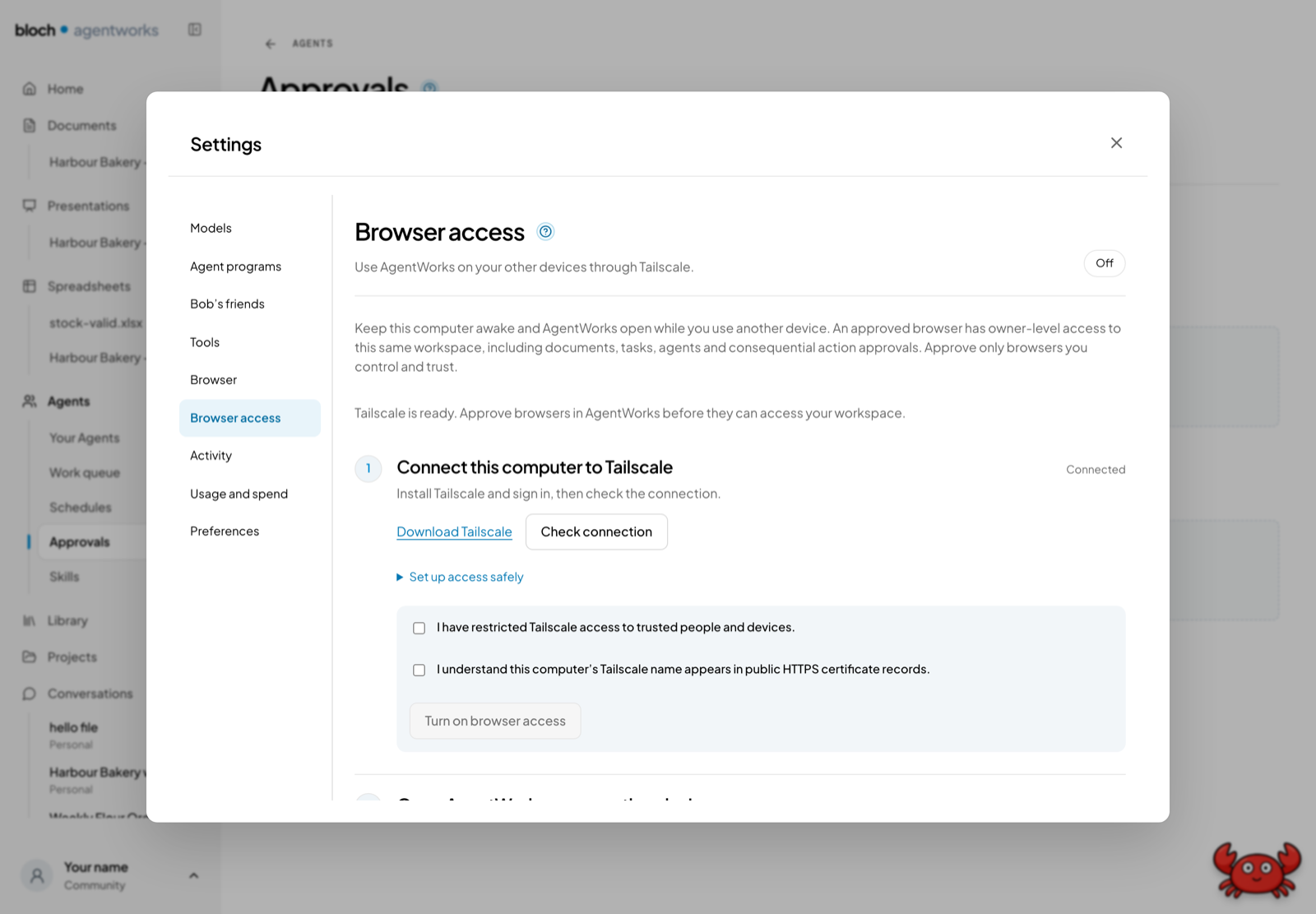 Browser access is Off until you turn it on. The warning is in the panel itself.
An approved browser has owner-level access to your workspace. That includes documents, tasks, agents and approving things Bob wants to do, such as sending an email. Approve only browsers you control and trust.
Set it up
- In Settings, open Browser access.
- Under step 1, Connect this computer to Tailscale, select Download Tailscale if you do not have it, sign in, then select Check connection. The step shows Connected when it is ready. Open Set up access safely for advice on limiting who can reach your Mac within Tailscale.
- Tick both boxes: I have restricted Tailscale access to trusted people and devices. and I understand this computer's Tailscale name appears in public HTTPS certificate records.
- Select Turn on browser access. It stays greyed out until both boxes are ticked.
- Step 2, Open blochworks on your other device: install Tailscale on that device and join the same private network. Your private address appears once browser access is running. Open it in the other device's browser.
- Step 3, Approve your browser: select Add a browser on the Mac, then choose Connect this browser on the other device. The other device shows a code. Enter the code on the Mac and approve. You are asked to confirm that this gives full access to your workspace.
Add a browser is greyed out until browser access is turned on.
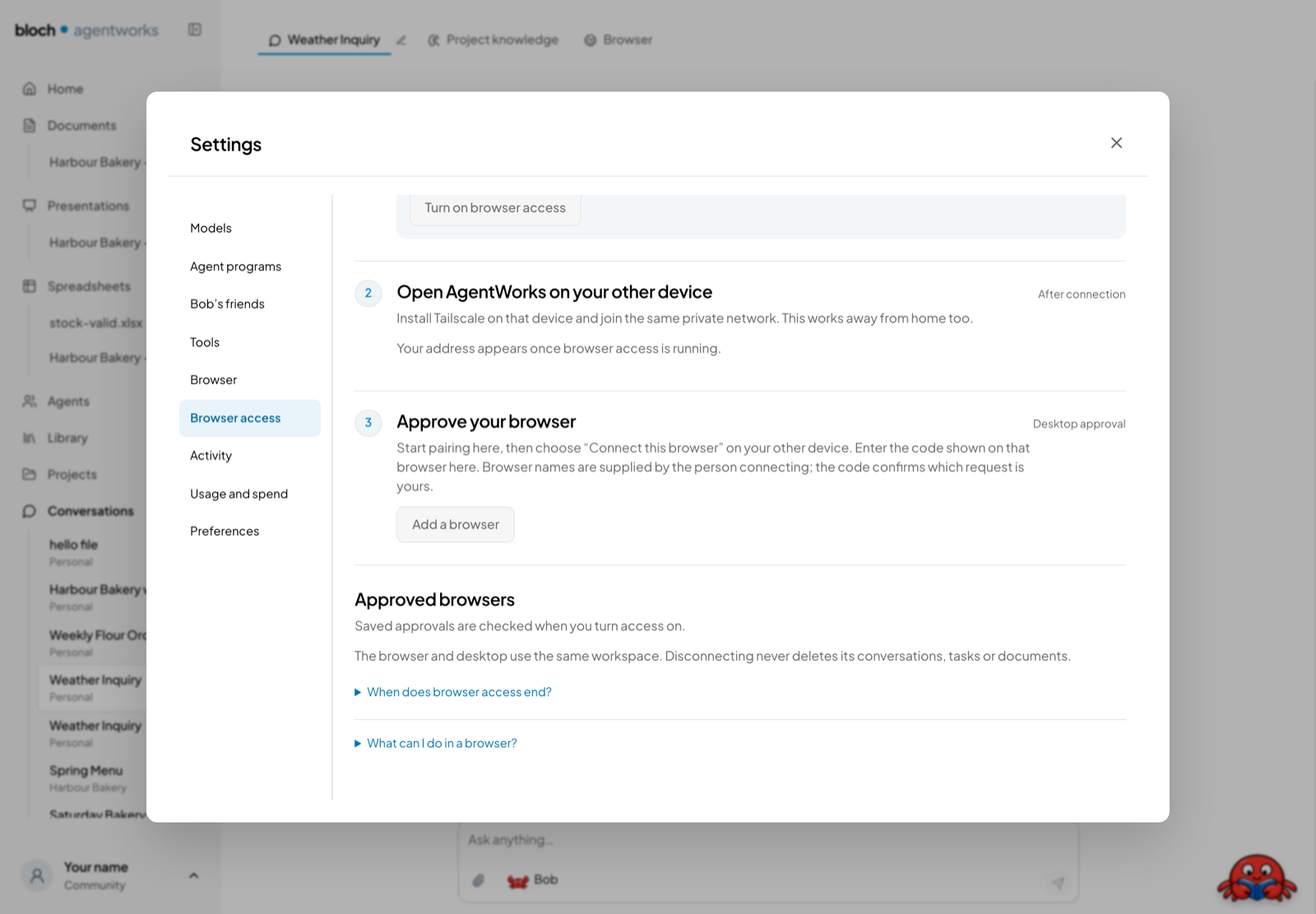 Approving a browser happens on the Mac. Approved browsers are listed below.
What an approved browser can do
It can use the full workspace: chat with Bob, edit documents, upload and download files, manage tasks, and review and decide approvals. It can also change which tools and skills your agents have, create or edit agents, let Bob use signed-in websites and change which websites Bob may visit, so treat an approved browser as having owner-level access. It cannot change credentials, connections, file folders, the Claude and Codex supervision settings or the browser-sharing setting. Those are changed only on the Mac. Information viewed or downloaded on the other device cannot be erased remotely.
When access ends
- An approval ends after seven days, or after twelve hours without activity.
- Restarting Blochworks leaves sharing off. Approvals that have not expired are available again when you turn access back on. The separate reset of local browser pairing on the Mac does not itself revoke these Tailscale browser approvals.
- Turning access off, removing a browser or signing out of Tailscale ends approval. Turn it off with the same switch in the panel.
- Disconnecting never deletes the workspace's chats, tasks or documents.
What needs your approval
Every new browser needs a code-matched approval on the Mac. Once approved, that browser can itself approve Bob's requests, so treat each approval as handing over your account.
What leaves your Mac
Nothing is sent to a Blochworks service. Pages and data travel over your Tailscale network between your Mac and your own device. Tailscale itself is a service you sign in to, and your Mac's Tailscale name appears in public certificate records, which is what the second tick box refers to.
Limits and good to know
- Mac only, and Tailscale is required.
- Up to 20 browsers can be approved at once.
- Anyone on your Tailscale network can reach the sign-in page while you are adding a browser, but cannot see anything until you approve their code. Blochworks does not check your Tailscale access rules, which is why the first tick box asks you to.