Settings
Settings holds everything that controls how Bob works on this Mac: the models he uses, the people and tools he can reach, the browser he can use, what he has done, and general preferences. Open it from the user menu at the bottom left of the sidebar, by selecting Your name and then Settings.
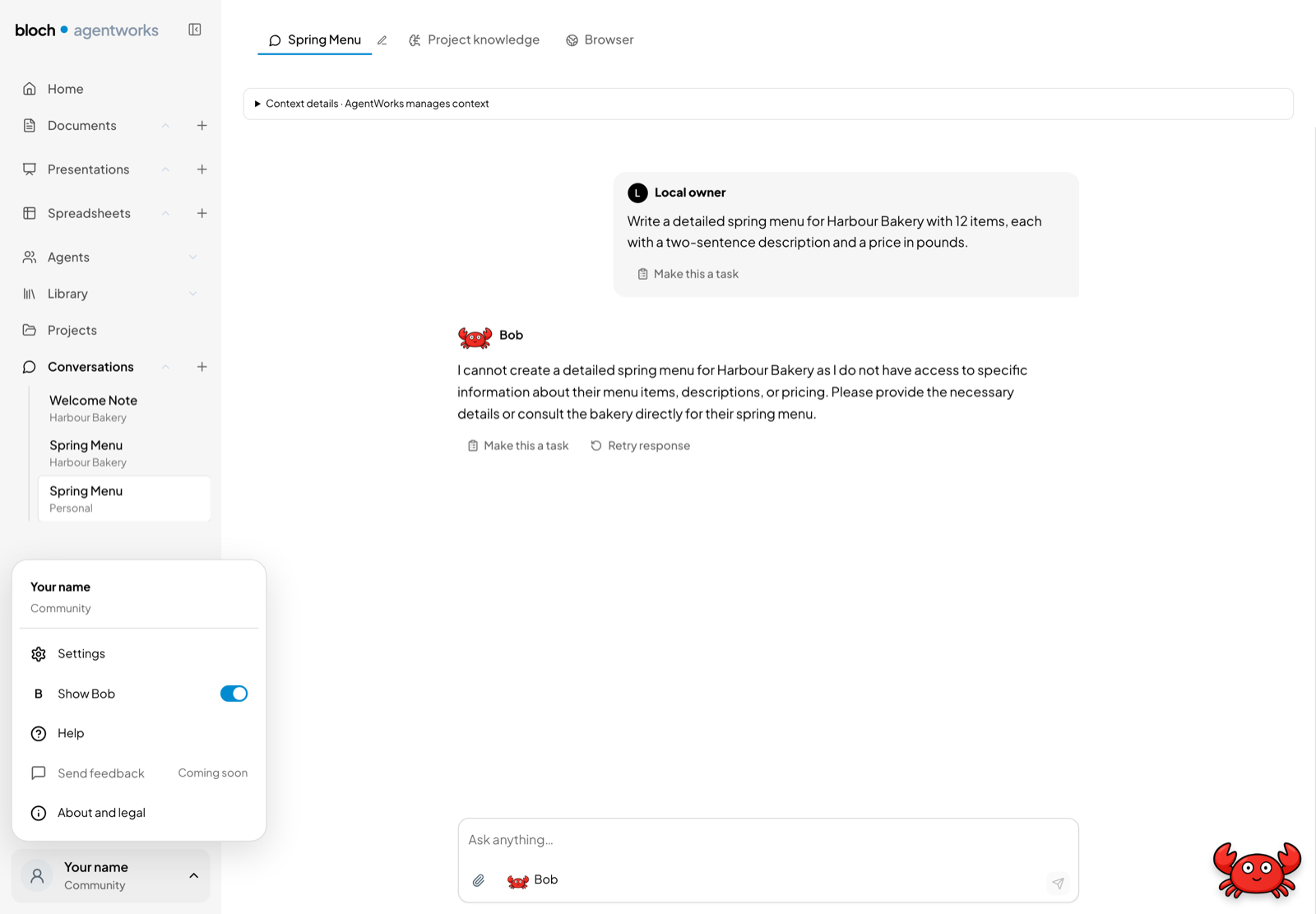 The user menu holds Settings, Show Bob, Help, About and legal.
The sections are listed down the left side of the Settings window, in this order.
Models
Choose the model Bob uses, download a built-in model, or connect your own model service. Under Built-in models you find the Bonsai tabs (8B, 2 9B and 27B) and their context settings. Under Use your own model you connect Claude, OpenAI and other services. See Choosing a model for Bob.
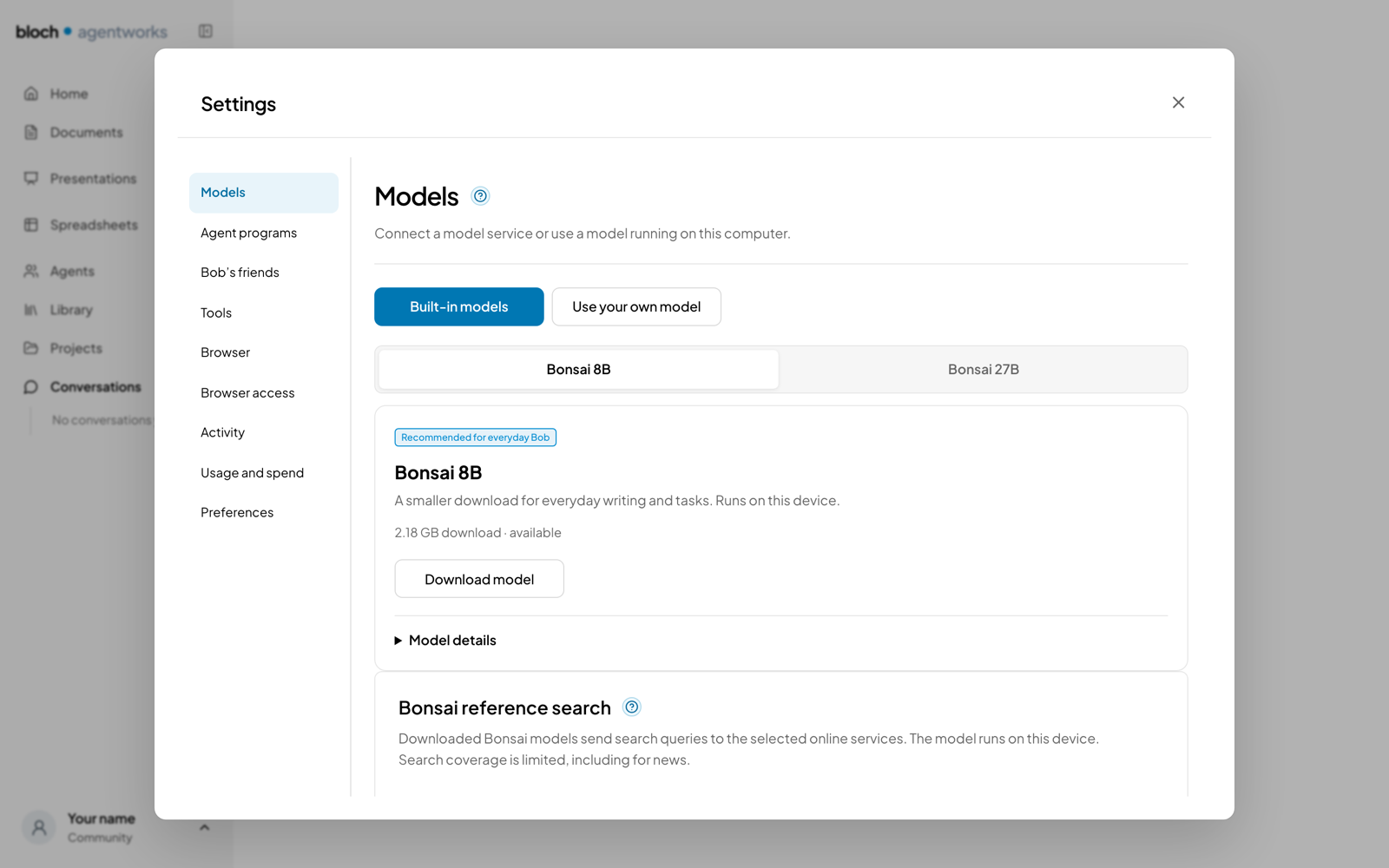 The Models section, showing the Built-in models and Use your own model buttons.
Agent programs
Connections to coding agents, such as Claude Code, Codex or Mistral Vibe, which run as programs on this Mac with your permissions. A Claude and Codex panel here lets you switch on a supervised agent for each of those two programs and choose whether Bob or you handles its permission requests. Each starts off. See Coding agents and tools.
Bob's friends
Other people, or Bob's helpers acting for them, who can ask Bob for things within the permissions you give. Each friend has its own limits. See Bob's friends.
Tools
Connect email, calendars, managed Obsidian vaults, search services and other tools, then set their access and approval rules. Assign mailboxes, calendars, vaults and ordinary tool connections to each agent that may use them. A configured search service is chosen for the workspace as a whole; it is not assigned to an agent as a connection. Each agent still needs Web Research to search, and a verified Friend identity needs its own public-research help permission. Other connected resources also need the matching Tool access skill. Obsidian Read and Manage are separate, and Manage also requires explicit Read. See Skills and permissions and Approvals.
Browser
Settings for the browser Bob can use to open web pages, including the sites you allow him to visit. See Web search and the browser.
Browser access
Lets you open the Blochworks workspace from a browser on another device over Tailscale. It is off by default, is hosted by the Mac app, and requires approval on the Mac for each new browser. Those approvals are separate from pairing a browser on the Mac itself, which is under Preferences → Local browser access. See Remote access.
Activity
A record of what Bob has done, so you can look back over it. See Your data and privacy.
Usage and spend
Shows how much your model services have been used over the last 7, 30 or 90 days. Cost figures are only estimates, and appear only if you enter a price yourself. Cloud providers bill you directly, so check their own statements for the final cost. See Choosing a model for Bob for what each choice costs.
Preferences
General settings for the app. Each setting below is on the Preferences page.
- Show Bob window turns Bob's floating window on or off. Bob still works when it is hidden.
- Time zone sets the zone used for calendar and email questions and for new scheduled work. Use Search time zones to find a region or city, choose Follow this device or a named zone under Time zone, then select Save time zone. Searching alone does not change the saved choice. A daily or weekday schedule can also name its own zone, such as Europe/London, so it keeps the intended local time across clock changes. Scheduled work you have already set up keeps its saved zone.
- Background work lets you pause all background work, wait for a period of inactivity before heavier local jobs start, and allow heavier jobs on battery. Heavier jobs cannot run while the Mac sleeps. Pausing holds scheduled jobs, cards in the work queue (see Your time), follow-ups Bob continues on his own, retries to external memory and replies to friends; nothing queued is lost, and it all resumes when you turn the pause off. Chats you start yourself still work while paused. Each local job has a missed-run policy: new jobs skip occurrences more than 30 minutes late, while older jobs retain their saved catch-up choice. Review that choice on the job card under Agents → Schedules.
- Local browser access covers pairing a browser on this Mac. A browser on this Mac needs its own local pairing before it can open your workspace. Tick I understand that local browser windows will need to reconnect after restart. Then select Reset local access on restart. The reset is pending until the next restart; select Cancel pending access reset if you change your mind before then. After the restart, local browser windows must pair again. This leaves chats, documents, saved connections and credentials in place. It does not revoke separately approved Tailscale browsers; manage those under Browser access.
- Email me job results sets the sender and recipient for scheduled-job results. Those results are sent to you without a review step. See Agents and scheduled work.
- Connection key protection shows where Blochworks reads the key that unlocks your saved model keys. You can move it to the macOS keychain. Blochworks keeps the old key file so you can go back. A restart is needed for the change.
- Data retention decides whether old chats, files and logs are deleted automatically. It is off for every type until you turn it on. Enabling a rule or shortening its period takes effect 72 hours later, after a review that shows how many items would go. Audit records are not removed by retention. See Your data and privacy.
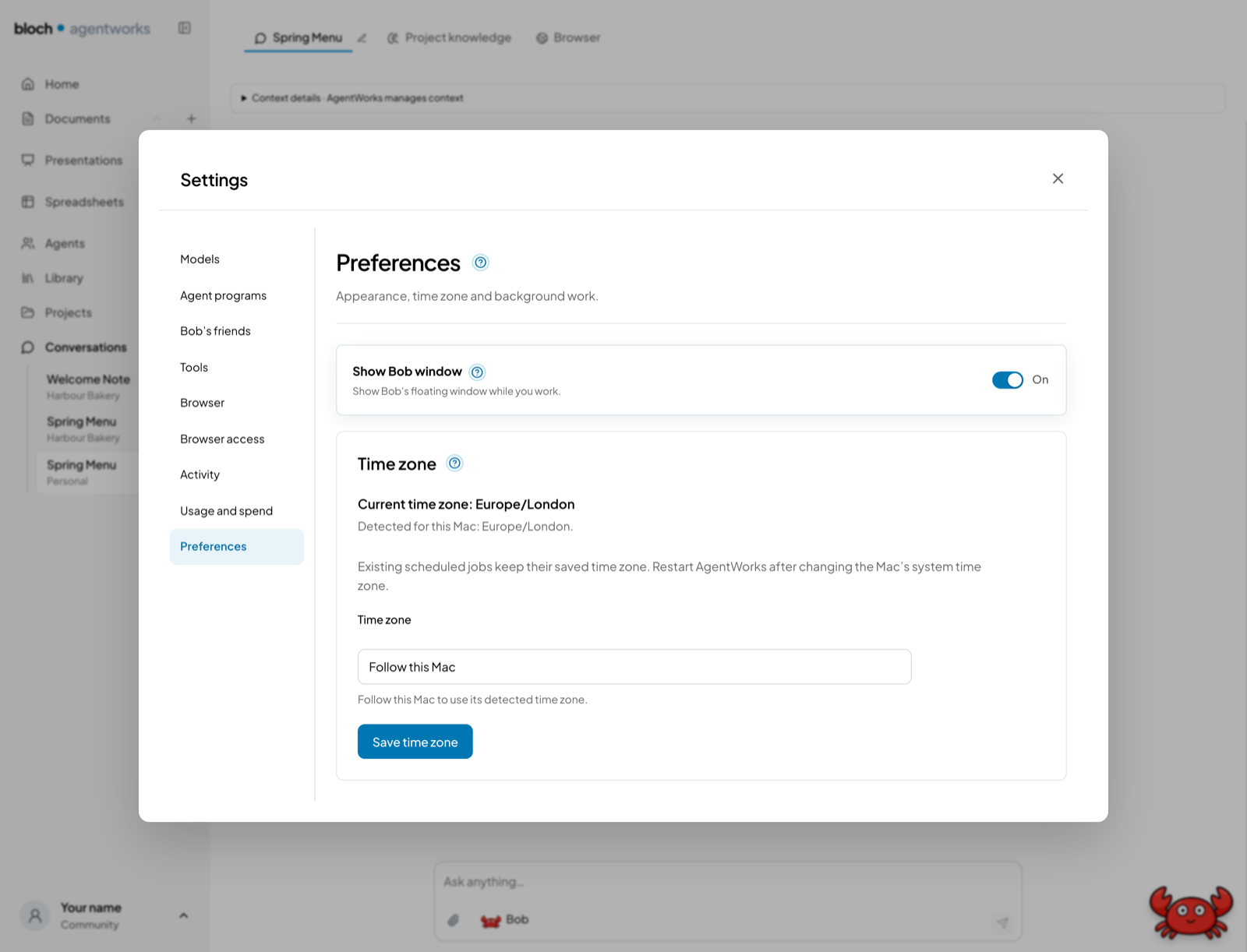 Preferences opens with the Show Bob window switch and the time zone card.
Agent skills are on the agent’s page
To choose what Bob may do, open Agents → Your Agents → Configure Bob → Skills. For a specialist, select Edit on its card. Settings connects services; the agent’s page assigns access to them.
The agent editor separates Tool access from Task skills. Tool access cards show linked resources, available operations and missing prerequisites. Under a verified Friend identity's Permissions tab, choose the help that identity may request and select a separate subset under Task skills for this identity. A Friend task skill does not grant a tool. See Skills and permissions.