Web search and the browser
Bob can search the web for current information and open web pages to read them. This page explains what is sent when he does, how to switch search off, and how to control which websites he can read.
Web search
Built-in web search is on by default. When Bob decides a question needs it, he sends a short search query to DuckDuckGo (web results) and Wikipedia. Blochworks refuses queries containing email addresses, long number sequences or recognised key-like patterns. These checks do not identify every private detail. Names and ordinary words are sent as typed, so keep private details out of questions that might be searched.
A first public search in a clean conversation does not ask. After Bob has read outside content in the turn or conversation, a further search query needs your approval before it is sent. The full action shows the exact query. See When another web request asks first.
How you can tell Bob searched
A reply that used search starts with a box reading Searched the web for: and the words he searched, followed by one line per search engine, such as how many results it returned. A Wikipedia reference may follow, with a link. Bob's answer comes below. Treat the answer as a starting point and check anything important at the source.
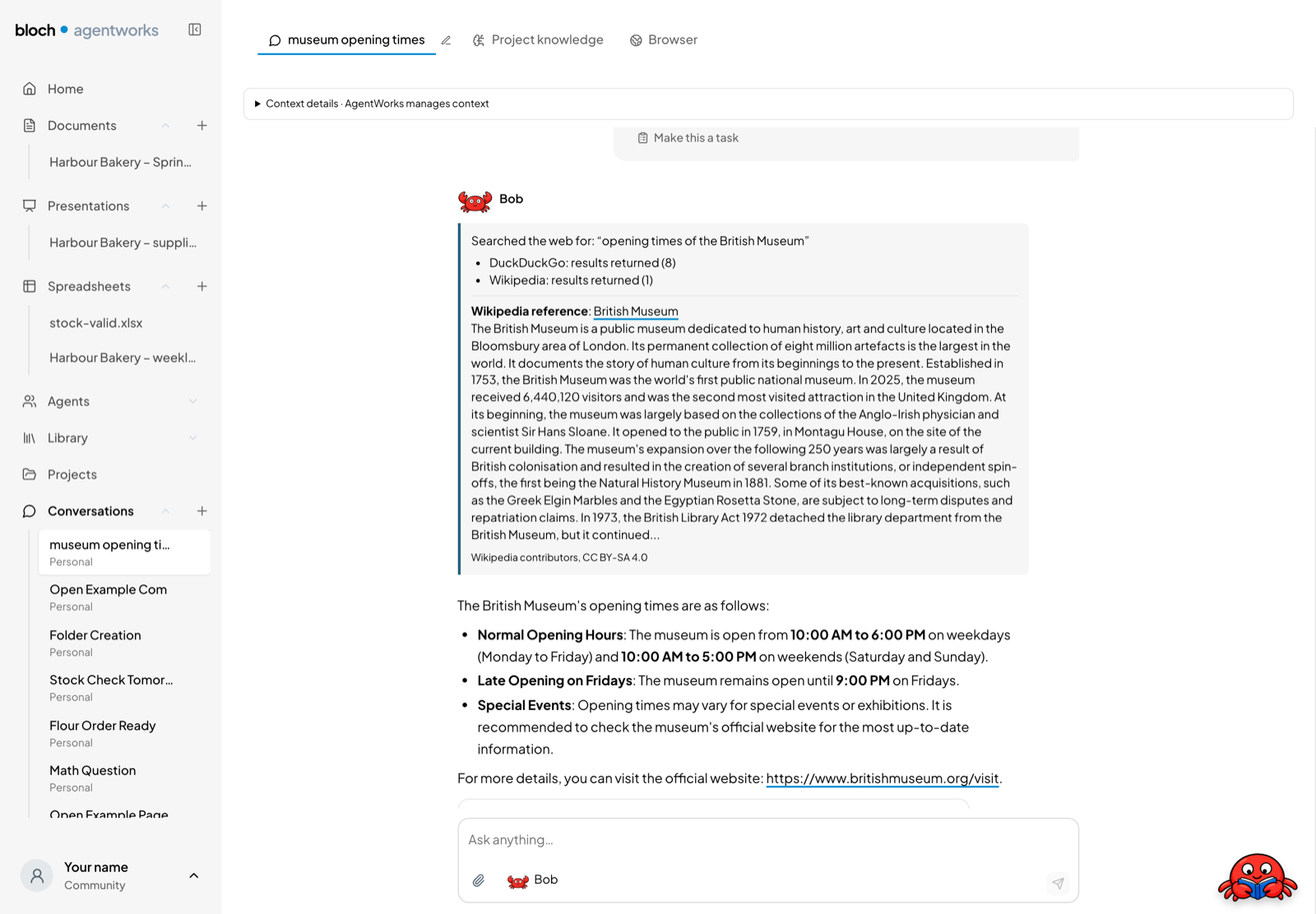 A reply that used search shows what was searched and what came back. The opening times in this example are only an illustration.
Turn search off
- Open Settings and select Tools.
- Find Built-in web search.
- Turn off Use built-in search.
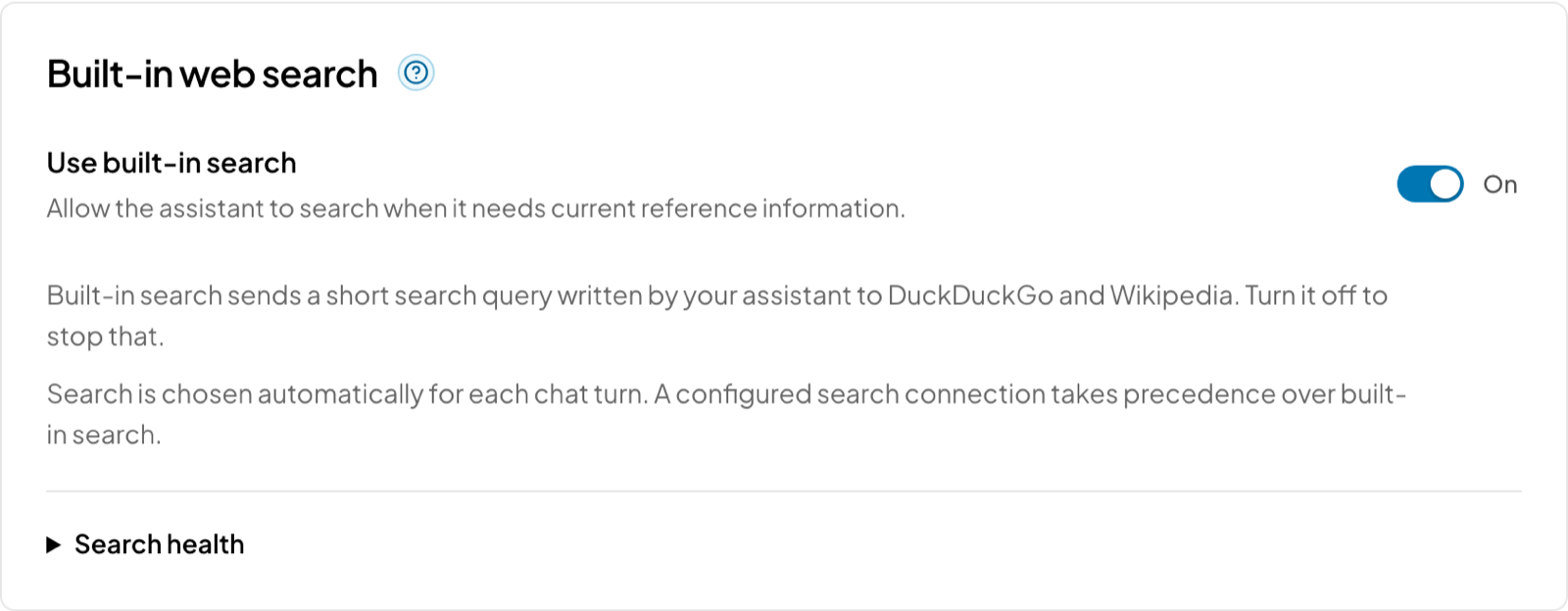 The switch is under Settings, Tools. Under it, Search health shows how recent searches went.
Turning it off stops built-in search only. It does not stop search connections you have added yourself, which are used in preference to built-in search while they are connected. It also does not stop Bob opening web pages (see below).
The Bonsai reference search switches under Settings → Models are separate. They do not turn built-in search off.
Search connections
You can add your own search service in Settings → Tools. When one is connected it is used instead of built-in search, and it works whether or not built-in search is on. Your search words go to that service, so check its privacy terms.
Separate Web Research and Browser actions skills
New Bob agents receive Web Research by default. Other agents need that skill to search or fetch public pages. Browser actions is a separate Bob-only Tool access skill for using Bob's browser. Assigning Web Research does not grant authenticated browser access, and assigning Browser actions does not silently grant Web Research.
Removing Web Research stops that agent's Blochworks public search and page-fetch tools, including a connected search service. Remove Browser actions separately to stop Bob's browser actions. The built-in search switch is narrower: it controls that search service only. Site restrictions and approval rules continue to apply to a permitted skill. Your own use of the Browser tab is separate from Bob's permissions.
The browser
Bob can open a web page in the Browser tab of a chat. You can use that tab yourself, too. It has two views, chosen by a switch at the top:
- Public web is a separate session with none of your logins. A first clean public read does not ask. A later outbound destination can need approval after outside content has entered the conversation.
- Signed-in websites is a separate private session where you sign in yourself. Bob cannot read it until you grant access to a particular site. Passwords and login codes are for you to enter.
Website access levels
Open Settings → Browser and choose Website access:
- Off: Bob may not read websites.
- Read public web: the usual choice, and the default. Private and local network addresses stay blocked.
- Only selected sites: Bob may read only the websites you list under Selected sites. Add at least one website first. Enter its name in the Add a destination box and select Add destination.
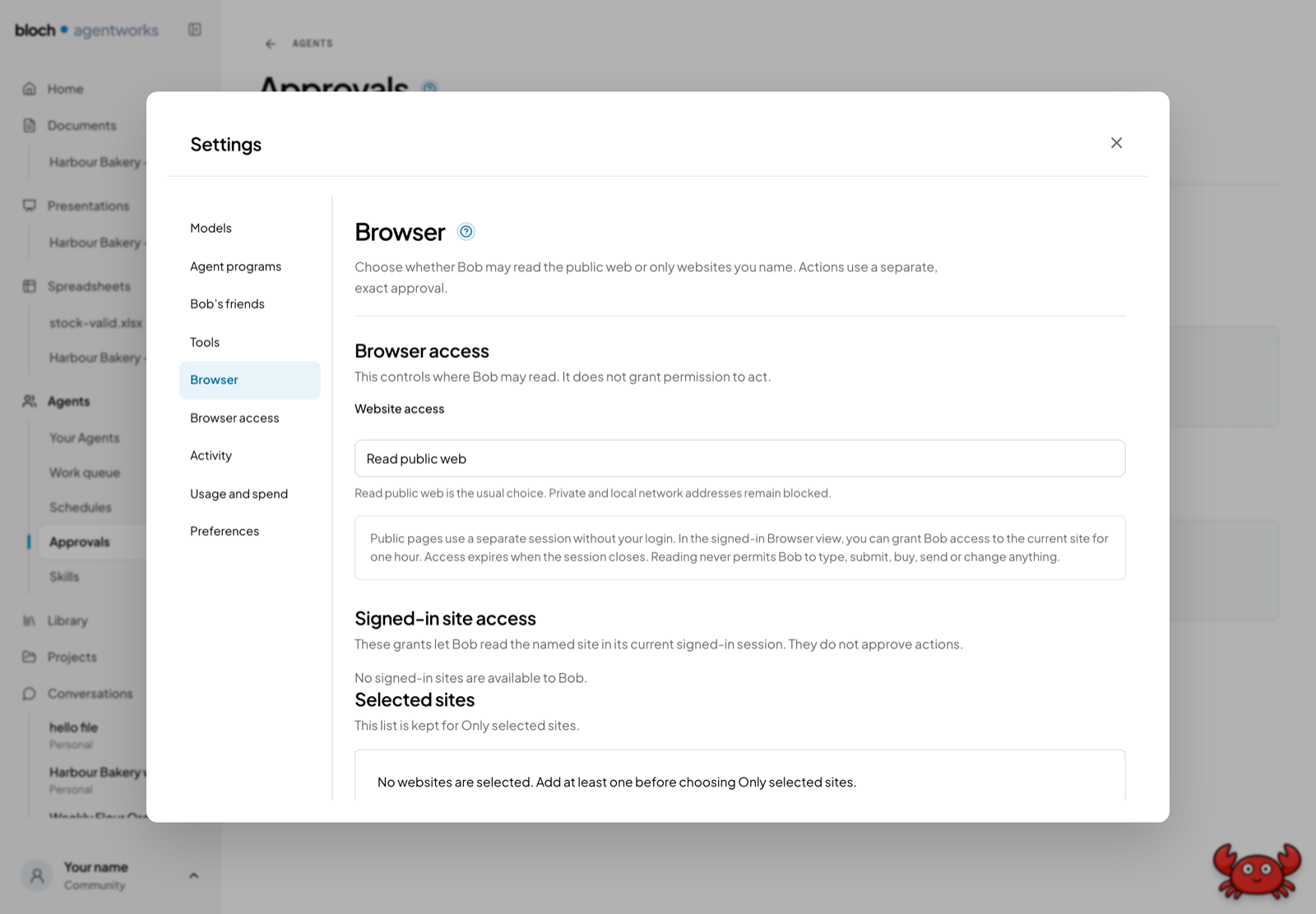 Website access decides where Bob may read. It never lets him act.
These settings control where Bob may read. They do not give him a Tool access skill or let him submit, buy, send or change anything without review. Those actions need your approval each time (see Approvals).
Letting Bob use a site you are signed in to
- In the Browser tab, switch to Signed-in websites.
- Sign in to the site yourself.
- Under Site access duration, choose 15 minutes, One hour or Four hours, then select Allow Bob on this site.
Bob can then read that site in your signed-in session. The grant is for that one site and ends when the time you chose is up, when the session closes, or if you close it with Close browser session. Closing the session also clears its logins and Bob's grants. You can review and revoke grants under Signed-in site access in Settings → Browser.
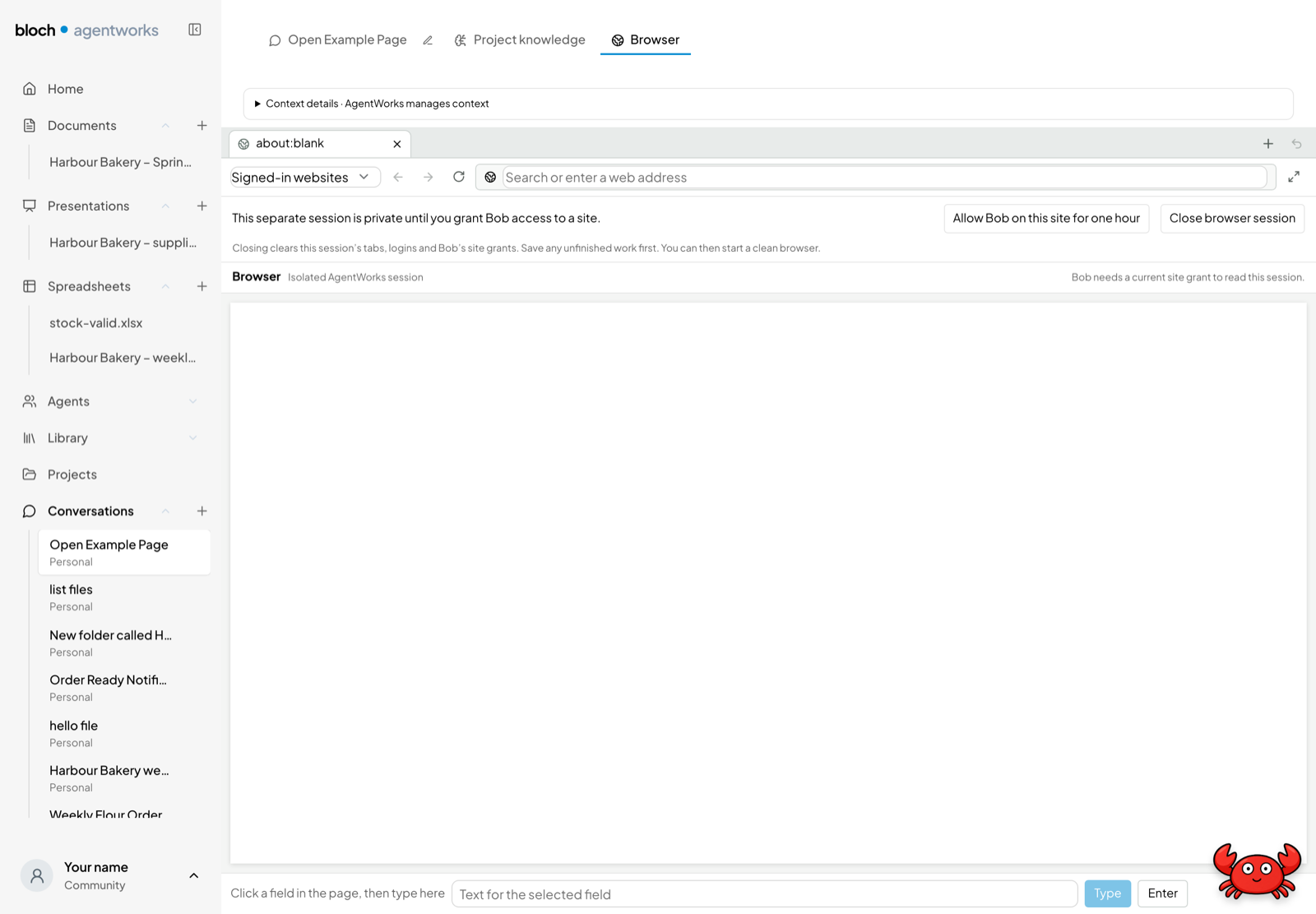 The signed-in view is private until you grant Bob access to a site.
Passwords, payments and forms
Bob will not enter passwords, login codes or card details. He leaves those for you to complete yourself in the Browser tab. Gmail and Outlook web pages are view-only for him, so a webmail Send button cannot get round the review of an email.
When another web request asks first
A first clean public search, page fetch or Browser navigation can run without a separate prompt. Once Bob has read outside content in that turn or conversation, a new outbound search query, page address or Browser navigation destination waits for your approval before the request. This also applies when the proposed request follows a previous web result. If no owner can review a held request, it is refused rather than sent unattended.
The approval card's short summary shows the destination host. Open the full action to inspect the exact search query or complete page address, including its path and query text. A Browser navigation also shows which browser profile and session it would use. Review those details before approving. If the destination or search changes, a fresh request is needed. A denied or withdrawn request, or a change to the search service or browser policy, cannot be run later from an old approval.
An approved page fetch cannot follow a redirect to a different exact address. An approved Browser navigation blocks redirects or subresources that leave the exact approved address; Bob must prepare another request for a different destination.
What needs your approval
- A first clean public search, fetch or navigation does not ask. A later outbound query or destination asks once outside content has entered the turn or conversation.
- Filling in and submitting a form, or any other change to a page, asks for approval. Bob prepares the whole set of steps and you review it once. If the page changes before you decide, the request is withdrawn.
What leaves your Mac
- Search queries go to DuckDuckGo and Wikipedia, or to your search connection.
- When Bob opens a page, the website sees the visit like any browser. A web address can carry text, so treat opening a page like a search.
- The model Bob uses sees what he reads. If it is a cloud model, that goes to the provider.
Limits and good to know
- A link or redirect that lands on a different website from the one Bob opened clears the page. Bob has to start again from the new site once, rather than carrying on.
- If a page is flagged for instructions aimed at Bob, he stops and asks you to confirm the task. This check does not make every page trustworthy; review the action being proposed.
- The Browser tab does not always show a page Bob has opened. Do not rely on it as proof. Check the answer yourself.
- The Browser needs Google Chrome or Chromium installed on your Mac.
- Idle browser sessions close after 30 minutes.