Where your data goes
Blochworks runs on your computer. You choose which AI sees your work.
Blochworks keeps its workspace records on your computer. The features below can send information to services or devices you use, where separate copies may be kept. The desktop app does not send usage telemetry or crash reports to Blochworks and does not check for updates.
Destinations and controls
| What | Where it goes | When | How to stop it |
|---|---|---|---|
| Your messages, attached files, and anything Bob includes from your documents, memory or search results | The cloud model service you connected (for example Claude, OpenAI or Gemini), or a model server on another computer | Every time Bob uses that model | On a Mac, use a built-in model or a server on this Mac. On Windows, connect a compatible model server running on the same PC instead |
| Search queries written by Bob | DuckDuckGo and Wikipedia | When Bob decides a question needs the web. On by default; a later query after outside content has entered the conversation needs owner review before sending | Settings → Tools → Built-in web search, then turn off Use built-in search |
| Web pages Bob fetches for public research | The website itself. The address can carry text | A first clean public read can run without a prompt. A new outbound address after outside content has entered the conversation needs owner review | Review Settings → Browser and remove that agent's Web Research Tool access |
| Sites Bob uses through Browser actions | The website itself and, for signed-in sites, your selected session | A first clean navigation can run without a prompt. Later outbound destinations after outside content has entered the conversation, and consequential actions, require review | Remove Bob's separate Browser actions Tool access, revoke signed-in grants or change website access |
| Services you connect: Gmail or Outlook, Telegram, managed Obsidian vaults, tool servers and outside memory services | That service or, for a local vault, the selected folder | Reads and draft preparation can contact the service before approval. Sends and changes follow the relevant approval or standing-permission settings | Remove the assignment or connection and review the matching Tool access skill |
| Search services you configure, such as Brave Search or SearXNG | Your chosen search provider | When an agent with Web Research searches. Friend use also needs Bob's skill, the identity's public-research help permission and an eligible provider. A request needing owner review cannot run unattended | Disconnect that search service; remove Web Research or the Friend's research permission to stop the corresponding use |
| A built-in Bonsai model file on a Mac | Downloaded from Hugging Face | Once, when you select Download model | Do not download a built-in model, or use a service you already have |
| Approval requests, if you choose Telegram | Telegram | Each request, including its text | Under Configure Bob → Platforms, set Approval prompts to On this device |
| Home's mail and calendar summary | Your mail or calendar provider is contacted to read recent and flagged messages (subjects and previews) and the next seven days of events. Nothing is sent to a model | When you open or refresh Home, if an email or calendar connection is enabled. It does not need the connection to be assigned to Bob | Disable or remove the email or calendar connection in Settings → Tools |
| Emailed job results | Your selected sender service and saved recipient | When an eligible job produces a result and emailed results are enabled | Turn off Email me job results in Settings → Preferences |
| Material used by a connected coding program | The program’s own model service and tools | According to that program’s configuration | Change its native permissions or stop using the connection |
| Workspace pages and data viewed remotely | Approved devices over your Tailscale network | While Browser access is enabled and the browser’s approval is valid | Turn off Browser access or remove the browser’s approval |
Blochworks refuses built-in search queries containing email addresses, long number sequences or recognised key-like patterns. It does not identify every private detail: names, places and ordinary words are sent as written, so they can still contain private information if Bob includes them in a query.
Turning built-in search off does not stop search services you have connected yourself, and it does not stop Bob opening web pages.
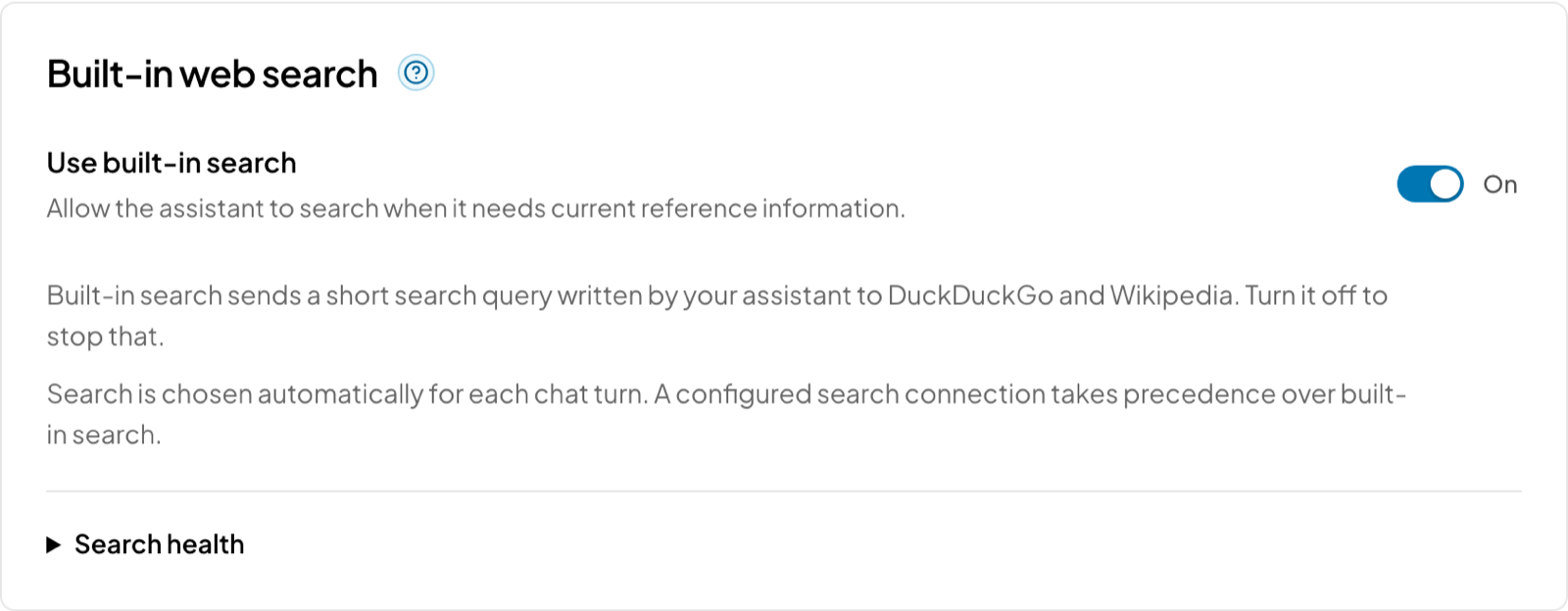 The switch under Settings, Tools. The Bonsai reference search switches under Models are separate and do not turn it off.
How to keep everything as local as possible
- Use a model that runs on this computer. On a Mac, choose a built-in Bonsai model or connect Ollama or LM Studio. On Windows, connect a compatible local server that you run separately. Check that its API address points to this computer; a server elsewhere receives the work sent to it.
- Turn off Use built-in search as above.
- Do not connect email, calendar, Telegram, tool servers or search services.
- Leave Browser access off and avoid connected coding programs that use outside services.
- Remove Web Research from Bob and other agents to stop their Blochworks public research tools. Remove Bob's separate Browser actions skill to stop his browser use. This does not prevent you from browsing manually.
Other copies and services
- Opening a web page still contacts that site, even with search off.
- A built-in model download on a Mac comes from Hugging Face, which sees your internet address and the download request, but not your chats.
- A local model on its own does not stop searches. Search is a separate switch.
- On a Mac, coding agents you connect run as programs with your Mac permissions. What they send is up to the agent and the service behind it. This guide does not establish Windows support for those programs.
- Files you save out of the app, and backups you make, are outside Blochworks's control.